
PDF Generation Template Editor
Open-source visual PDF generation engine with customizable templates and developer-friendly APIs.
ComPDF Conversion SDK provides an API for converting PDFs to images. Integrate ComPDF Conversion SDK to your apps to convert PDF into images easily.
In ComPDF Conversion SDK, supported image formats include:
Supported image color modes in ComPDF Conversion SDK include:
The SDK supports setting image scaling. The default scaling is 1.0, which maintains the original PDF page size. If you want to double the image size, you can set ImageScaling to 2.0; similarly, to reduce the image size by half, set ImageScaling to 0.5.
The SDK supports an option called ImagePathEnhance for enhancing the display of image paths. This option can be enabled when you want to enhance the display effect of paths within the PDF page.
Do not enable the ImagePathEnhance option (original PDF rendering effect):
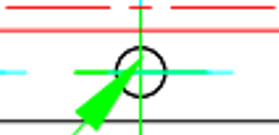
Enable the ImagePathEnhance option:

ImageScaling value results in images with higher resolution, but it also increases memory usage and slows down the conversion.ImageScaling value does not necessarily equate to higher clarity; the clarity also depends on the original image resolution in the document.This sample demonstrates how to convert from a PDF to Image file.
inputFilePath := "***"
password := "***"
outputFileName := "***"

imageOptions := compdf.NewImageOptions()
err := compdf.StartPDFToImage(inputFilePath, password, outputFileName, imageOptions, nil)