
If you have ever opened a full-size construction plan set in a browser, you already know the problem. Architectural and engineering PDFs combine everything that stresses a web-based PDF viewer at once:
-
Large sheet sizes. A single plan sheet is often drawn at ANSI D (22"×34"), ARCH E (36"×48"), or larger. Zooming from "fit to page" down to a door detail is a 10–20× magnification jump, and the viewer must re-render sharp line work at every level.
-
Scanned raster content. Older plan sets, permit drawings, and archive sheets are usually scans — full-page images with no text layer. Rendering these is memory-heavy, and low-quality zooming makes them unreadable.
-
Mixed vector and raster. Modern CAD exports mix vector line work, hatches, embedded raster images, and fonts. A viewer that handles plain text documents well can still struggle here.
-
File size. Multi-sheet sets and high-DPI scans regularly reach 40–60 MB per file, and city GIS or survey attachments can go well beyond that.
For AEC (architecture, engineering, and construction) teams building web-based plan review, bid management, or field-access tools, the rendering engine underneath the viewer directly affects whether drawings are usable on the job. So we ran a controlled comparison of five widely used PDF viewer solutions — ComPDF, PDF.js, Apryse, Nutrient, and Foxit — on documents of exactly this type, and this article reports what we measured.
The Results at a Glance
Across the full 12-document test corpus (which includes drawing-style files alongside books, reports, and papers), each product received the following win rate — the share of scenario comparisons in which the product ranked first, or very close to first, under the scoring model used in this test:
Table 1. Win rate observed in this test (full 12-file corpus)
|
Product |
Win rate in this test |
|---|---|
|
ComPDF |
67% |
|
PDF.js |
60% |
|
Apryse |
44% |
|
Nutrient |
40% |
|
Foxit |
26% |
These percentages describe the entire corpus, not a drawing-only ranking — the raw per-file data behind the drawing scenarios is summarized in the "Measured Results" section below. Results reflect the files, versions, and environment described in this article and should not be read as a universal performance guarantee.
How We Tested
The comparison used a fixed, publicly verifiable protocol:
-
Drawing-relevant test files. From the 12-file public corpus, the drawing-style documents were: the USDA farmhouse plan sheets (a scanned set of architectural plan drawings, about 47 MB, from the Internet Archive), a USGS oversized single-sheet geologic map (about 58 MB — the closest public equivalent to a full-size plotted sheet), and a second USGS geologic map sheet. These cover the two hardest cases for a viewer: scanned raster plans and oversized single-page vector/image drawings.
-
Scenarios. Document open, fast scrolling at 100–200% zoom, zoom to 300% and recovery of sharp content, zoom back to fit, jumping to a middle or final page, and continuous paging. The measured metric was the time until sharp content was displayed, observed throughout each interaction.
-
Protocol. Every scenario was executed 3 times per file per product under identical conditions — same machine, browser, and network at the same time — for 180 scenario comparisons across the corpus.
-
Provenance. All test files are publicly downloadable; sources and licence attributions were recorded and last verified on 2026-11-05.
Measured Results on Drawing-Type Files
Within this test environment, the drawing-relevant observations were:
-
Zoom to 300% on scanned plan sheets. On the USDA farmhouse plan scans, ComPDF restored sharp content in 94 ms in the recorded runs — the leading result among the five tested products on this file. The same scan also stayed fully rendered while scrolling: in the fast-scroll run at 100% shown in Figure 1, the ComPDF panel recorded 0% blank frames, while PDF.js recorded about 8% blank frames during the same scroll.
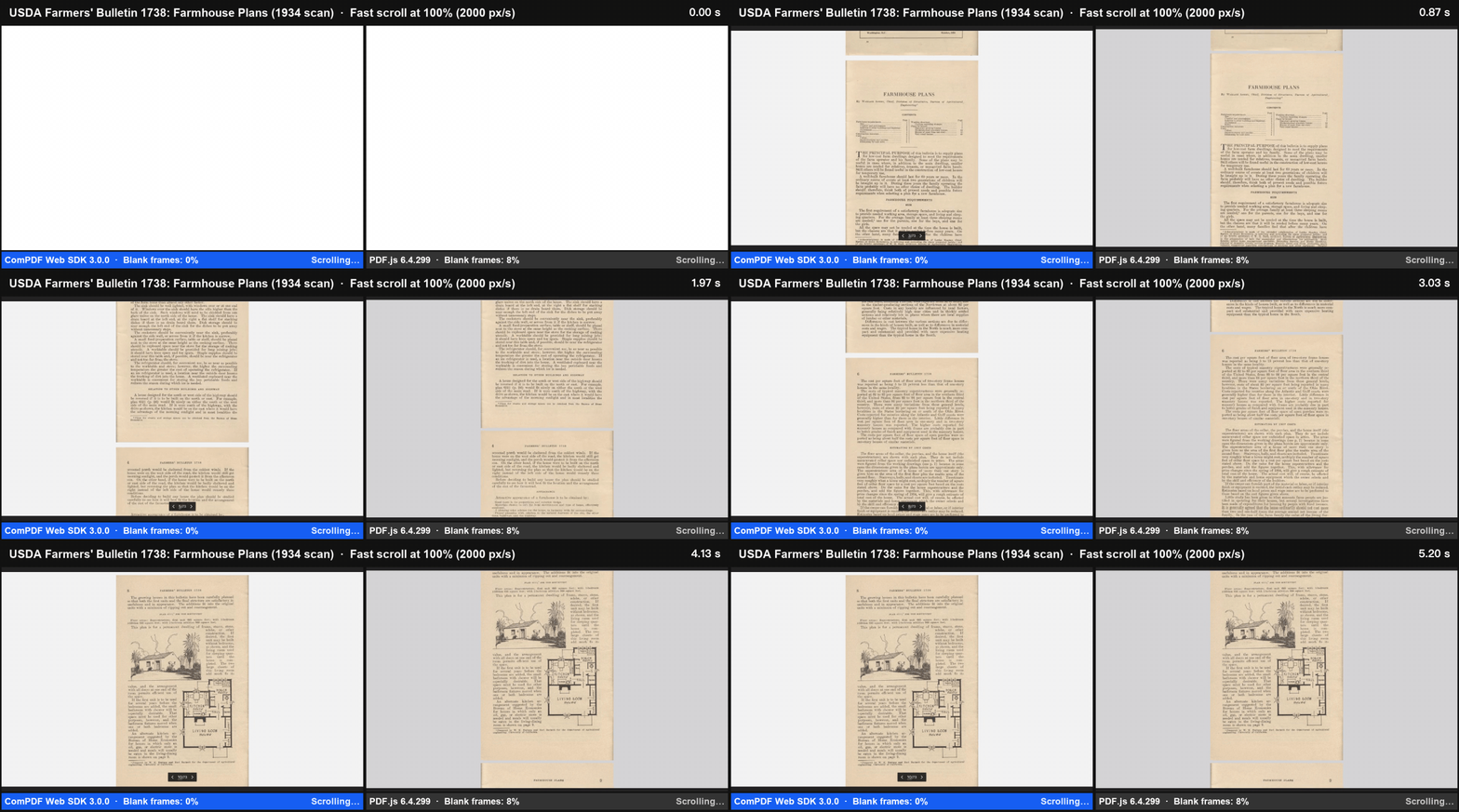
Figure 1. Fast scroll at 100% on the USDA Farmhouse Plans scan (1934), ComPDF (left) vs PDF.js (right): ComPDF recorded no blank frames while PDF.js showed about 8% blank frames during the scroll. Panel labels show the tested versions.
-
Oversized single-sheet drawings. On the ~58 MB USGS sheet, ComPDF recovered sharp content in 189 ms after zooming to 300% in the recorded runs — in the run shown in Figure 2, the ComPDF panel had already restored the sharp map while the PDF.js panel was still rendering the same view. During fast scrolling at 200% zoom, ComPDF showed no blank or visibly unfinished regions across all 3 recorded runs, while PDF.js and Apryse recorded 85% and 97% blank frames respectively in the run shown in Figure 3.

Figure 2. Zoom to 300% on the 58 MB USGS Bedrock Geologic Map of Vermont sheet (5544×3888 pt), ComPDF (left) vs PDF.js (right) — recovery of the sharp view after the zoom, as recorded in the test.
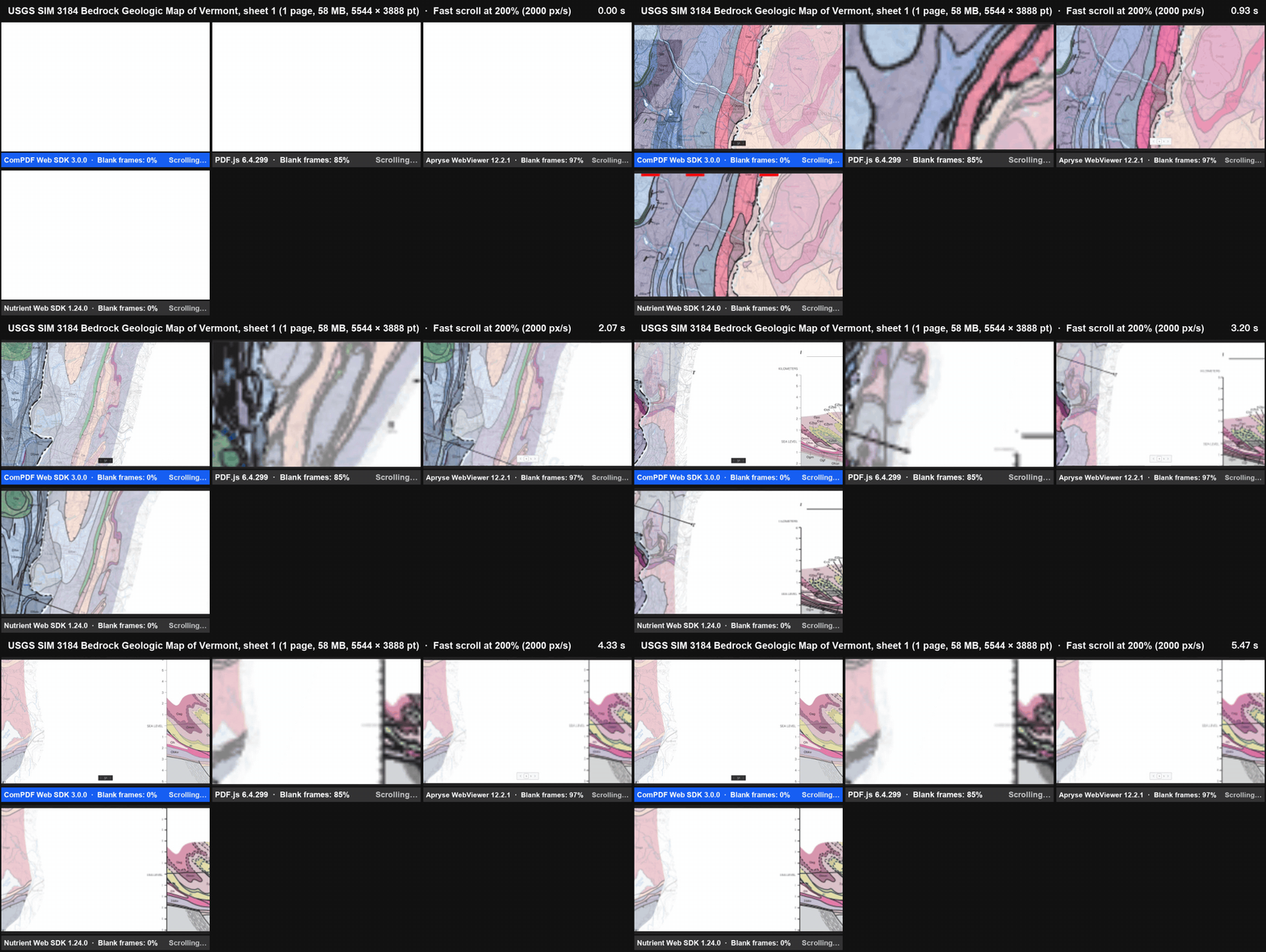
Figure 3. Fast scroll at 200% on the 58 MB USGS Bedrock Geologic Map of Vermont sheet across all five tested products; panel labels record each product's blank-frame percentage during the scroll, as captured in the test run shown.
-
Zoom-back to reading size. After zooming in, ComPDF returned to fit-size view at the fastest or tied-fastest level among the tested products on all 12 corpus files.
-
Navigation across large documents. In the wider corpus, ComPDF jumped to a middle page fastest in 18 of the 20 comparable jump scenarios (for example, 52 ms on a 9,302-page file), and displayed sharp pages immediately after continuous paging sequences on the scanned book.
These are the drawing-relevant slices of a larger test. We recommend validating against your own plan sets — sheet sizes, scan quality, and CAD export settings all move the numbers.
Competitor-by-Competitor Observations
The observations below are scoped to this test and describe relative performance within it, not general product quality.
Products and Environment Under Test
Table 3. Products compared in this test (exact versions tested are listed below)
|
Product (full name) |
Type |
Version tested |
|---|---|---|
|
ComPDF for Web (ComPDFKit Web Viewer SDK, @compdfkit_pdf_sdk/webviewer) |
Commercial SDK |
3.0.0 |
|
PDF.js (Mozilla, open-source renderer) |
Open source |
6.4.299 |
|
Apryse WebViewer (formerly PDFTron) |
Commercial SDK |
12.2.1 |
|
Nutrient Web SDK (formerly PSPDFKit) |
Commercial SDK |
1.24.0 |
|
Foxit WebPDF SDK |
Commercial SDK |
11.1.1 |
Test environment: all five products were tested on the same machine, in the same browser version, over the same network, during the same session.
-
Hardware: a MacBook with an Apple M4 chip and 16 GB of RAM, running macOS 15.5.
-
Browser: Google Chrome 157.0.8103.79 in a 1440×900 window at device pixel ratio 2, with background throttling disabled.
-
Test Methods: Every product × file × round combination ran in a fresh Chrome instance with a cold cache; each combination ran 3 times and tables reported the median.
-
Network: Test files were served from a local HTTP server with HTTP Range support and no bandwidth throttling.
ComPDF — 67% (Highest Score in This Test)
ComPDF for Web received the highest score in our test set, and on the drawing-style files specifically its measured results led the zoom-recovery and scroll-continuity scenarios described above. Relevant to AEC use cases:
-
Page-level, on-demand rendering kept large scanned sets interactive in the tested scenarios.
-
Brandable prebuilt viewer UI — annotations, form support, and document-display controls ship in the same SDK package; exact features depend on the licence tier, so confirm against the current pricing page.
-
Integration — official React and Next.js guides and an explicit static-resource path option made setup straightforward in the tested setup.
Trade-off: ComPDF is a licensed commercial product with a free trial, so it is not the choice if an open-source licence is a hard requirement.
PDF.js — 60% (Open Source)
Mozilla's open-source renderer is the default choice when licence freedom is non-negotiable, and it handles the text-document portion of the corpus reliably. On the drawing-style files, smooth performance at high zoom required manual optimization work in this test — virtualization, worker tuning, and tiling strategies — that commercial SDKs in the comparison handled out of the box. Features like annotation and measurement tools for plan review must be built and maintained by your team. Figure 4 captures this gap in one recorded run: after zooming to 300% on the same 58 MB USGS sheet, the ComPDF panel had already restored the sharp map while the unoptimized PDF.js viewer was still rendering the same view.

Figure 4. Zoom to 300% on the 58 MB USGS Bedrock Geologic Map of Vermont sheet (5544×3888 pt), ComPDF (left) vs PDF.js (right) — recovery of the sharp view after the zoom, as recorded in the test.
Apryse — 44%
Apryse (formerly PDFTron) is a mature commercial SDK with strong enterprise pedigree. Its rendering of the drawing files was accurate in this test, but time-to-sharp-content after zooming on the oversized sheets was slower than ComPDF's measured result, and reaching the same baseline required more configuration code. It remains a credible option for AEC platforms already invested in its ecosystem.
Nutrient — 40%
Nutrient (formerly PSPDFKit) offers a polished viewer and documented cross-platform consistency. In this web-rendering test it landed mid-pack on the drawing-style files — solid on standard documents, and slower than the leading measured results on the scanned plan sheets and the oversized map sheet. Pricing should be evaluated against your product stage and deployment model. The paging scenario in Figure 5 reflects this gap on scanned books: in the recorded run on the 406-page scanned Embryology textbook, ComPDF had the last page fully clear in 3.06 s, while the Nutrient panel reached a clear last page in 9.91 s.
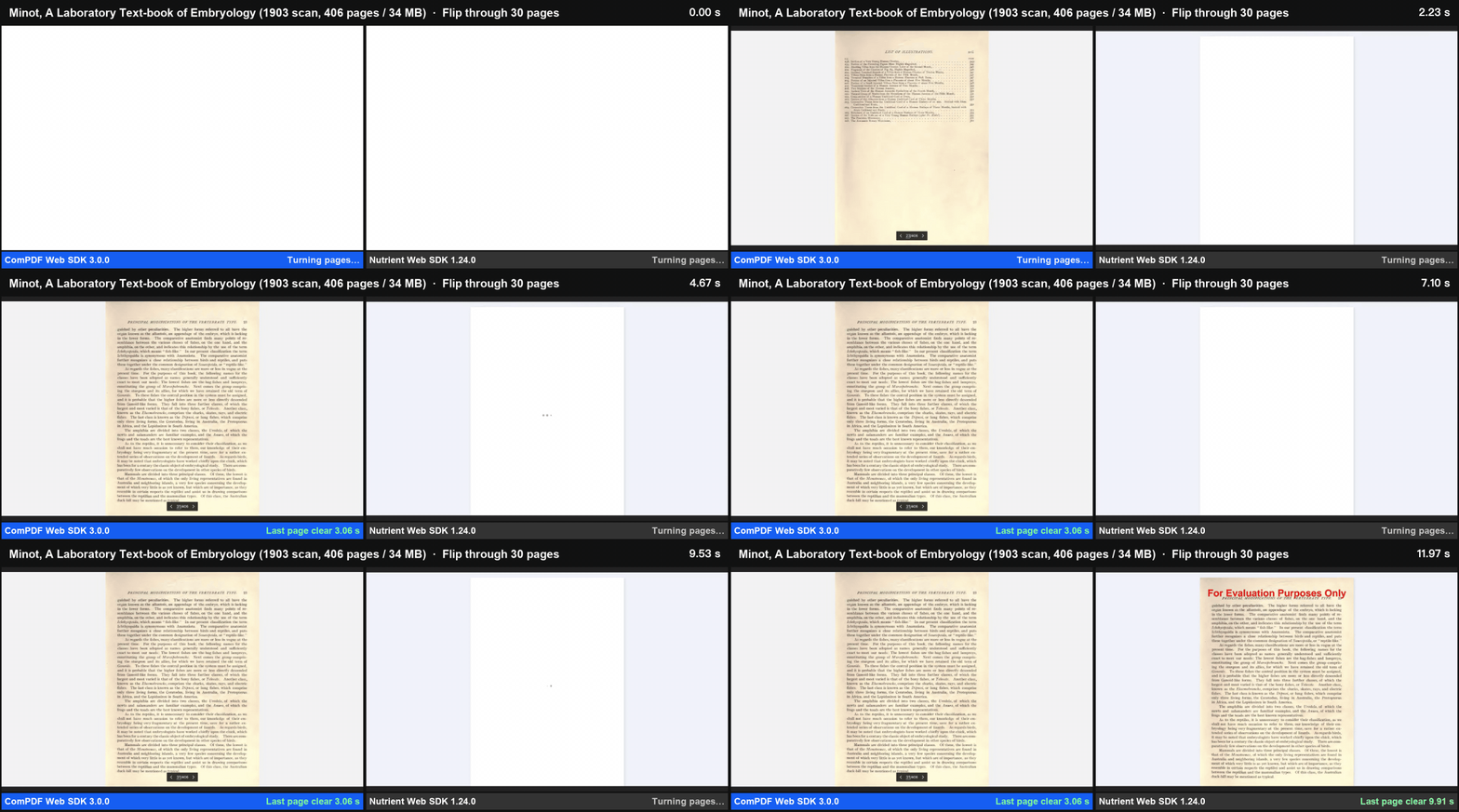
Figure 5. Flipping through 30 pages in the 406-page scanned Embryology textbook (1903, 34 MB), ComPDF (left) vs Nutrient Web SDK (right), as recorded in the test.
Foxit — 26%
Foxit's web SDK benefits from the company's desktop PDF heritage. Under the scoring model used in this test, it received the lowest score: its measured render times were lower than the other tested solutions in most scenarios in this test, and memory usage grew more during long navigation sessions in the recorded runs. Teams with existing Foxit agreements may still shortlist it — we recommend validating these results against your own drawing files before deciding.
What Matters Most for Architectural Drawing Viewers
However you choose, evaluate candidates on the dimensions this test measured:
-
Zoom fidelity and recovery time. Reviewers live between "fit to page" and detail zoom. Measure the time to sharp content at 300%, not just first paint. In the zoom-to-300% run on a USGS geologic map sheet shown in Figure 6, ComPDF was the first of the five products to a clear view (0.18 s in the recorded run), ahead of PDF.js (0.32 s), Foxit (0.38 s), Apryse (0.57 s), and Nutrient (0.59 s) on the same machine.

Figure 6. All five tested products zoomed to 300% on a USGS geologic map sheet (SIM 3268 Glen Canyon Dam, 3021×3960 pt); panel labels show the versions used in this test.
-
Continuous scroll on large sheets. Blank regions while scrolling a 50 MB scanned sheet break the review flow. Test with your heaviest real file. In the 30-page paging run shown in Figure 7, ComPDF was the first of the five products to render a clear last page (3.06 s in the recorded run), ahead of Apryse (3.66 s), PDF.js (4.82 s), Foxit (5.21 s), and Nutrient (9.91 s) on the same machine.
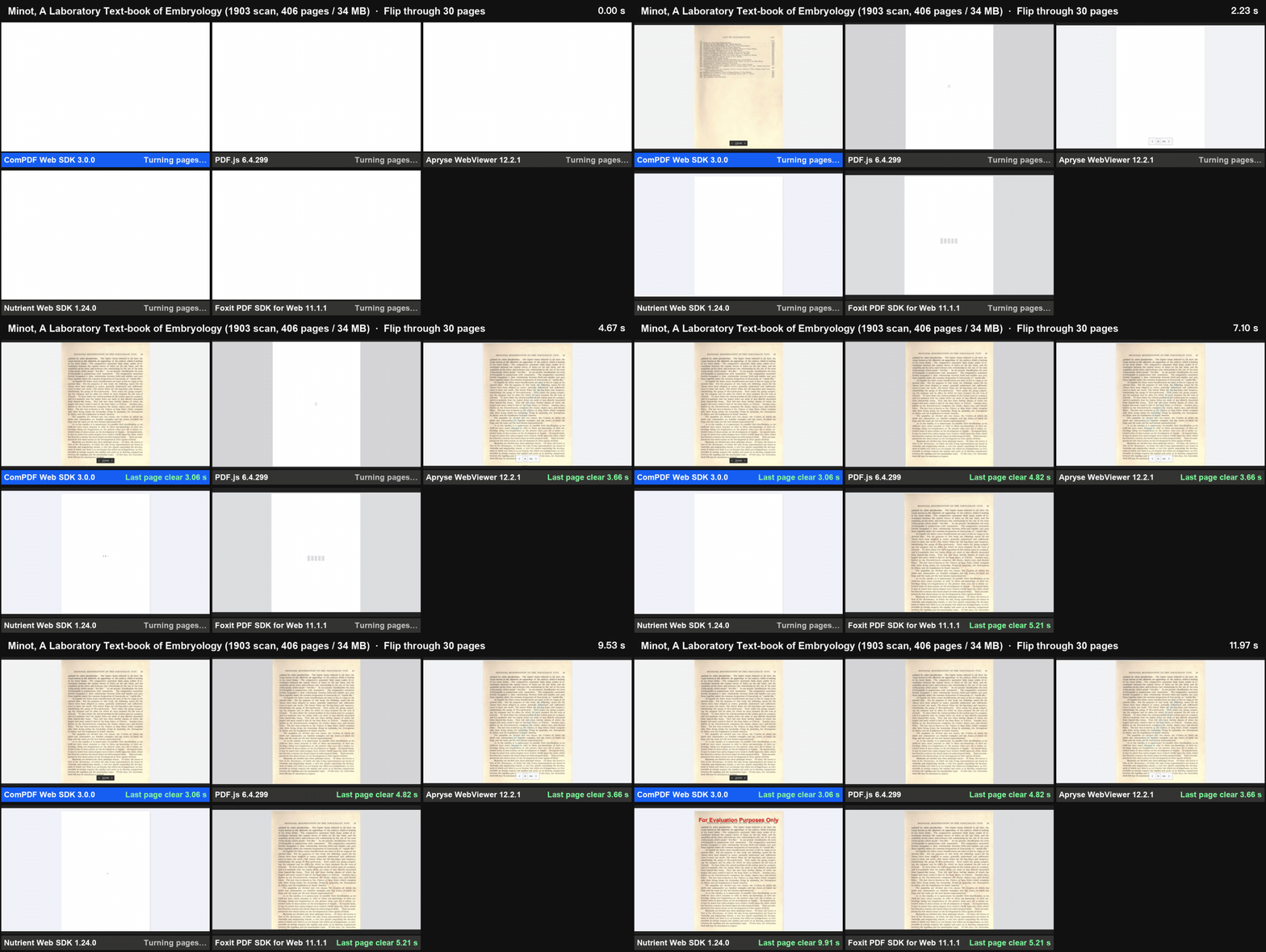
Figure 7. Flipping through 30 pages in the scanned Embryology textbook (406 pages, 34 MB, 1903) across all five tested products, as recorded in the test.
-
Memory behavior over long sessions. Plan reviewers keep a viewer open all day; growth over hours matters as much as peak speed.
-
Scanned-file handling. Archive plan sets are usually image-only PDFs. Rendering speed on scans is a different engineering problem than vector line work.
-
AEC workflow features. Markup, measurement, compare-revisions, and print scaling — decide whether these ship in the SDK or must be built.
How to Choose
-
Choose ComPDF if you need a streamlined integration path and strong measured performance on scanned and oversized drawing files in our test set.
-
Choose PDF.js if an open-source licence is non-negotiable and you can invest in building and maintaining drawing-viewer features yourself.
-
Choose Apryse or Nutrient if your platform already sits in their ecosystems and their pricing fits your stage.
-
Choose Foxit if an existing Foxit agreement dominates your decision — and validate against your own plan sets first.
Why Choose ComPDF to Render PDFs?
-
Fast to sharpen at high zoom: At 300% zoom, the USDA scanned drawing sharpens in 94 ms; the Glen Canyon geological map demo takes 0.18 s — the fastest among the five products in that round.
-
No image interruption during fast scrolling: Fast-scrolling the USDA scanned drawing at 100% zoom, ComPDF shows 0% blank frames, vs. ~8% for PDF.js; fast-scrolling the 58 MB single-page geological map at 200% zoom, no blank frames across all 3 rounds.
-
Fast return to full-page view: Across 12 test files, ComPDF restores fit-to-page view at the fastest or tied-fastest speed every time.
-
Fast page jumps in very long documents: Fastest in 18 of 20 comparable page-jump scenarios; in a 9,302-page file, jumping to a middle page takes 52 ms.
-
Target page sharpens quickly after continuous page-turning: In a 406-page, 34 MB scanned book, after flipping through 30 pages continuously, ComPDF makes the final page fully sharp in 3.06 s — the fastest among the five products in the demo round.
-
Page-by-page, on-demand rendering of large scans: Viewing can begin without waiting for the entire document to render, helping multi-page scanned drawings stay responsive during browsing.
FAQ
What is the best PDF viewer for architectural drawings?
There is no universal answer — it depends on your files and constraints. In our controlled test on scanned plan sheets and oversized drawing files, ComPDF received the highest score in our test set, with PDF.js (open source) close behind on the overall corpus. Validate any shortlist against your own heaviest plan set before committing.
Can web viewers handle 50 MB+ scanned plan sets?
Yes, with the right rendering strategy: page-level on-demand rendering, tiling, and progressive loading keep large scanned files interactive. In our test, the ~47 MB scanned plan set and the ~58 MB single-sheet drawing remained responsive on the tested products that use these techniques; PDF.js can also handle them but typically needs manual optimization work.
Do scanned architectural drawings need OCR?
For rendering and viewing, no — a viewer displays scanned pages as images regardless of text. OCR becomes necessary when users need to search inside or extract text from archive scans, which is a separate processing step from display rendering.