
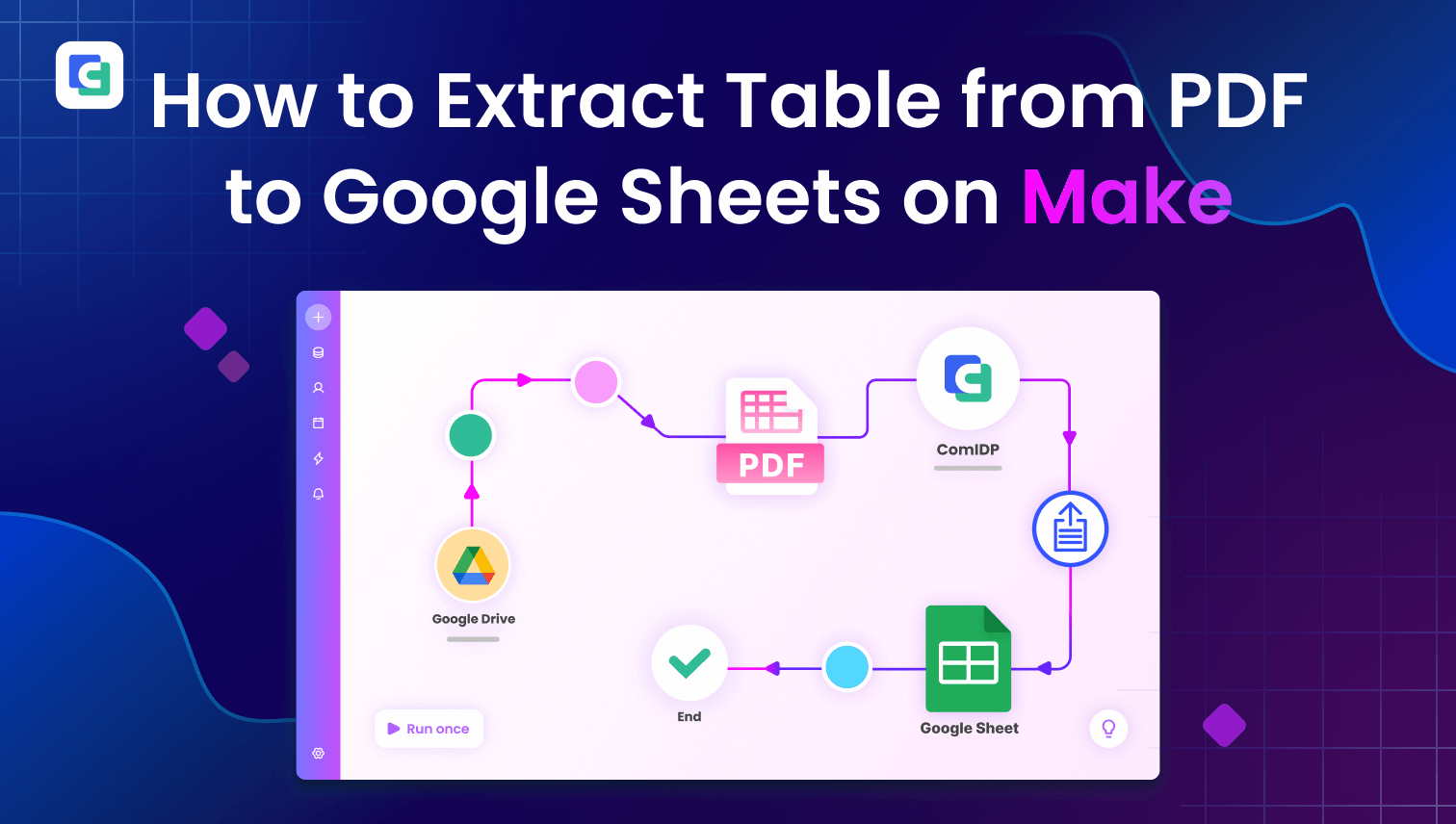
In work, we often need to extract tables from PDF files. However, copying and pasting the content often causes formatting issues, misaligned data, or even missing content. Therefore, creating an efficient and accurate PDF table extraction process is essential.
Follow the steps below to create an automated workflow to extract table from PDF to Google Sheets on Make.
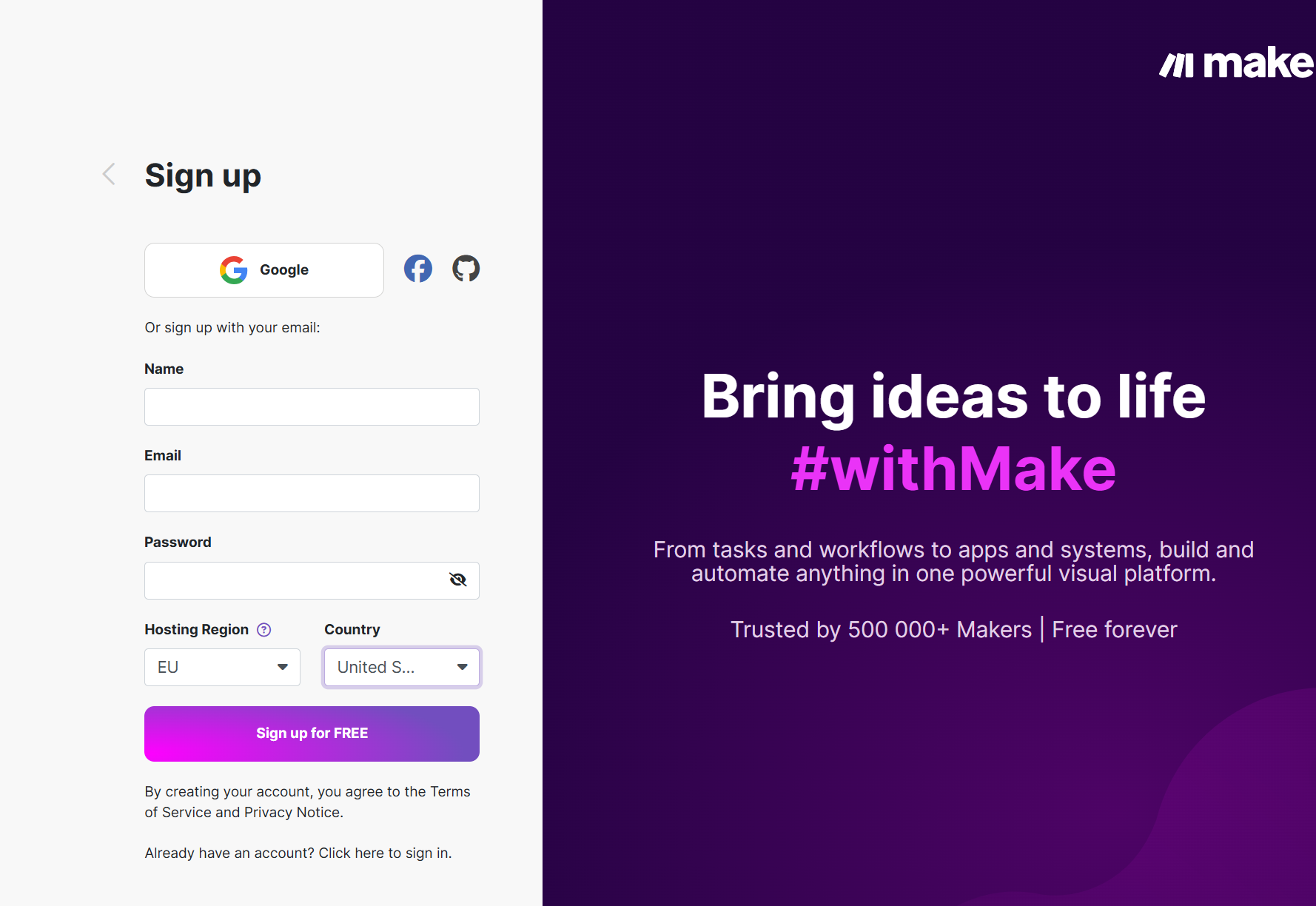
Step 1: Register a Make Account for Extracting Tables to Google Sheets
First, visit Make’s website and sign up for an account. If you already have an account, log in directly. Make offers a free plan, allowing you to test and set up automation workflows easily.
Step 2: Create a Scenario to Extract PDF Tables Automatically
In the Make dashboard, click on "Create a new scenario" to start building your automation workflow. A scenario is essentially a collection of tasks that Make will execute step-by-step based on your settings.

Step 3: Search ComPDF AI(ComIDP) on Make to Extract table from PDF
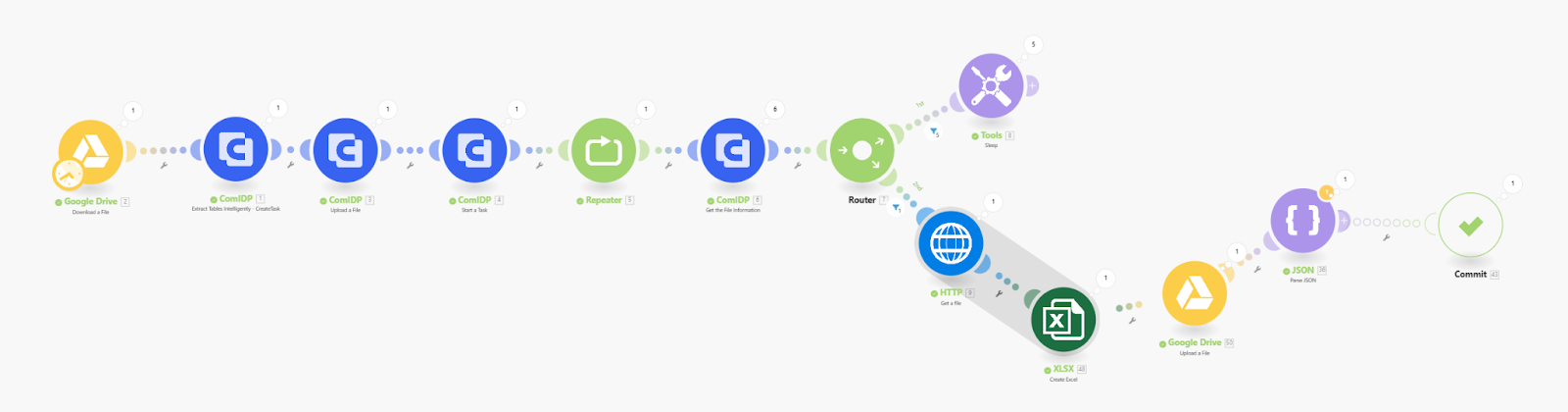
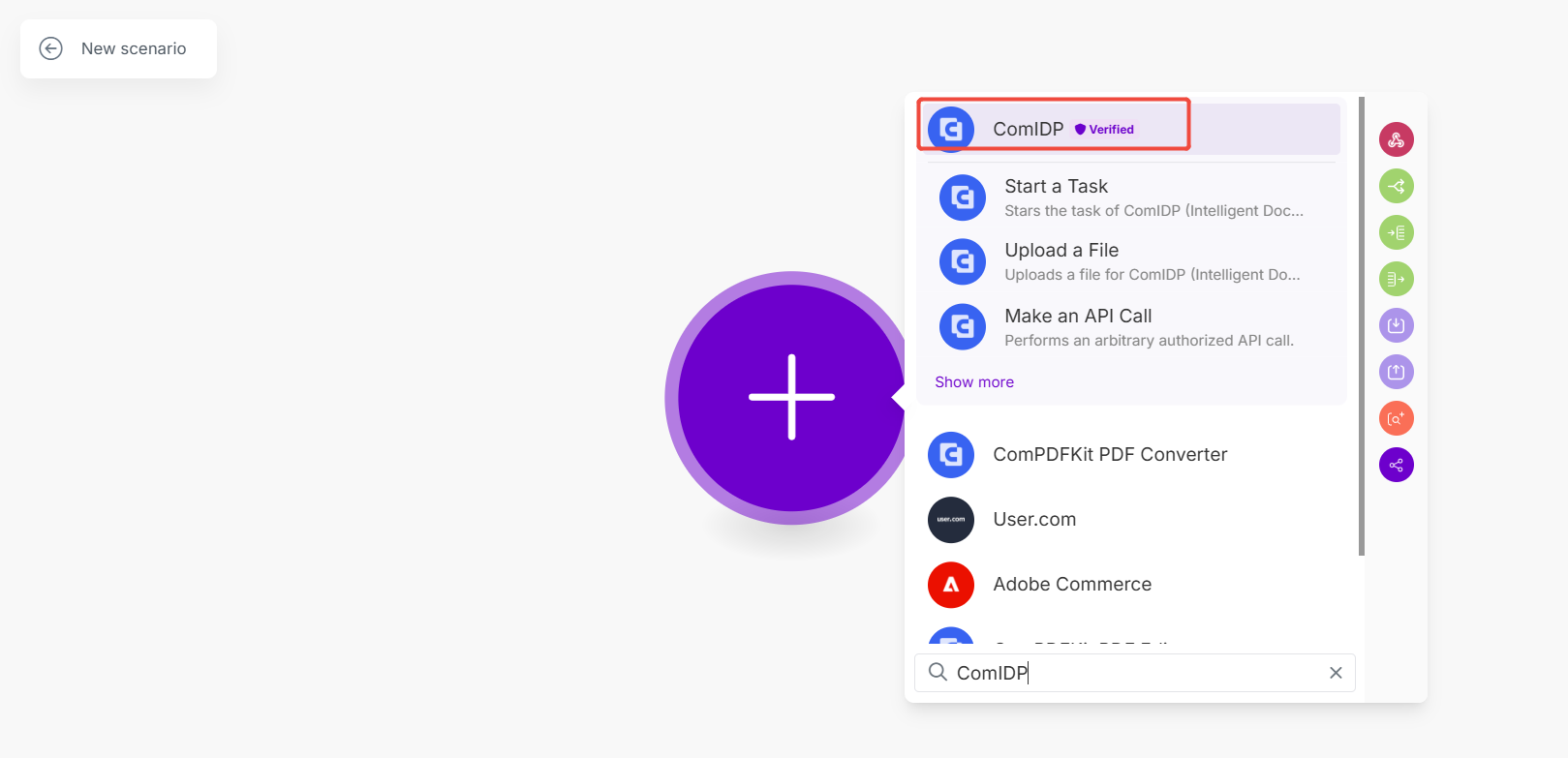
Add a new module within the scenario by clicking + and search for ComPDF AI(ComIDP). Then, select "Extract Tables Intelligently - CreateTask" from the list of available modules.
Step 4: Connect with Google Sheets to Download PDFs
To seamlessly transfer your PDF files stored in Google Drive to ComPDF AI(ComIDP) on Make, you’ll need to connect Google Drive to Make.
Right click ComPDF AI(ComIDP) to search and add the "Google Drive" module on the left. Choose the PDF file from your Google Drive that you want to extract tables from.
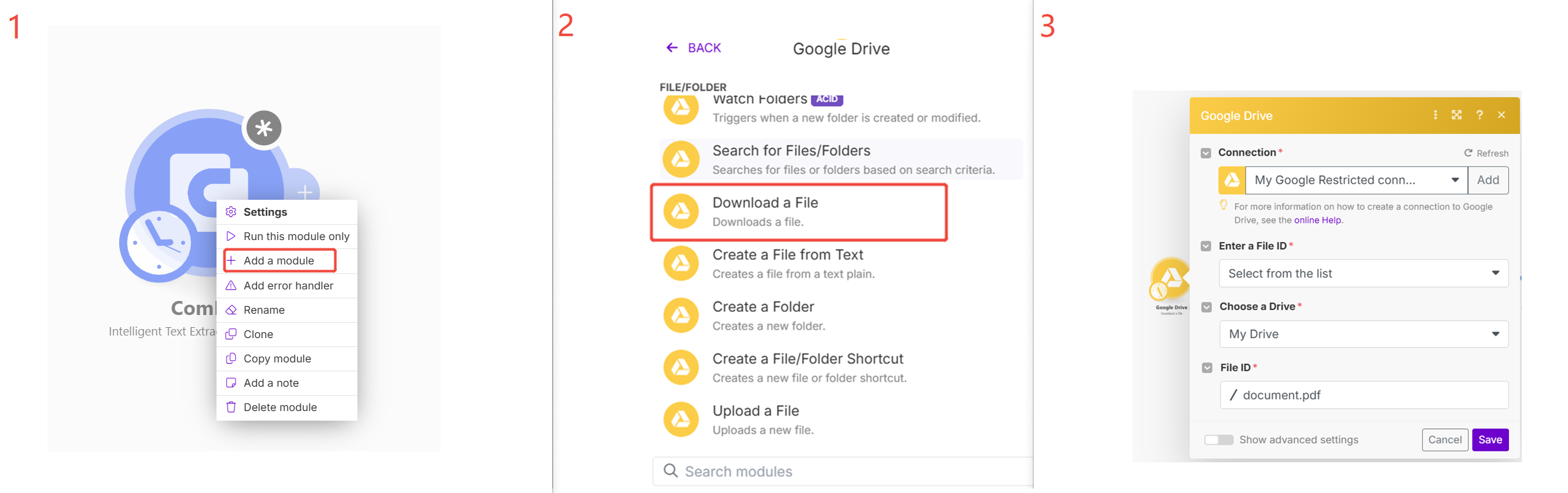
Step 5: Get and Apply Free License of ComPDF AI(ComIDP)
Visit the Open API website and create an account to obtain a free license. This license allows you to process up to 1000 files per month at no cost.
-
Go to the API Key section in your ComPDF user dashboard and copy both the Public Key and Secret Key.

-
Paste the license keys into the ComPDF AI(ComIDP) module within Make.
Step 6: Upload files to Parse Table from PDF Automatically
Click the + to search ComPDF AI(ComIDP), and add the module - Upload a File, to upload the file you downloaded from Google Drive. Just like the picture shown below:
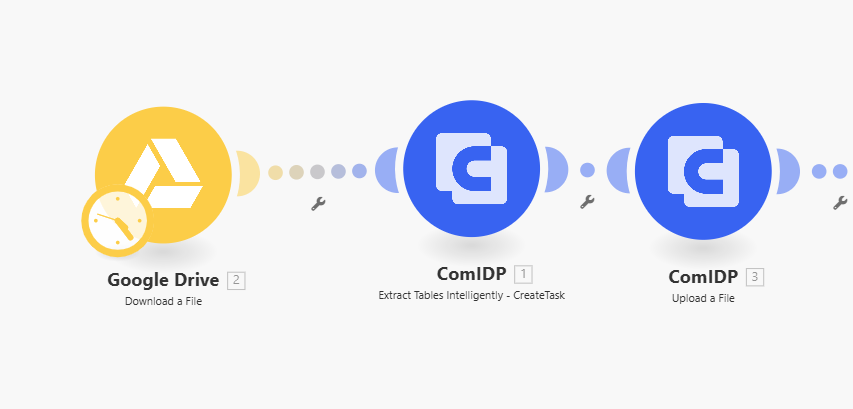
Set the Upload a File module of the ComPDF AI(ComIDP) like the picture below.
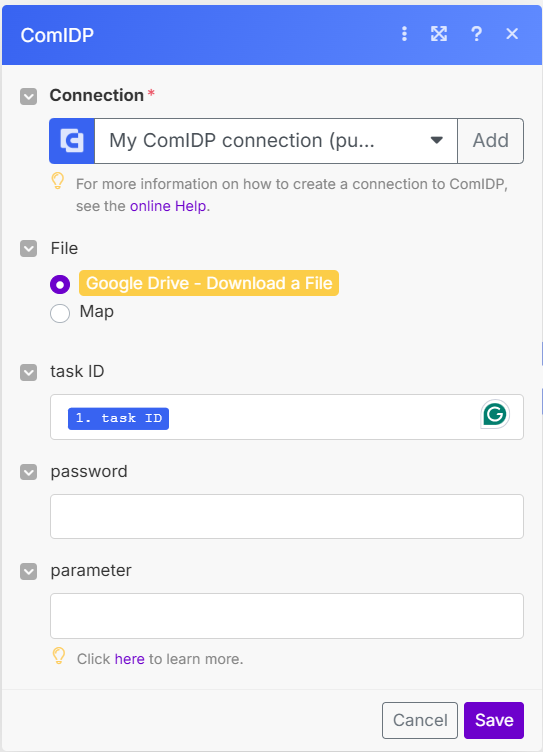
After configuring the PDF file path in Make, ComPDF AI(ComIDP) will automatically upload the file and begin parsing it.
-
During the parsing process, ComPDF AI(ComIDP) will intelligently recognize table boundaries, merge cells, and handle complex layouts.
-
It effectively supports various table formats, including merged cells, borderless tables, and multi-page tables.
Step 7: Add Module to Start Automatic Tasks to Extract Table Data from PDF
Add and set the "Start Task" module to initiate the PDF table extraction process. This is a crucial step to enable ComPDF AI(ComIDP) to perform the table extraction task.
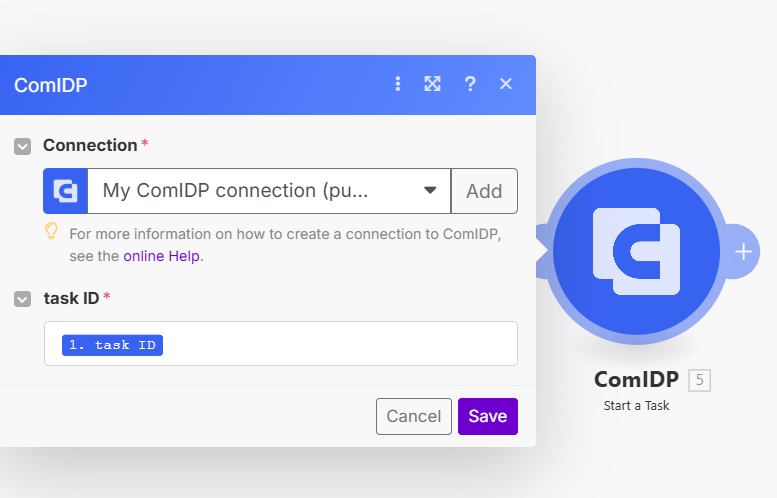
Click + to add a Flow Control Repeater to repeat the process that will be added in the next step - Get the File Information. Then, set it as shown below:

Step 8: Add Module to Get Extracted Tables
Click + to add Get the File Information of ComPDF AI(ComIDP) and set it.
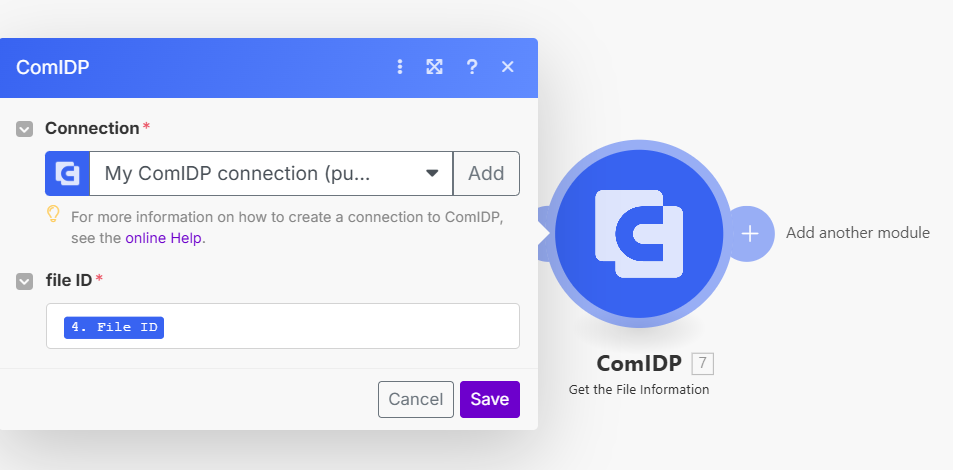
Add a module, Router, to check if the links of the extracted tables are generated.
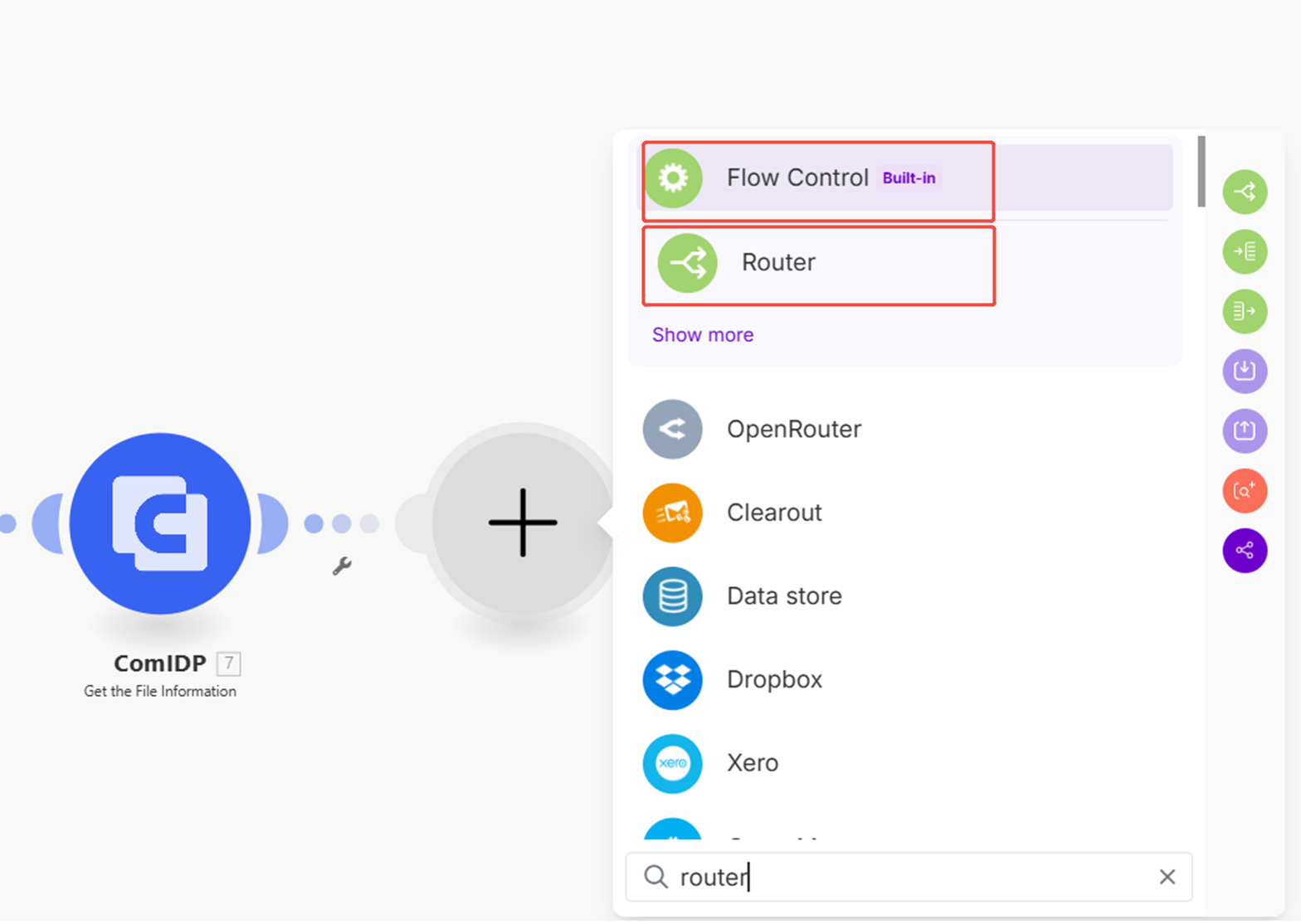
Add the routes Sleep of Tools and Get a File of HTTP:
Set Tools and HTTP. If the extracted JSON file is not generated, it will wait a few seconds and repeat retrieving the file information. If the extracted file is returned, we will get the JSON file URL by HTTP.

Click the following icon to set the filter of Tools -> Sleep as shown in the picture below.

Click the following icon to set the filter of HTTP -> Get a file like the picture shown below.
Step 9: Convert Extracted JSON to Excel XLSX File
Click the + button and search XLSX. Then, choose Create Excel and set it as below.
Step 10: Upload the XLSX to Google Drive as Google Sheets
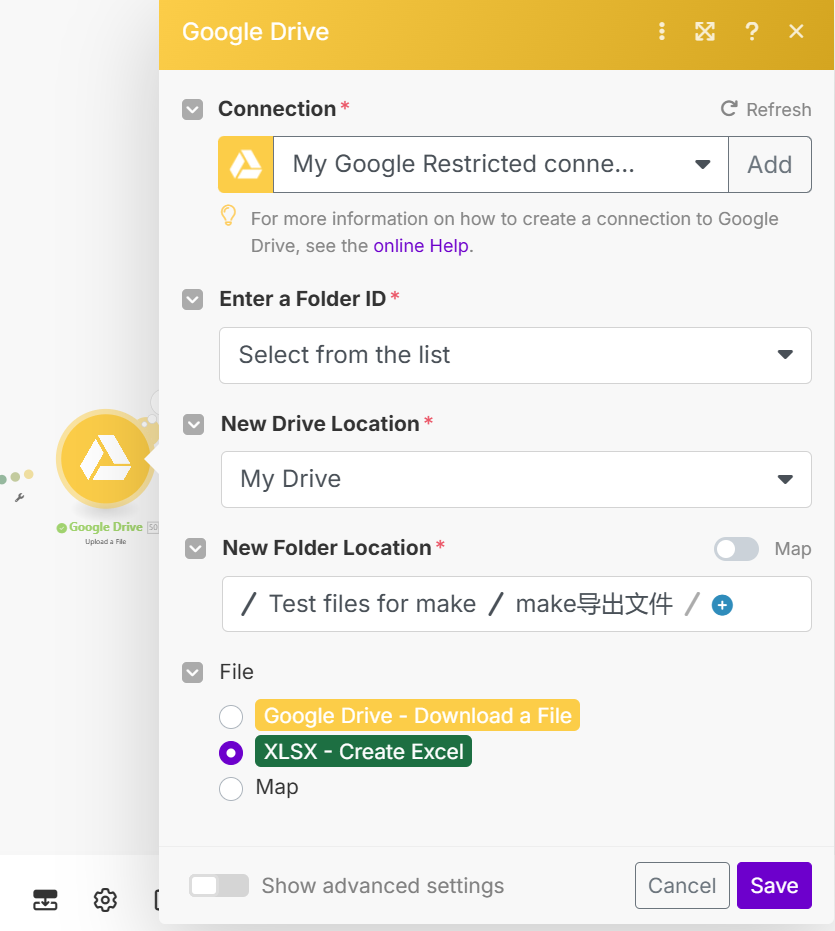
Add the Upload a File of Google Drive, and set it as below. Now, the tables in the PDF file will be extracted and uploaded to be Google Sheets.
Add and set another module and choose JSON -> Parse JSON. Click on Create a data structure and set it as below.

Right-click on JSON and choose Add error handler. Then, choose Commit to end the workflow.

Step 11: Run and Test Your Automatic Document Processing Scenarios
Run your workflow to test if there are any errors. Please make sure you set all modules like the picture I gave.
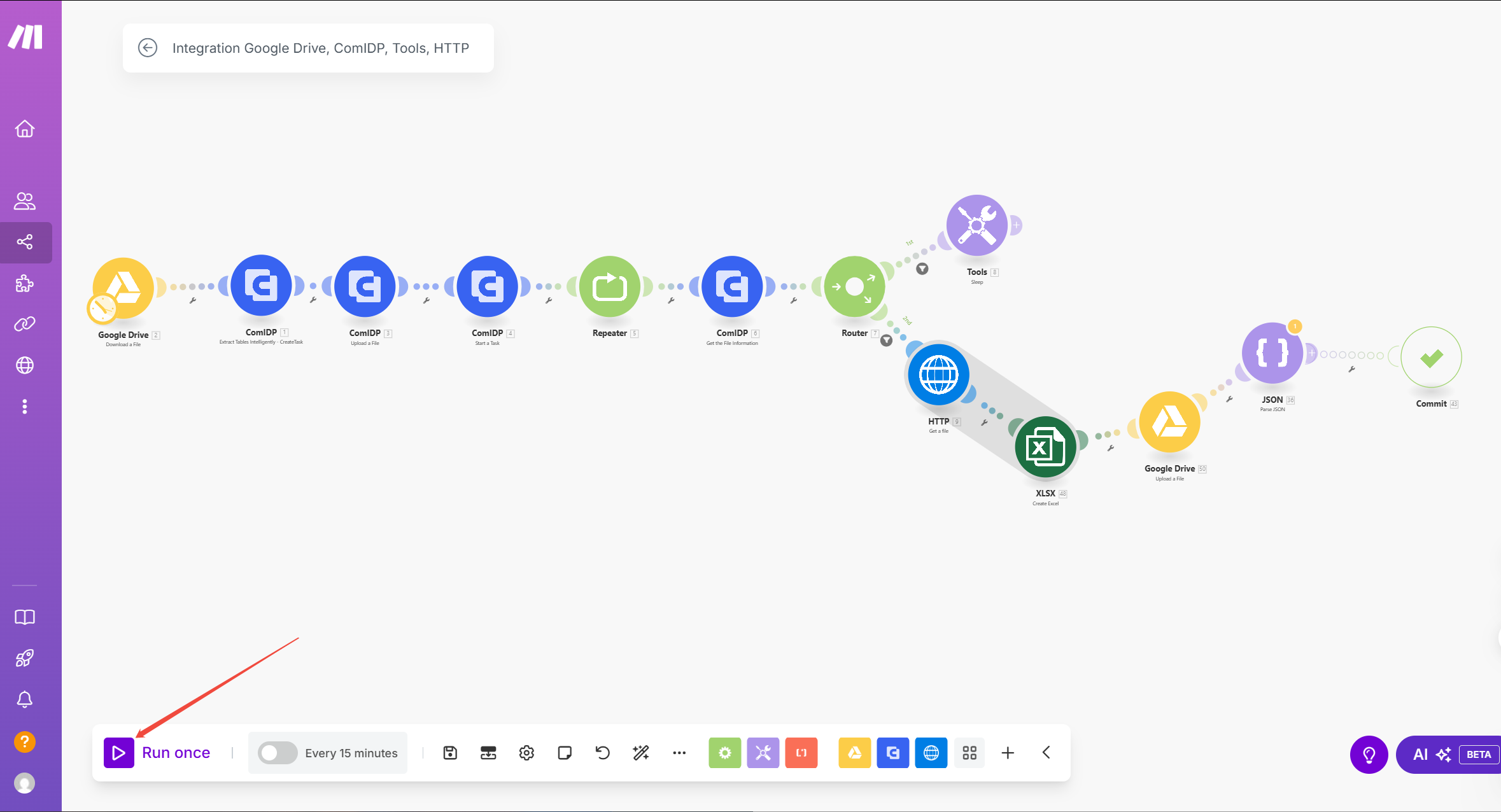
What's More!
With the powerful combination of ComPDF AI(ComIDP) and Make, you can effortlessly extract PDF table data into Google Sheets, saving time and improving data accuracy. Say goodbye to tedious manual data entry! You can also start to extract PDF tables from the template of ComPDF AI on make.com.
Beyond extracting PDF tables to Google Sheets, ComPDF AI(ComIDP) offers seamless integration with various tools, enabling automated document processing.
-
Support multiple export formats: Export data in txt, JSON, and more.
-
Support Multiple input formats: PNG, JPG, and PDF.
-
Generous free usage limit: Process up to 1000 files per month for free.
-
Multiple Features: converting, editing, extracting, compressing, comparing PDF files, etc.
-
Flexible integration with third-party tools: Use Make to connect ComPDF AI(ComIDP) with Slack, Gmail, Notion, and other services for enhanced productivity.