

Extracting valuable data from unstructured files can be a challenging task, especially when these files are stored in cloud platforms like Google Cloud Drive. However, with ComPDF AI(ComIDP) on Make.com, you can automate this process effortlessly without any code.
In this guide, we will show you how to use the ComPDF AI(ComIDP) low-code solution to extract text from unstructured Google files and save the extracted data in a structured format like JSON. Whether you’re dealing with contracts, reports, or any other unstructured content, this step-by-step process will help streamline data extraction and make your information more accessible for further processing and analysis.
Follow the guides to create a workflow as shown below to automate your data extraction and filling.
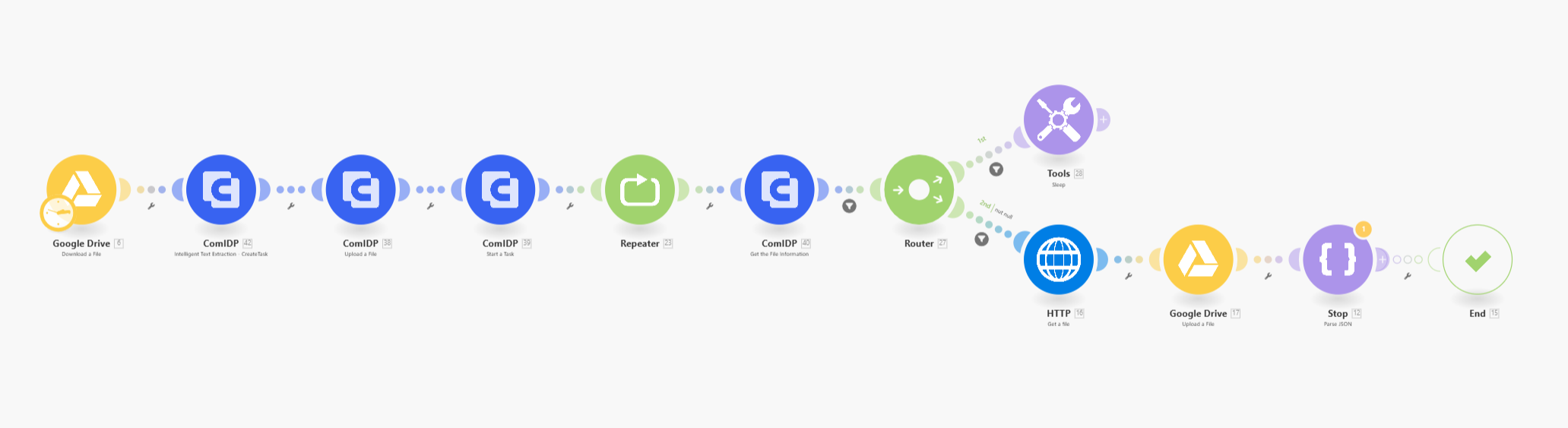
Step 1: Requirements before Using ComPDF AI(ComIDP) on Make.com
Before using the ComPDF AI(ComIDP) on the iPaaS Platform — Make, create the following accounts and get the free licenses. Go to the post — Guides for using ComPDF on Make, for the detailed guides.
- Go to Make and log in to your Make account. If you don’t have an account, register first.
- ComPDF AI(ComIDP) Free License: Sign up ComPDF and you will find the license on the API Key part. More free licenses can be generated by creating new projects.
Note: ComPDF users can process files with all our PDF API, up to 1,000 free document conversions per month. If you need more, check the price details.
Step 2: Start a Make Scenario and Create Tasks
Click Create a new scenario to start your workflow building.

Search and click on ComPDF AI(ComIDP).
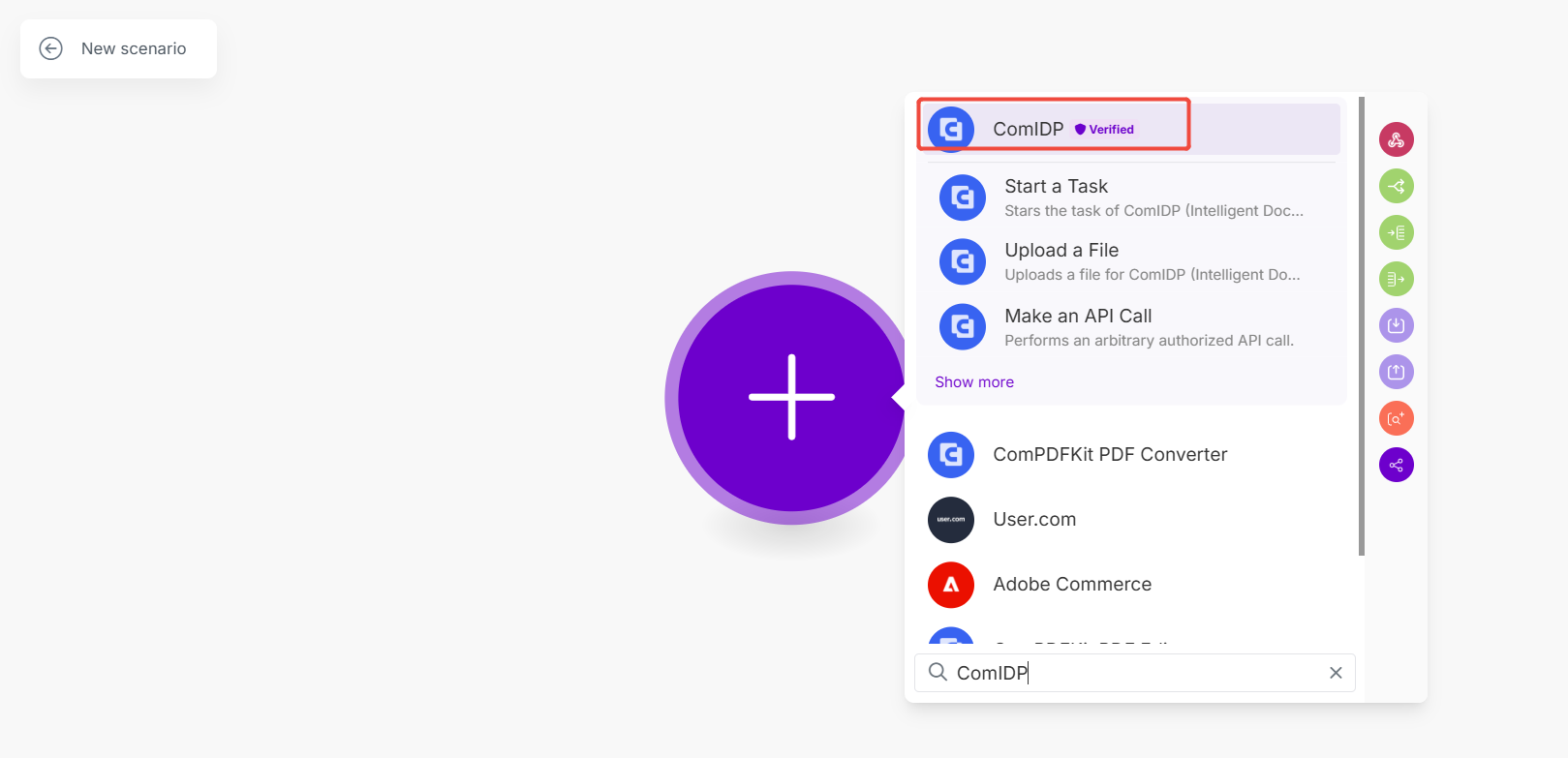
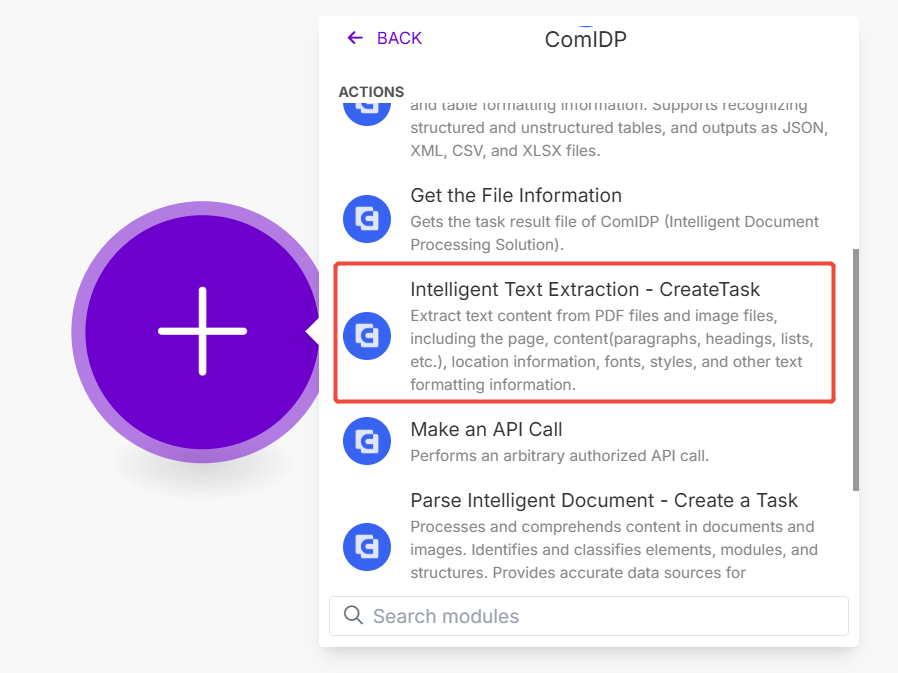
Scroll and choose Intelligent Text Extraction - Create a Task.
Then, click on Create a Connection to paste the ComPDF license. To get your license, follow Step 3 in this article.
Step 3: Apply License of ComPDF AI(ComIDP) on Make
Click to copy the Public Key and Secret Key on the API Keys of your ComPDF dashboard. Then, paste them in the previous Create a Connection dialog.

Step 4: Download PDF Files from Google Storage
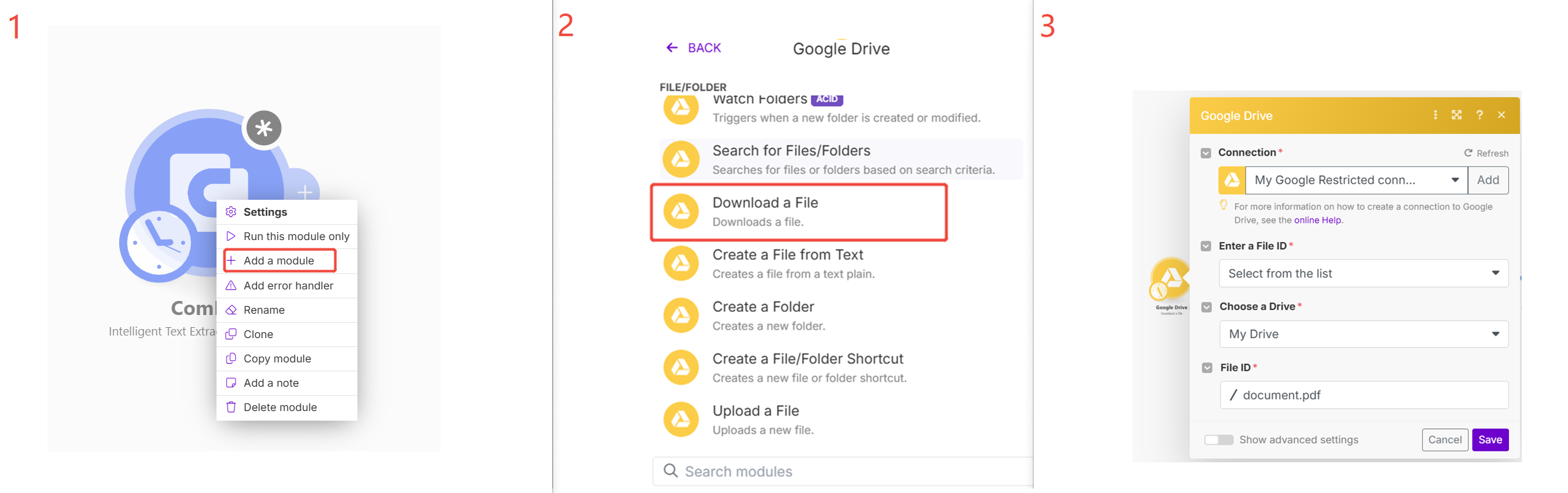
- Right-click on the logo of the Intelligent Text Extraction - Create a Task of ComPDF AI(ComIDP) and choose Add a module. A new module will be added on the left of the Intelligent Text Extraction.
- Search and click on Google Drive.
- Choose Download a File. Follow the guides on Make.com to connect with your Google account. Then, choose a PDF file from the Google Drive you connected.
Please note that try to connect a company Google account because it’s not stable if you connect a personal Google account.
Step 5: Upload the PDF Files to ComPDF AI(ComIDP) for Extraction
Click the icon + beside the Intelligent Text Extraction - Create a Task to add the next module to upload the file we have downloaded from Google cloud storage.
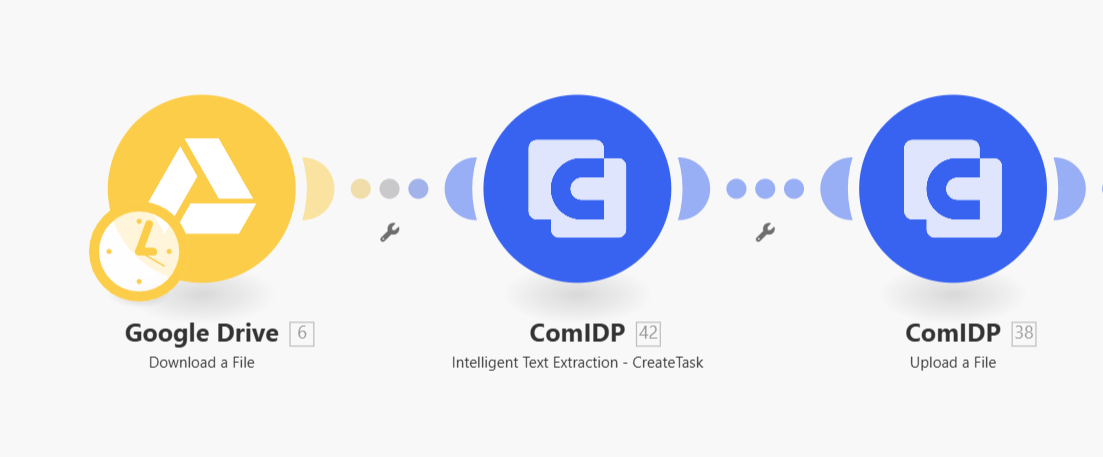
Set the Upload a File module of the ComPDF AI(ComIDP) like the picture below.
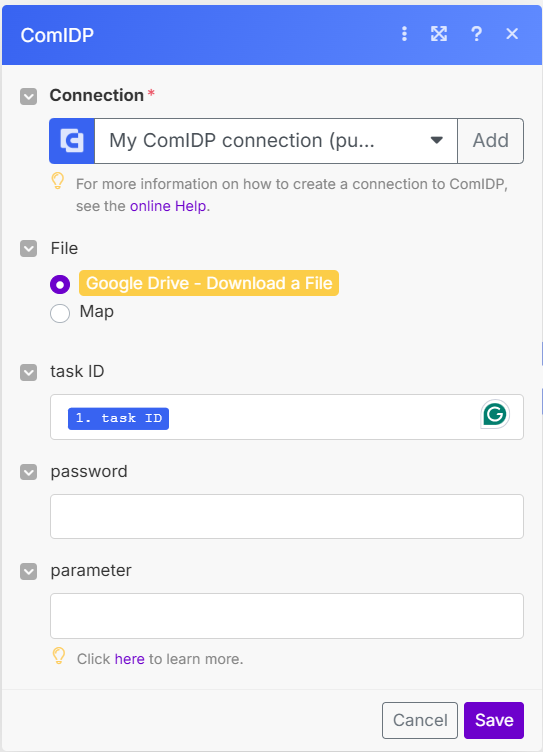
Step 6: Start the Task to Extract PDF Text without Code
Click “+” again and choose ComPDF AI(ComIDP) -> Start a Task.
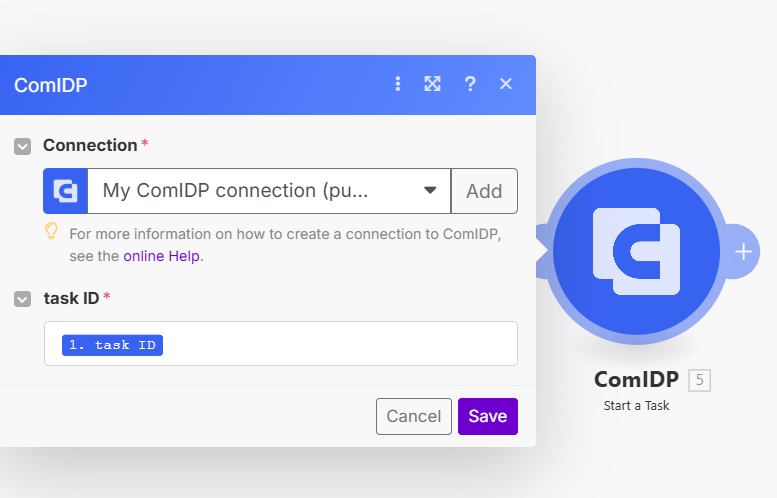
Click + to add a Flow Control Repeater to repeat the process that will be added in the next step - Get the File Information. Then, set it as shown below:

Step 7: Get the Extracted File Information
Click + to add Get the File Information of ComPDF AI(ComIDP) and set it.
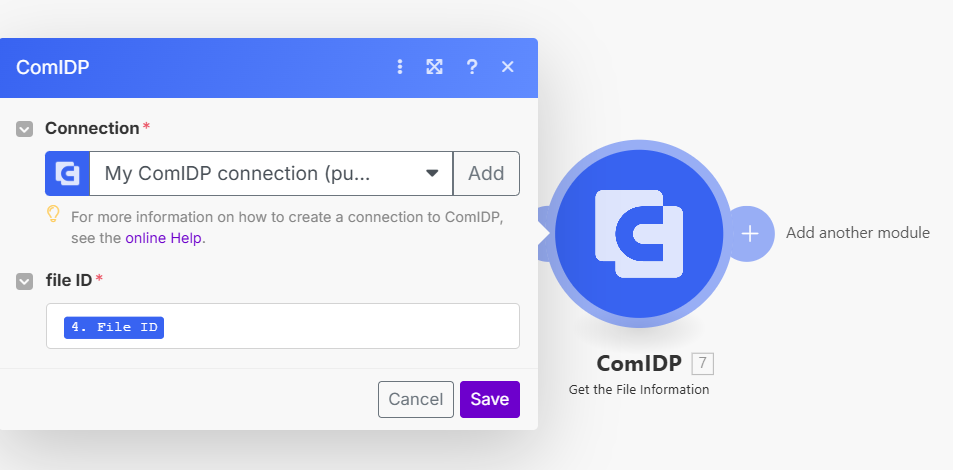
Add a Router to check if the links of the extracted data file are generated.
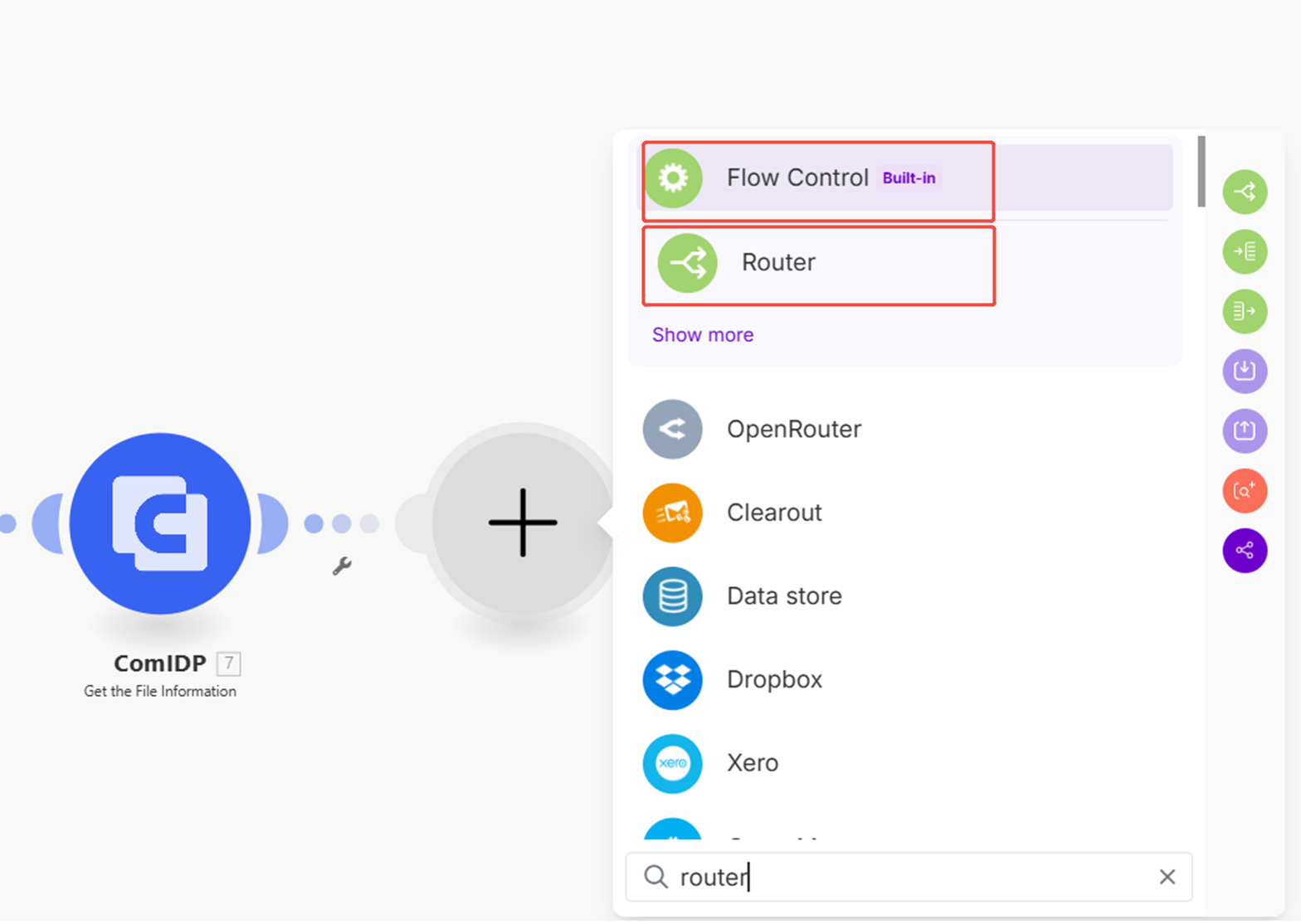
Add the routes Sleep of Tools and Get a File of HTTP:
Set Tools and HTTP. If the extracted result file is not generated, it will wait a few seconds and repeat retrieving the file information. If the extracted file is returned, we will get the file URL by HTTP.

Click the following icon to set the filter of Tools -> Sleep as shown in the picture below.

Click the following icon to set the filter of HTTP -> Get a file like the picture shown below.
Step 8: Save the Extracted Data to Google Drive
Choose a drive to store the resulting files: For example, select Google Drive -> Upload a File to store the extracted data.

Step 9: End the PDF Extracting Workflow on Make
Add and set another module and choose JSON -> Parse JSON. Click on Create a data structure and set it as below.

Right-click on JSON and choose Add error handler. Then, choose Commit to end the workflow.

What's More!
You can start from the template of ComPDF AI on make.com to make your own workflow. In addition to using ComPDF AI(ComIDP) for intelligent document processing, other products of ComPDF can also be used within the Make platform to automate your document converting, merging, splitting, comparing, signing, etc. Go to the guides below to learn how to use the editor and converter of ComPDF on Make.com.
- ComPDF PDF Editor on Make
- ComPDF PDF Converter on Make
1000 file processes per month for all Open APIs. Purchase more licenses now.