
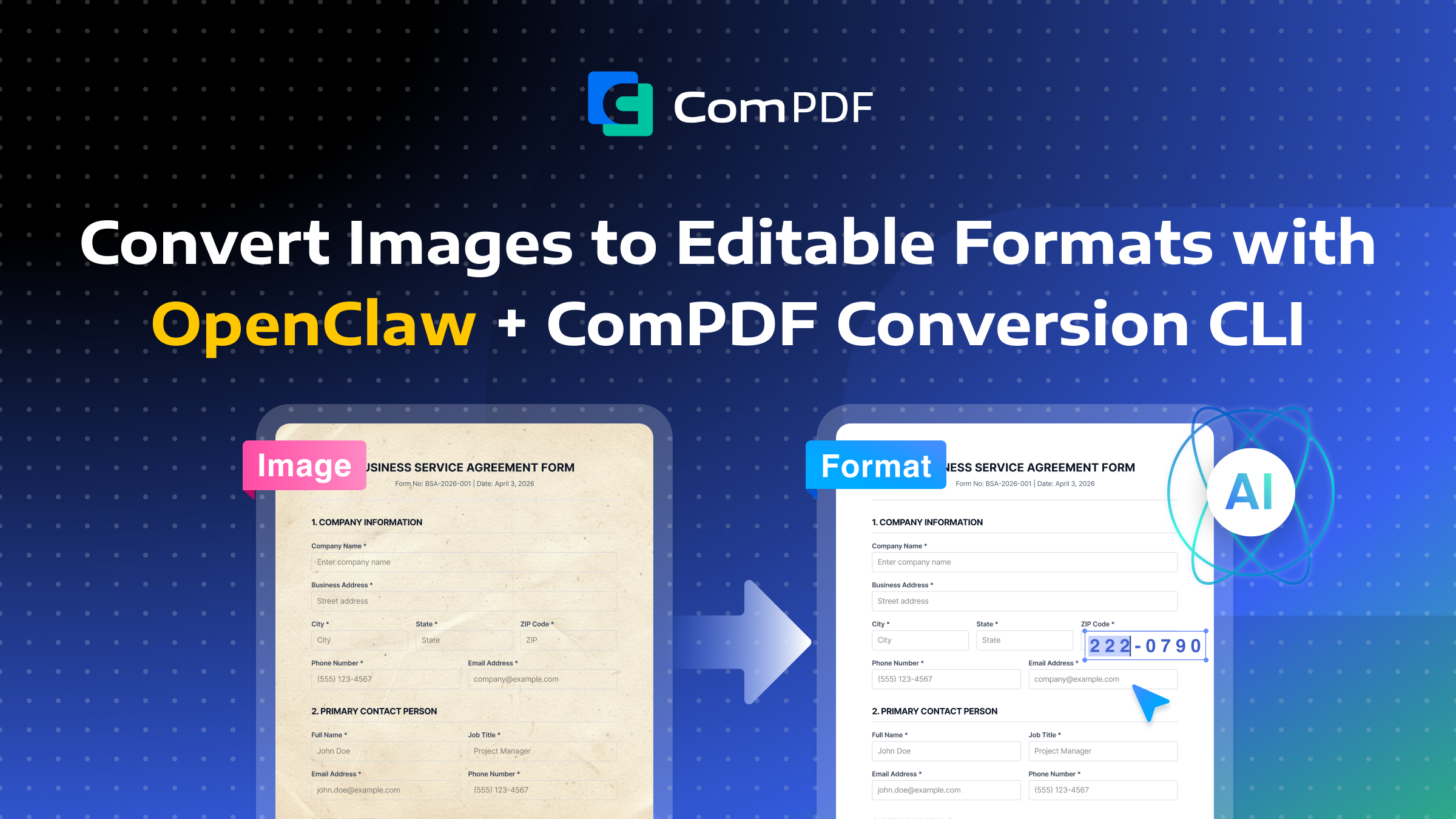
To enable your AI agent to automatically convert images into editable documents, you can leverage the ComPDF Skills — ComPDF Conversion CLI, which uses OCR technology to transform various image formats into target document formats. Below are the main supported formats:
-
Input formats: JPG, PNG, BMP, TIFF, WEBP, and other common formats
-
Output formats: Word, Excel, PPT, HTML, Image, TXT, JSON, Markdown, RTF, CSV
This integration empowers your agent to extract text, recognize layouts, and restructure content from static images—turning them into fully editable files ready for further processing.
This article uses OpenClaw AI Agent as an example to demonstrate how to build an automated AI workflow to extract text, recognize layouts, and restructure content from static images—turning them into fully editable files ready for further processing.
Environment Setup & Prerequisites
Before diving into the workflow building, you need to configure both OpenClaw and ComPDF’s OCR Skills — ComPDF Conversion CLI, and establish secure communication between them. This section walks you through the complete setup process.
Installing OpenClaw
OpenClaw is an open-source, self-hosted AI assistant platform that can connect to various LLM providers (OpenAI, Claude, Gemini) or run locally with Ollama. The installation process usually takes about five minutes and works on macOS, Linux, and Windows (via WSL2). For more installation methods and detailed instructions, please refer to the complete OpenClaw installation guide.
System Requirements:
-
Node.js version 22 or higher
-
Git
-
A stable internet connection during installation
Quick Installation Methods:
For Mac/Linux Terminal:
curl -fsSL https://openclaw.ai/install.sh | bash
For Windows PowerShell or WSL2 terminal:
iwr -useb https://openclaw.ai/install.ps1 | iex
Alternatively, you can install via npm:
npm install -g openclaw@latest
openclaw onboard
After installation completes, verify it works by running:
openclaw --version
Then run the onboarding wizard to configure your AI model provider, enter API keys, and set up the gateway:
openclaw onboard
Finally, launch the web dashboard:
openclaw dashboard
Open your browser and visit http://127.0.0.1:18789 to start interacting with your OpenClaw assistant.
Configuring OCR Skills — ComPDF Conversion CLI
Configuring ComPDF OCR Skills is remarkably simple. Just execute the following command in OpenClaw’s command-line interface, and the system will automatically install it for you:
openclaw skills install compdf-conversion-cli
When you run this command for the first time, the system automatically obtains a license that includes 200 free conversion attempts, allowing you to start experiencing the functionality immediately. This particular skill integrates the professional-grade ComPDF Conversion engine, which uses AI-powered layout analysis to preserve original formatting, tables, and images—not just plain text.
For higher-frequency usage, you can contact the ComPDF team to purchase a formal license. Once you obtain the license.xml file, place it into the scripts/ directory to overwrite the existing file, which removes the conversion limit and unlocks unlimited processing capabilities.
Why ComPDF Conversion CLI
For AI agents needing OCR, ComPDF Conversion CLI offers secure, local processing—ideal for OpenClaw agents.
-
Secure Local Operation: Runs locally via ComPDF SDK—no file uploads or external servers. All conversions stay on your machine, with optional per‑skill network permissions.
-
All-in-One Format Conversion: One skill handles image‑to‑format conversions and PDF to other formats. Turns OpenClaw into a precision conversion AI assistant.
-
High-Precision OCR: Advanced AI layout analysis + multi‑language recognition. Restores complex layouts (tables, multi‑column text) with 98% accuracy at 0.5–0.8s/page.
-
Native AI Agent Integration: Designed as an AI agent skill for seamless workflow integration using natural language commands (e.g., “Convert this invoice image to Excel”). Fills the gap in agent document processing from OCR conversion to precise page manipulation.
-
Multi-Language Support: Recognizes Simplified/Traditional Chinese, English, Japanese, Korean, French, German, Spanish, and other major languages. Meets cross‑border and multilingual needs. See ComPDF docs for full list.
Scenarios of AI Image Converter
- Smart Office Automation: Convert whiteboard photos, handwritten notes, or scanned contracts to editable Word/Markdown and archive. Example: “Convert this whiteboard photo to Markdown and save to knowledge base”—returns structured doc in seconds.
- Data Extraction & Entry: Extract key fields (amounts, dates, invoice numbers) from invoices/receipts to JSON/CSV for financial systems. Example: “Extract invoice numbers, due dates, and amounts to CSV”—produces ready‑to‑import files, saving hours.
- Multi‑Language Content Processing: Convert multilingual brochures/manuals to editable PPT/HTML for localization. Example: “Convert this multilingual brochure to editable PPT”—preserves all languages and layout.
- Code & Documentation Refactoring: Convert legacy docs or code screenshots to Markdown/TXT for reuse. Example: “Extract code blocks and technical text to Markdown”—clean output with headings, paragraphs, tables, and code blocks.
FAQ
Here are some frequently asked questions about building image conversion workflows with ComPDF Conversion CLI.
Q1: What happens after I use up the 200 free conversions?
A: You can contact the ComPDF team to purchase a formal commercial license. After purchasing, place the obtained license.xml file into the scripts/ directory to overwrite the existing file. This grants you unlimited conversion capabilities along with official technical support.
Q2: Does ComPDF Conversion CLI require an internet connection? Will my data be uploaded to the cloud?
A: No, it does not. ComPDF Conversion CLI is a locally-run tool. All image and file processing is completed on your local machine and does not need to be uploaded to any external server, ensuring absolute security and privacy for your enterprise data.
Q3: Can it recognize tables within images? Will the table structure be preserved after conversion?
A: Yes, it can. ComPDF Conversion CLI features an advanced AI layout analysis engine that intelligently identifies table regions, row and column structures, and merged cells within images. When converting to Excel, Word, or HTML, it restores the original table formatting to the greatest extent possible. ComPDF excels with OCR and structural recognition, reliably reconstructing tables with proper borders and text alignment—essential for data workflows and archiving. The tool also uses AI to analyze complex or borderless tables, ensuring accurate data capture even from non-standard table layouts.
Q4: Can I integrate this Skill into other AI agents besides OpenClaw?
A: Absolutely. ComPDF Conversion CLI can function as an independent command-line tool that can be integrated into any program or agent that supports command-line calls. Whether you’re using LangChain, AutoGPT, or other custom agents, you can invoke it by executing shell commands. The integration approach is highly flexible and not limited to any single platform.
Q5: How accurate is the recognition for complex layouts like magazines or newspapers?
A: The tool has been optimized specifically for complex layout scenarios. It can accurately distinguish elements such as headings, body text, images, and sidebars, and output them in the correct reading order. In complex scenarios such as multi-column text and mixed text-image layouts, its conversion accuracy far exceeds that of ordinary OCR tools. ComPDF’s conversion SDK, with AI layout analysis enabled by default, intelligently processes multi-column documents and mixed fonts, having been trained on millions of documents to achieve up to 98% conversion accuracy. It excels in structural element restoration, layout accuracy, and content editability, especially in challenging cases like multi-column documents, detailed tables, and mixed text-image layouts.
Conclusion
Whether you’re looking to automate converting invoices, digitize handwritten meeting notes, refactor legacy documentation, or handle multilingual marketing materials, the combination of OpenClaw and ComPDF Conversion CLI provides a secure, accurate, and powerful solution that runs entirely on your local infrastructure—keeping your data safe while maximizing your productivity.