
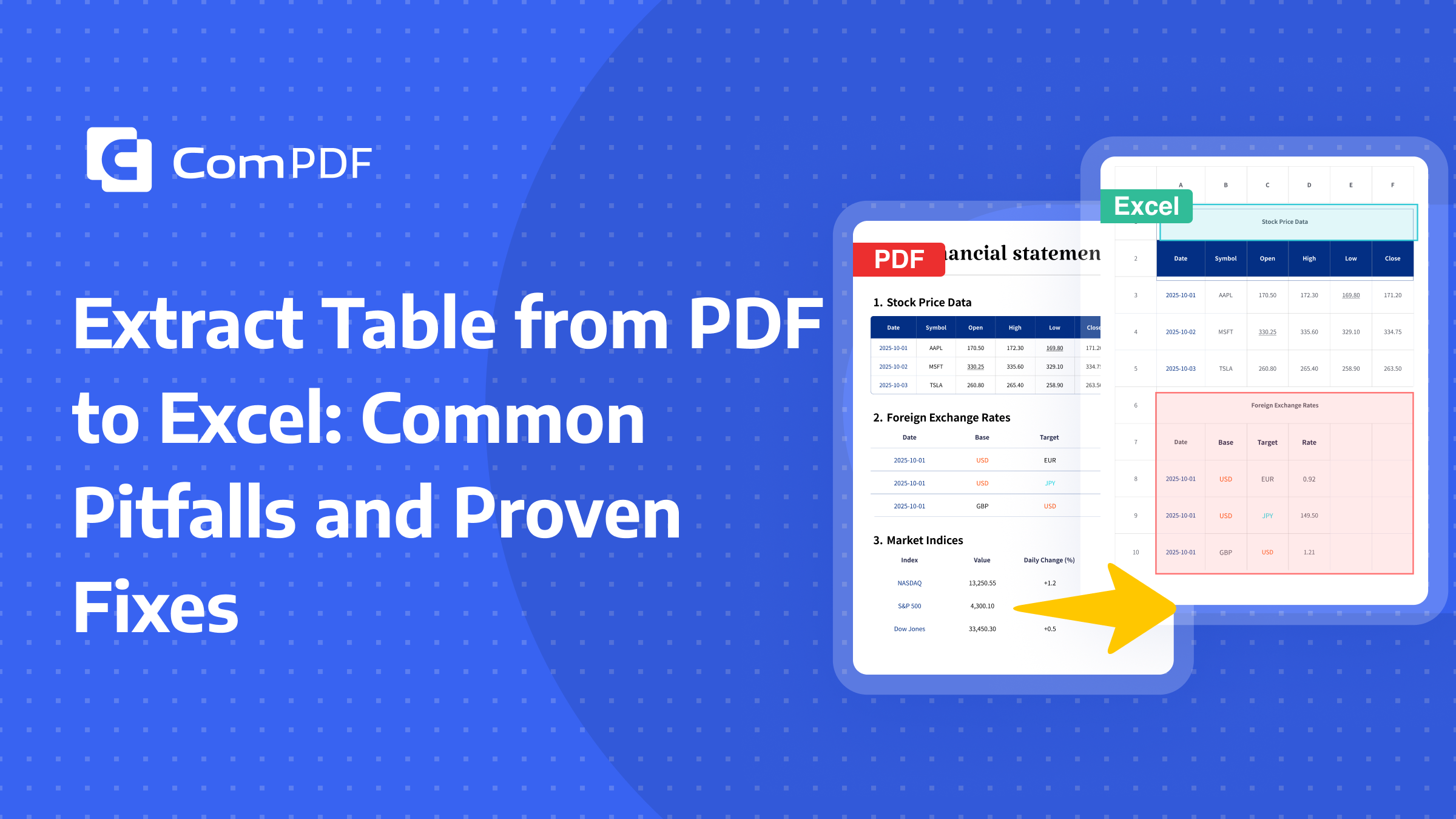
When you extract a table from PDF to Excel, the content usually makes it through. What doesn’t? The structure. Merged cells fall apart, blank cells get misinterpreted, alignment rules drift. You end up with something that looks like a table but won’t sort, won’t sum, and won’t feed into your dashboard without a fight.
This article walks through why that happens and what you can actually do about it.
Why Extracting Tables from PDF to Excel Often Fails
Nearly every formatting problem you see after conversion traces back to the same gap: the converter sees a visual layout, not the logical table structure the author intended. PDF was never designed to carry semantic metadata about rows, columns, or cell relationships. It only stores where things appear on the page. So when a tool rebuilds that into an actual spreadsheet, it has to guess — and that’s where things go sideways.
Fix 1 – Restore Incorrectly Merged Cells
A merged cell in PDF spans multiple grid positions visually but carries no rowspan or colspan metadata. When extracted, the tool has to decide: put the content in every spanned cell (duplication), drop it into the first cell and leave the rest blank (data loss), or try to infer the relationship. Most tools pick option one or two, and you end up with either redundant values or a broken layout.
Solutions
It’s best to use a high-quality PDF to Excel services like Adobe, ComPDF, and Solid. Here’s what the process should look like regardless of the tool:
During PDF parsing, build a two-dimensional cell map that tracks each cell’s start row, end row, start column, end column, and spans. Don’t rely on visual alignment alone; parse the underlying structure or infer merge relationships from overlapping bounding boxes.
When borders are faint or missing, cross-reference content continuity with positional clues. If two visually adjacent regions hold unrelated content, treat them as separate cells even if there’s no visible divider.
Map the result into Excel using the workbook’s native merge-cell API. Any cell that falls within another cell’s span should be set to null or a designated placeholder — never duplicated content.
Build a regression check: compare the output table’s row count, column count, merge ranges, and content positions against the original PDF to catch regressions early.
Fix 2 – Handle Blank Cells and Missing Value Chaos
The blank cell problem isn’t really about whether to fill it. It’s about whether the meaning of the blank survived the conversion. Is this cell empty because there’s no data? Because the formula returned nothing? Because the value should inherit from the row above? If your downstream process can’t tell the difference, you’ve got a data-quality problem dressed up as a formatting issue.
Solutions
Start by classifying your blanks into three categories: genuinely empty cells, formula-returned empty strings, and business-meaningful missing values. Run COUNTA, LEN, and ISBLANK across the affected range to spot the pattern. Only then decide on a fill strategy — leave as-is, replace with 0, or mark explicitly as “N/A” — so your statistics and dashboards don’t silently shift.
For fields where the convention is “same as above” (category labels, grouped headers, repeated attributes), use Excel’s Go To Special → Blanks, then =↑ (Ctrl+Enter) to fill down from the previous cell. Paste as values afterward. This single trick fixes most pivot-table and lookup issues in under 30 seconds, and it’s far more reliable than manual copy-paste.
For numeric columns where the business rule says “blank means blank” (revenue fields, scores), don’t overwrite the source data. Use IF/ISBLANK or a custom number format to control display. That way the cell’s original semantics are preserved, and you won’t accidentally treat a missing value as zero in a calculation.
Fix 3 – Repair Abnormal Cell Text Styles
Getting text styles right after conversion isn’t about fixing one font at a time. It’s about re-establishing a consistent style baseline and then applying it in bulk. If you’re opening the file and manually tweaking cell colors one by one, you’re fighting the symptom, not the cause.
Solutions
Define a style baseline first: Every cell type in your table should have a target style: font family, size, weight, color, wrap behavior, indent, text direction, and number format. Without this reference, you can’t tell whether “14pt bold” on a header cell is correct or accidental.
Separate content issues from style issues: If the text is correct but looks wrong, it’s a style problem. If the text itself is garbled, fix the content first, then the style. Doing it backward guarantees rework.
Clear conflicting formatting before applying your standard: Most style anomalies come from stacking — copied ranges, merged cells with inherited overrides, partial formatting that survived the conversion. Use Clear Formats on the problem area, then apply your baseline rules in order: table-level → column-level → header-specific → exception cells.
Use rules, not manual clicks. Apply formatting by column type or by region. This ensures consistency and makes the fix reproducible the next time you run the same conversion.
Fix 4 — Repair Abnormal Table Border Restoration Issues
Border failures are almost never about lines not drawing. They’re about lines drawing at the wrong scope or the wrong weight. Outer borders, inner horizontals, inner verticals, group separators — they all get flattened into a single “border” property during conversion, and restoring them requires unbundling that mess.
Solutions
Define your border rules by layer before touching the file: Outer frame, inner grid, header separator, group divider — each should have its own line style and thickness. Skip this step and you’ll end up with every line the same weight and no visual hierarchy.
Fix structure before borders: Confirm your merged cells, row and column ranges, and header hierarchy are correct before drawing a single line. If the structure is wrong, borders will misalign or break no matter how carefully you apply them.
Apply in the right order and avoid overwrites: Most border failures come from “apply table border → tweak individual cells” — each step overwrites the last. Follow this sequence instead: clear all borders → outer frame → inner grid → emphasis lines → spot-check.
Standardize your line-style mapping across the document: Thin, medium, and thick should mean the same thing in every section. When different parts of the same file use different definitions for “medium,” the document looks inconsistent even if every individual border is technically correct.
Checklist for Cell Restoration Errors
When multiple problems appear at once and you’re not sure where to start, run through this checklist. It’ll help you isolate the root cause faster than re-converting and hoping for the best.
Check 1: Conversion input quality
Is the PDF a scanned image? Does it have skewed pages, visible noise, or low resolution? Garbage in, garbage out still applies. If the input quality is marginal, run OCR enhancement and page deskew first, then convert. This alone eliminates a surprising number of “random” structural errors.
Check 2: Conversion parameters and engine version
Verify that you’re using the right settings — “preserve table structure,” “retain merged cells,” “keep layout.” If the same file produces different results across versions, pin a stable version and document the parameter combination as your team’s standard configuration. Version drift is one of the most common unacknowledged causes of conversion variability.
Check 3: Post‑export validation
Run three passes on your output: structural validation (are merged cells intact?), semantic validation (are blanks correctly classified?), and visual validation (alignment and borders). Combine spot-checking with rule-based checks for speed, and focus extra attention on high-risk areas like header rows, cross-page tables, and nested layouts.
Conclusion
Table layouts vary widely, and extracting a table from PDF to Excel with 100% fidelity every time isn’t realistic — not with any tool on the market. But for the vast majority of structured tables, today’s better engines handle the job well. If your tables are heavily formatted, contain complex merges, or cross multiple pages, you’re better off with a provider that treats structural fidelity as a core feature — Adobe, ComPDF, and Solid all fall into that category. The key is knowing what to check and how to fix it when the conversion falls short, rather than assuming the next tool will magically get it right.