
In response to the expressed needs of ComPDF customers, we conducted a study on the requirements for PDF viewing and processing within Salesforce. This research led to the decision to expand our product offering, providing Salesforce users with more flexible and comprehensive PDF document editing capabilities.
This guide will walk you through the steps required to integrate ComPDF into Salesforce, enabling you to directly view, edit, and perform other operations on files, reports, and other documents housed within the Salesforce platform.
Before You Start: Preparation Checklist
A successful integration mandates that the developer's local and cloud environments are meticulously prepared and provisioned. Adhering to this preparation checklist is essential to ensure a frictionless deployment process.
- Latest Stable Version of Node.js and NPM
You can download the latest stable version of Node.js and NPM. If you already have Node.js and NPM on your computer, please check to ensure they are the most recent versions.
-
Setting up the Salesforce Development Environment
The following are the key steps to set up the Salesforce development environment. You can also go to the Setup Development Guide or the Setup Development Trailhead module for detailed instructions.
-
Install Salesforce CLI. Or see the Salesforce CLI Setup Guide for complete installation instructions.
-
(Optional) Install Salesforce Extensions for Visual Studio Code.
-
Download ComPDF Salesforce SDK
You can download the ComPDF Salesforce SDK repository from GitHub, which contains the necessary source files and configuration required for integrating the underlying Web SDK.
-
Obtaining ComPDF License Key
ComPDF provides a free 30-day trial license for your program. Get the trial license from our pricing page by choosing ComPDF for Web. The ComPDF Salesforce SDK shares the same API as the ComPDF for Web.
Deploy ComPDF Salesforce SDK: Step-by-Step Guides
This section outlines the precise technical steps required to prepare the Lightning Web Component (LWC) source code locally and subsequently deploy it to the authenticated Salesforce organization. You can follow the steps below to deploy the ComPDF Salesforce SDK to build a PDF reader and editor in Salesforce.
Follow the steps below to deploy the ComPDF Web SDK package to your Salesforce organization.
-
Clone the compdf-web-example-salesforce from the GitHub repo:
git clone https://github.com/ComPDF/compdf-web-example-salesforce.git
-
In the terminal, navigate to the ComPDF Salesforce SDK project directory and execute the following command to install the required npm modules.
npm install
-
The ComPDF Salesforce SDK integration example now utilizes the ComPDF Web SDK, which is hosted on our CDN at https://static.compdf.com. This eliminates the previous restriction imposed by Salesforce's 5MB asset upload limit.
To specify the version of ComPDF Web SDK you want to use, open ./force-app/main/default/lwc/compdfViewer/compdfViewer.js and update line 16. For example, to use version 2.8.2, modify the CDN URL as follows:
@api assetBase = 'https://static.compdf.com/[email protected]'
-
Add your ComPDF license key by setting the licenseKey property value in the ./force-app/main/default/lwc/compdfViewer/compdfViewer.js file.
licenseKey = 'YOUR_LICENSE_KEY'
-
If you have not already done so, authenticate with your hub org and provide it with an alias ("DevHub" in the command below):
sf org login web --set-default-dev-hub --alias DevHub
-
Enter your Dev Hub org credentials in the browser that opens. Once logged in, you can close the browser. Create a scratch org using the config/project-scratch-def.json file, set the username as your default, and assign it an alias ("myScratchOrg" in the command below).
sf org create scratch --definition-file config/project-scratch-def.json --set-default --target-dev-hub DevHub --alias myScratchOrg
-
Push the app to your scratch org:
sf project deploy start --source-dir force-app --target-org myScratchOrg --concise
-
Open the scratch org:
sf org open --target-org myScratchOrg
-
(Optional) If you need to upload or save large files (over 6 MB), it is recommended to provide your Access Token by setting the accessToken property in the ./force-app/main/default/lwc/compdfViewer/compdfViewer.js file. You can view your org information and obtain the Access Token by running the following command:
sf org display --target-org myScratchOrgaccessToken = 'YOUR_ACCESS_TOKEN'
-
Changing the Security Settings
The ComPDF Salesforce SDK example uses resource packages provided by our third-party server, it is necessary to add trusted URLs in Salesforce. To change the default security settings, follow these steps.
-
In Salesforce, go to Security > Trusted URLs.
-
Click New Trusted URL.
- Configure URL properties:
Customize an API name, such as "ComPDF".
Write the following URL in the URL input box.
https://static.compdf.com-
Ensure that the 'Active' attribute is checked, and check all CSP directives.
-
Click on Save.
Use the Salesforce PDF Viewer and Editor
Once the ComPDF component is successfully deployed, the integrated PDF viewer/editor is ready for operational use within the standard Salesforce workflow.
Access the ComPDF
-
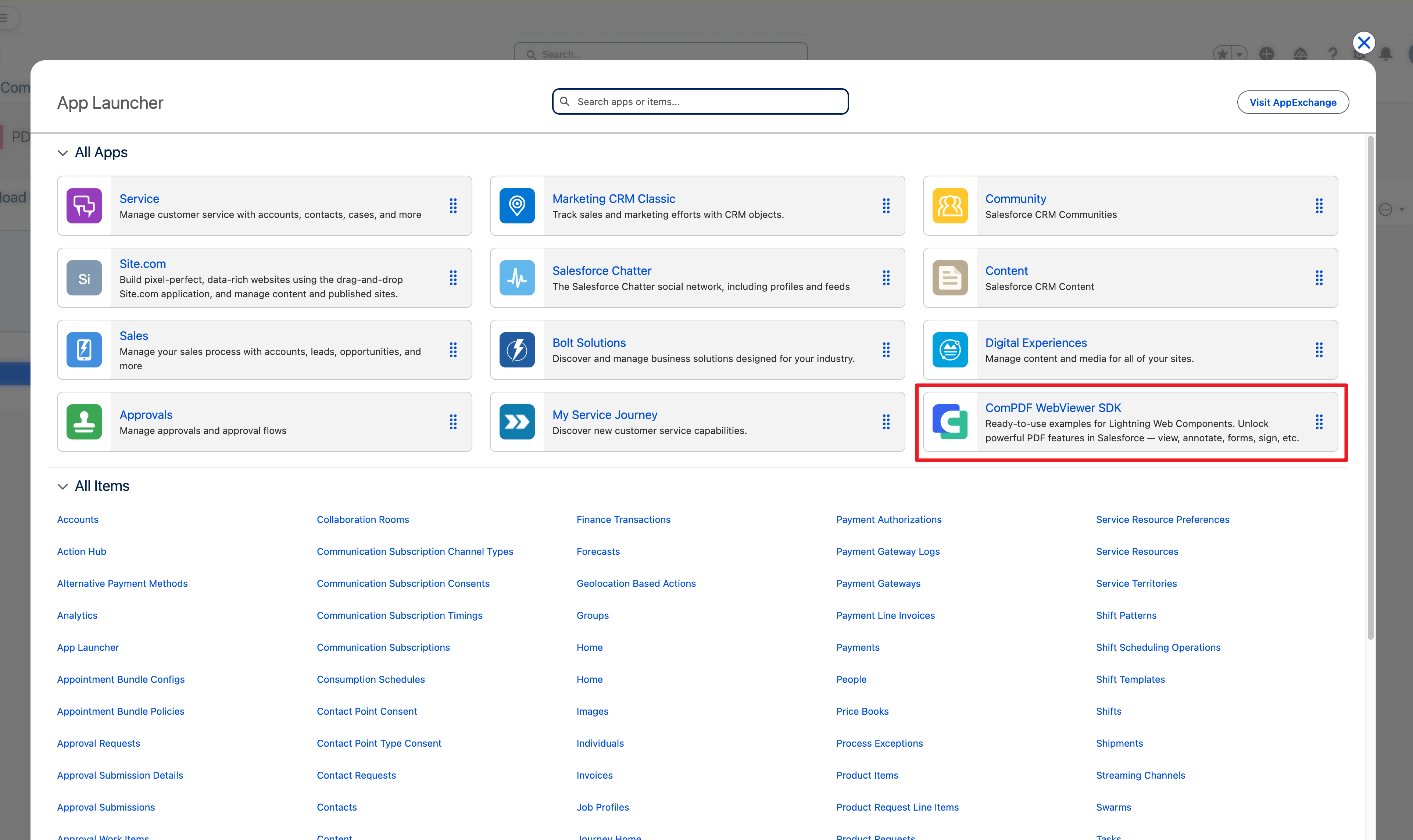
Click the app launcher icon in the top left, and select ComPDF. Then you should see the application start up.
-
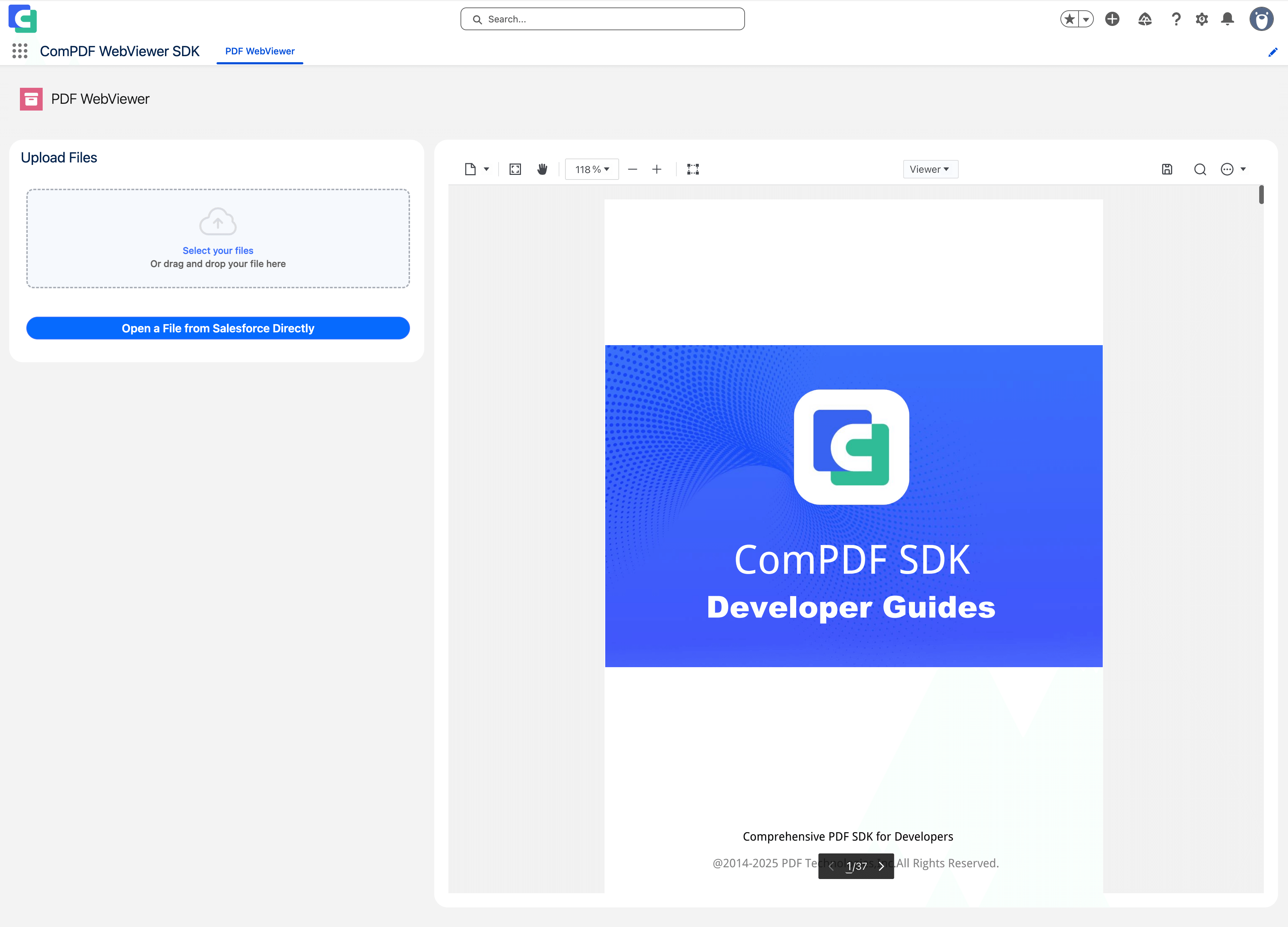
Click Select your files to upload local PDF files or open a file from Salesforce.
Key Features Built for Salesforce Workflows
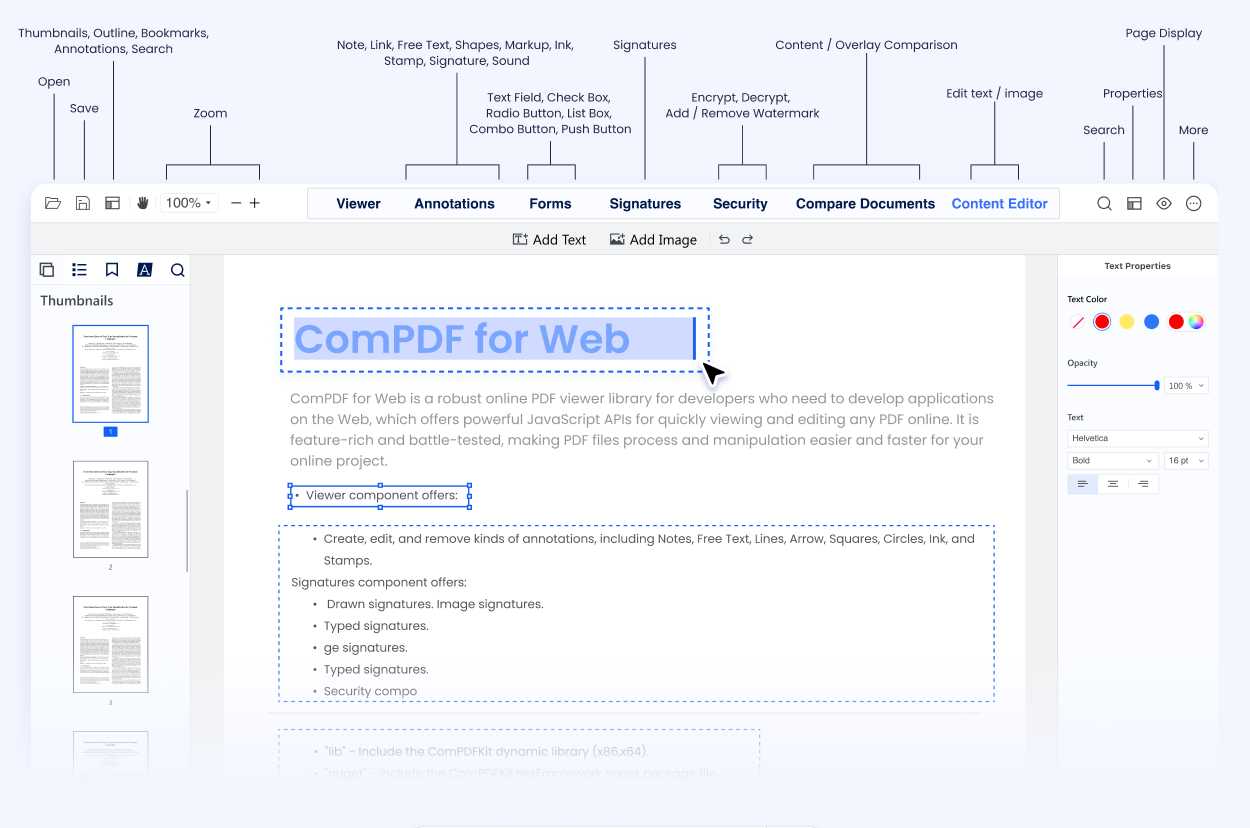
ComPDF provides a comprehensive toolset for PDF processing to enhance document governance and processing within the Salesforce CRM environment, including:
-
Document Restructuring & Report Management: Effortlessly view, merge, and reorganize key Salesforce reports—such as financial statements or compliance documents—for dynamic document assembly directly inside the CRM.
-
Version Control & Contract Comparison: Accurately compare contract versions to track changes across agreements or proposals, streamlining review, negotiation, and risk management.
-
Direct Content Editing: Use the advanced Document Editor to quickly modify text and embedded images in proposals, invoices, or client documents—far beyond basic annotations.
-
Electronic Signatures & Workflow Acceleration: Speed up contract cycles by securely applying validated eSignatures to agreements and forms without leaving Salesforce.
Wrap Up
You’ve now completed all the integration steps for ComPDF in Salesforce. With this integration, your team can create, view, edit, merge, and sign PDF documents directly within Salesforce, significantly boosting team efficiency.
If you need further support during your trial or deployment, you can:
-
Access additional developer documentation
-
Contact our technical support team for assistance
-
Reach out to our sales team for industry use cases or purchasing options