
PDF Generation Template Editor
Open-source visual PDF generation engine with customizable templates and developer-friendly APIs.
The SDK supports multiple integration methods. Choose the one that best suits your project needs.
Version & Compatibility
- The
compdfkit-toolsversion must be consistent withcompdfkitandcompdfkit-ui.- Please select appropriate
minSdk/compileSdk/targetSdkand AGP versions according to the SDK release notes.- If R8/ProGuard obfuscation is enabled, refer to the obfuscation configuration included with the SDK.
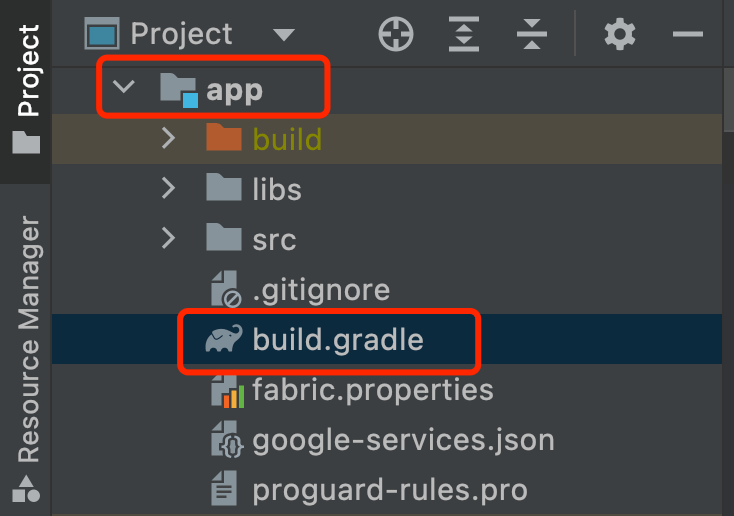
mavenCentral repository:dependencyResolutionManagement {
repositoriesMode.set(RepositoriesMode.FAIL_ON_PROJECT_REPOS)
repositories {
google()
+ mavenCentral()
}
}
Edit and add the ComPDFKit_Tools module dependency:
def compdfVersion = "3.0.1" // Must match compdfkit / compdfkit-ui version

dependencies {
  implementation "com.compdf:compdfkit-tools:${compdfVersion}"
  // Or depend on core and UI modules separately (versions must match):
  // implementation "com.compdf:compdfkit:${compdfVersion}"
  // implementation "com.compdf:compdfkit-ui:${compdfVersion}"
}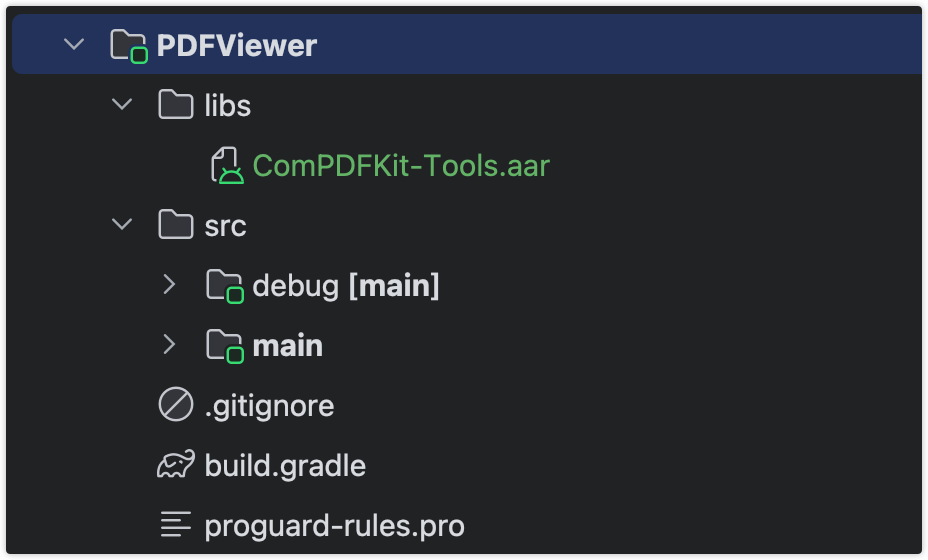
dependencies {
  implementation fileTree(dir: 'libs', include: ['*.jar', '*.aar'])
}Make sure to also depend on ComPDFKit.aar and ComPDFKit-UI.aar via manual integration to ensure proper operation.
You can obtain the ComPDFKit_Tools module source code from the SDK installation package or the GitHub sample project.
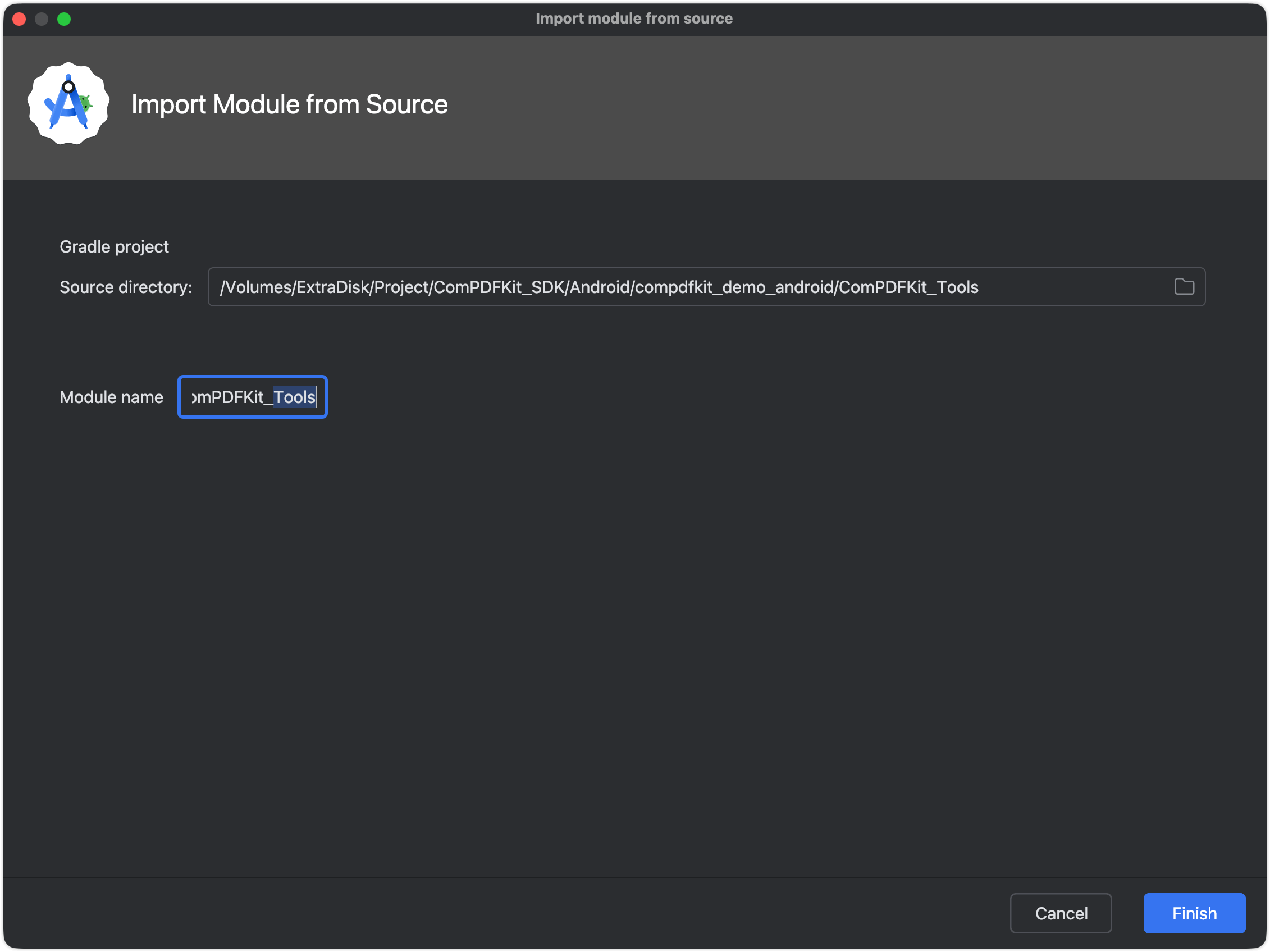
app/build.gradle:dependencies {
implementation project(path: ':ComPDFKit_Tools')
}Source code integration allows you to directly modify the Tools module code for deeper customization.