


GitHub is a widely-used platform for code hosting, development, and collaboration. Developers can find and integrate various SDKs into their projects easily. One such SDK is the ComPDF SDK React Native, which you can embed into applications, systems, web environments, etc., to build React Native Android/iOS PDF viewers, editors, converters, and more.
In this guide, we will demonstrate how to create React Native PDF applications using the ComPDF SDK available on GitHub. With just a few lines of code, you can integrate the ComPDF SDK into your React Native project. Follow this step-by-step guide to get started.
Step 1: Integration Requirements for React Native Github
Android React Native Integration Requirements
Please install the following required packages:
- A development environment for running React Native projects using the React Native CLI (not the Expo CLI)
- An Android Virtual Device or a hardware device
Operating Environment Requirements
- Android
minSdkVersionof21or higher. - ComPDF SDK 2.0.1 or higher.
iOS React Native Integration Requirements
Please install the following required packages:
- A development environment for running React Native projects using the React Native CLI (not the Expo CLI)
- The latest stable version of CocoaPods. Follow the CocoaPods installation guide to install it.
Operating Environment Requirements:
- ComPDF SDK 2.0.1 or higher.
- React Native dependency to version 3.0.0 or higher.
- iOS 10.0 or higher.
Step 2: Creating a New React Native PDF Project
Let's create a simple app that integrates ComPDF for React Native.
1. In the terminal app, change the current working directory to the location you wish to save your project. In this example, we’ll use the ~/Documents/ directory:
cd ~/Documents2. Create the React Native project by running the following command:
react-native init MyApp3. In the terminal app, change the location of the current working directory inside the newly created project:
cd MyApp
Step 3: Install and Integrate the Dependency of ComPDF SDK
You can install and integrate ComPDF SDK for React Native via Github. Follow the instructions below to install ComPDF SDK for React Native:
How to Download from GitHub
Through ComPDF GitHub repo:
In MyApp folder, install @compdfkit_pdf_sdk/react_native by calling:
yarn add github:ComPDF/compdfkit-pdf-sdk-react-native
Integrate React Native Android PDF SDK
- Open
android/app/src/main/AndroidManifest.xmland addInternet PermissionandStorage Permission:
<manifest xmlns:android="http://schemas.android.com/apk/res/android"
    package="com.compdfkit.flutter.example">

+    <uses-permission android:name="android.permission.INTERNET"/>

    <!-- Required to read and write documents from device storage -->
+    <uses-permission android:name="android.permission.READ_EXTERNAL_STORAGE"/>
+    <uses-permission android:name="android.permission.WRITE_EXTERNAL_STORAGE"/>

    <!-- Optional settings -->
+    <uses-permission android:name="android.permission.MANAGE_EXTERNAL_STORAGE" />

    <application
+    android:requestLegacyExternalStorage="true"
        ...>
  ...
    </application>
</manifest>
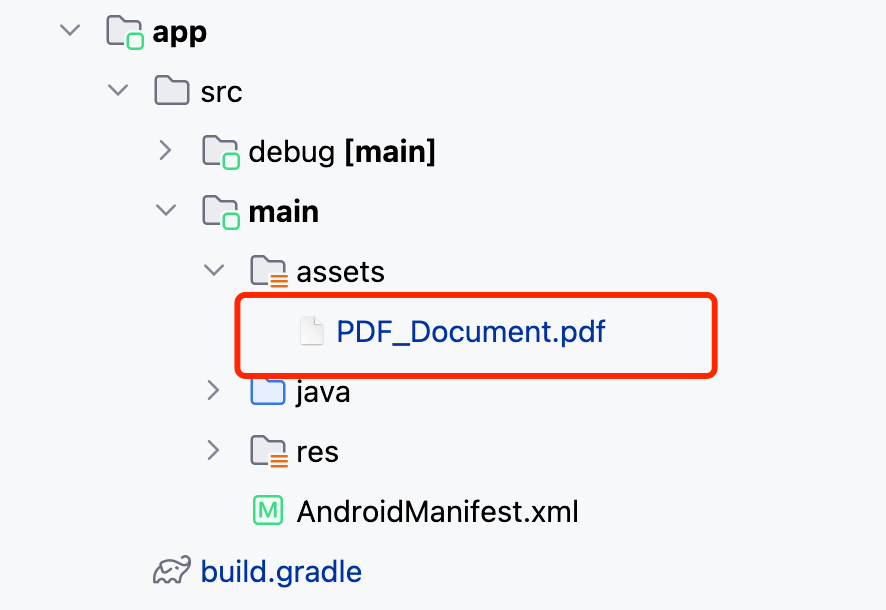
2. Copy the sample PDF file to the assets directory
Integrate React Native iOS PDF SDK
- Open your project’s `Podfile` in a text editor:
open ios/Podfile2. Add the following line to the `target 'MyApp' do ... end` block:
target 'MyApp' do
    # ...
+  pod "ComPDF", podspec:'https://www.compdf.com/download/ios/cocoapods/xcframeworks/compdfkit/2.0.1.podspec'
+  pod "ComPDF_Tools", podspec:'https://www.compdf.com/download/ios/cocoapods/xcframeworks/compdfkit_tools/2.0.1.podspec'
    # ...
end
3. In the ios folder, run pod install.
4. Open your project’s Workspace in Xcode:
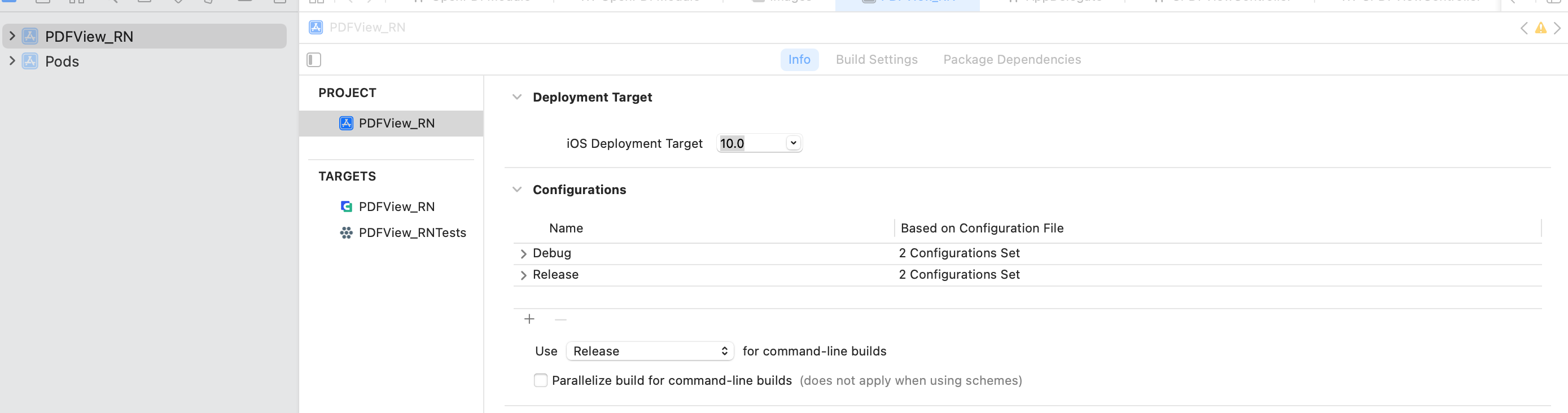
open ios/MyApp.xcworkspaceMake sure the deployment target is set to 10.0 or higher:
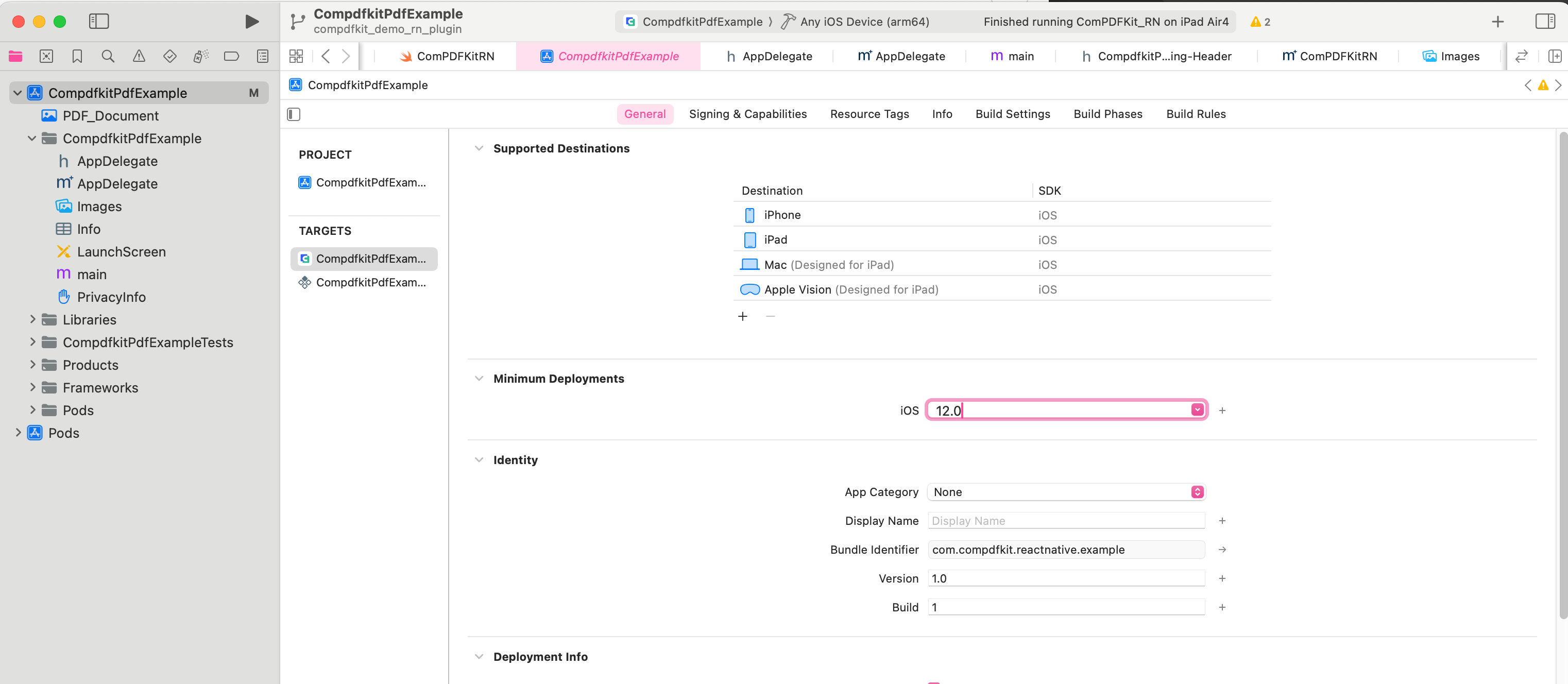
5. Add the PDF document you want to display to your application by dragging it into your project. On the dialog that’s displayed, select Finish to accept the default integration options. You can use "PDF_Document.pdf" as an example.
<key>NSCameraUsageDescription</key>
<string>Your consent is required before you could access the function.</string>

<key>NSMicrophoneUsageDescription</key>
<string>Your consent is required before you could access the function.</string>

<key>NSPhotoLibraryAddUsageDescription</key>
<string>Your consent is required before you could access the function.</string>

<key>NSPhotoLibraryUsageDescription</key>
<string>Your consent is required before you could access the function.</string>

<key>NSAppTransportSecurity</key>
  <dict>
    <key>NSAllowsArbitraryLoads</key>
    <true/>
  </dict>
Step 4: Apply the License Key for React Native Project
ComPDF for React Native is a commercial SDK, that requires a license to grant developer permission to release their apps. Each license is only valid for one bundle ID or applicationId in development mode. Other flexible licensing options are also supported, please contact our marketing team to know more.
ComPDF provides a 30-day free trial license for React Native PDF SDK.
To initialize ComPDF using a license key, call either of the following before using any other Open APIs or features:
- Online certification
import { ComPDF } from '@compdfkit_pdf_sdk/react_native';

type Props = {};
export default class App extends Component<Props> {
  ...

  componentDidMount(){
    // Fill in your online license
    ComPDF.initialize('your android platform compdfkit license', 'your ios platform compdfkit license')
  }
  // ...
}
- Offline authentication
import { ComPDF } from '@compdfkit_pdf_sdk/react_native';

type Props = {};
export default class App extends Component<Props> {
  ...

  componentDidMount(){
    // Fill in your offline license
    if(Platform.OS == 'android') {
      ComPDF.init_('your compdfkit license for android')
    } else {
      ComPDF.init_('your compdfkit license for ios')
    }
  }
// ...
}
Step 5: Run React Native PDF Project
- Replace
App.js(orApp.tsx) with what is shown for usage example
/**
 * Copyright © 2014-2024 PDF Technologies, Inc. All Rights Reserved.
 *
 * THIS SOURCE CODE AND ANY ACCOMPANYING DOCUMENTATION ARE PROTECTED BY INTERNATIONAL COPYRIGHT LAW
 * AND MAY NOT BE RESOLD OR REDISTRIBUTED. USAGE IS BOUND TO THE ComPDF LICENSE AGREEMENT.
 * UNAUTHORIZED REPRODUCTION OR DISTRIBUTION IS SUBJECT TO CIVIL AND CRIMINAL PENALTIES.
 * This notice may not be removed from this file.
 */

 import React, { Component } from 'react';
 // import DocumentPicker from 'react-native-document-picker'
 import {
   StyleSheet,
   Text,
   View,
   TouchableOpacity,
   SafeAreaView
 } from 'react-native';
 import { ComPDF } from '@compdfkit_pdf_sdk/react_native';
 import { Platform } from 'react-native';

 type Props = {};

 export default class App extends Component<Props> {

   state = {
     versionCode: ''
   }

   constructor(props: Props) {
     super(props)
     this.initialize()
     this.getVersionCode()
   }

   async getVersionCode() {
     // Get the version code of ComPDF SDK
     var version = await ComPDF.getVersionCode()
     this.setState({
       versionCode: version
     })
   }

   async initialize() {
     // Online certification, Fill in your online license
     // Returns true if initialization is successful, otherwise returns false.
     var result = await ComPDF.initialize('compdfkit android license', 'compdfkit ios license')
     console.log("ComPDFRN", "initialize:", result)

     // Offline authentication, Fill in your offline license
     // var result;
     // if(Platform.OS == 'android') {
     //   result = await ComPDF.init_('your compdfkit license')
     // } else {
     //   result = await ComPDF.init_('your compdfkit license')
     // }
     // console.log("ComPDFRN", "init_:", result)
   }

   /**
    * Open the sample document embedded in Android or iOS project.
    */
   openSample(){
     var samplePDF: string = Platform.OS == 'android' ? 'file:///android_asset/PDF_Document.pdf' : 'PDF_Document.pdf'
     // We provide default UI and PDF property related configurations here, you can modify configuration options according to your needs.
     var config = ComPDF.getDefaultConfig({

     })
     ComPDF.openDocument(samplePDF, '', config)
   }

   /**
    * Pick a PDF file from the local storage of Android or iOS device, this example uses the `react-native-document-picker` package,
    * If you want to use this example, please add this package to your project first.
    * {@link https://www.npmjs.com/package/react-native-document-picker}
    *
    */
   pickPDFFile(){
     try {
//       const pickerResult = DocumentPicker.pick({
//         type: [DocumentPicker.types.pdf]
//       });
//       pickerResult.then(res => {
//         ComPDF.openDocument(res[0]?.uri as string, '', ComPDF.getDefaultConfig({}))
//       })
     } catch (err) {
     }
   }

   render() {
     return (
       <SafeAreaView style={{ flex: 1 }}>
         <View style={styles.scaffold}>
           <View style={styles.appBar}>
             <Text style={styles.mediumTitle}>
               ComPDF SDK for ReactNative
             </Text>
           </View>
           <View style={styles.container}>
             <TouchableOpacity onPress={() => {
               this.openSample()
             }}>
               <View style={styles.funItem}>
                 <Text style={{ fontWeight: 'bold' }}>{'Open Sample'}</Text>
               </View>
             </TouchableOpacity>

             <View style={styles.dividingLine} />

             <TouchableOpacity onPress={() => {
               this.pickPDFFile()
             }}>
               <View style={styles.funItem}>
                 <Text style={{ fontWeight: 'bold' }}>{'Pick Document'}</Text>
               </View>
               <View style={styles.dividingLine} />

             </TouchableOpacity>

             <View style={styles.buttom}>
               <Text style={styles.body2}>ComPDF for {Platform.OS == 'android' ? 'Android' : 'iOS'} {this.state.versionCode}</Text>
             </View>
           </View>
         </View>
       </SafeAreaView>

     );
   }
 }

 const styles = StyleSheet.create({
   appBar: {
     height: 56,
     backgroundColor: '#FAFCFF',
     elevation: 4,
     flexDirection: "row",
     justifyContent: "space-between",
     alignItems: "center",
     padding: 16
   },
   mediumTitle: {
     fontSize: 16,
   },
   body2: {
     textAlign: 'center',
     fontSize: 12
   },
   scaffold: {
     flex: 1,
   },
   container: {
     marginHorizontal: 16,
     marginVertical: 8,
     flex: 1,
     // backgroundColor: '#F5FCFF',
   },
   funItem: {
     height: 56,
     justifyContent: 'center',
     textAlign: 'center'
   },
   dividingLine: {
     height: 0.5, backgroundColor: '#4D333333', width: '100%'
   },
   buttom: {
     flex: 1,
     justifyContent: 'flex-end',
   }
 });
2. Finally, run the project in the root project directory
Run on Android to get a RN Android PDF viewer:
react-native run-androidRun on iOS to get a RN Android PDF viewer:
react-native run-ios
Conclusion
ComPDF is continuously upgraded and fast-developed. Now you can access and download our React Native PDF SDK on many third-party platforms such as Github, NPM, etc. Contact ComPDF if you have any questions or problems with the React-Native-PDF SDK integration.
More guides about ComPDF SDK for React Native can be accessed on React Native documentation page.