

The Open API Tools of ComPDF Cloud is now released on the Zapier platform, allowing you to connect ComPDF with any app available on Zapier for PDF document editing, conversion, and data extraction.
This article will guide you through the process of connecting ComPDF Cloud with other apps via Zapier to accomplish the document processing tasks you need. You can go to our API tool list to learn about all the features supported by ComPDF Cloud.
We will connect Google Drive as an example to access the PDF files on Google Drive and choose any API of ComPDF Cloud for PDF processing. The complete workflow is illustrated below:
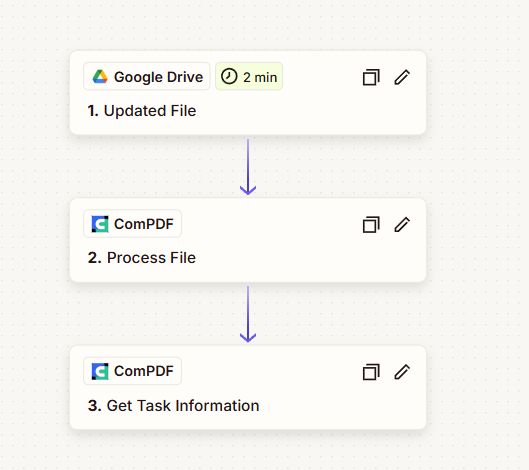
Step 1: Register a ComPDF Cloud Account and Obtain a License
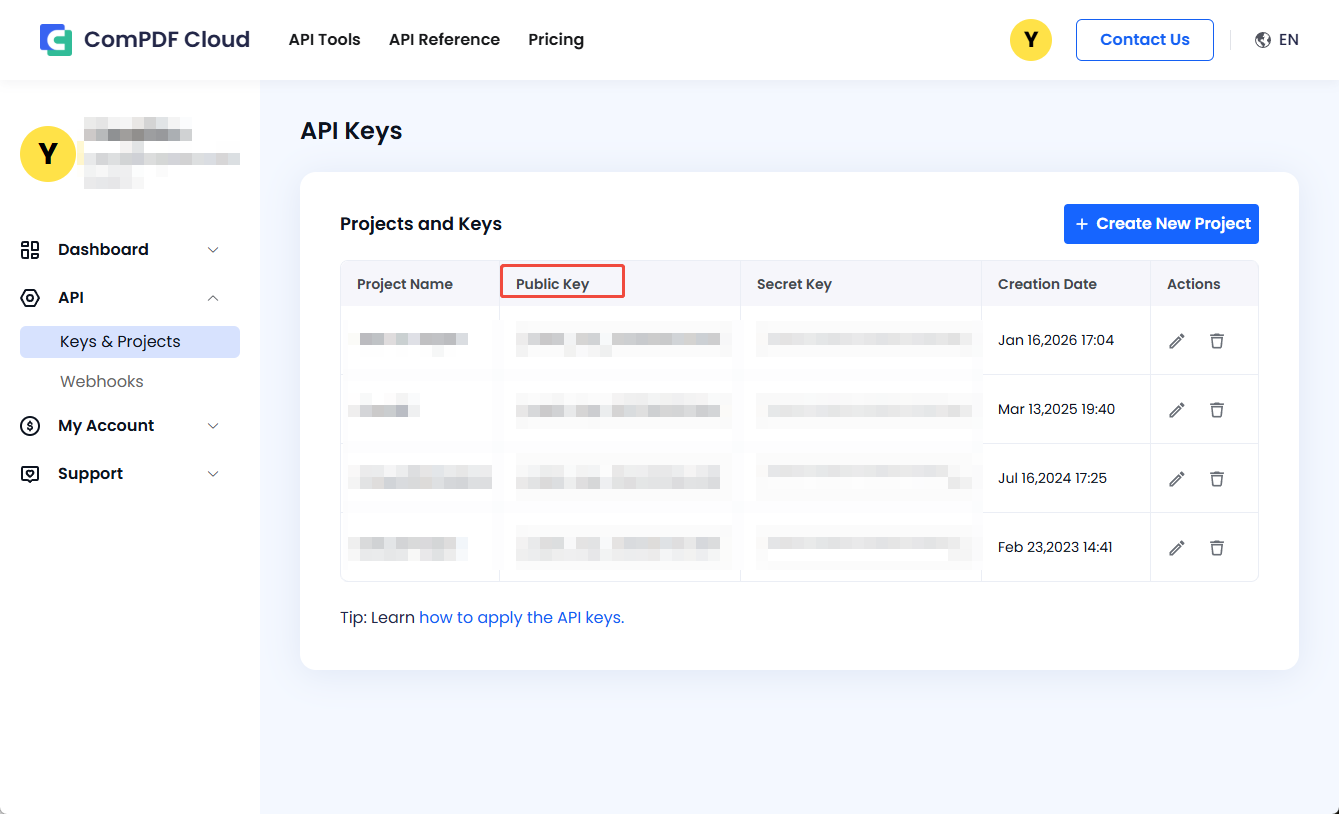
Go to the ComPDF Cloud registration page, sign up, and log in. After logging in, create a new project to get your Public Key (free for 200+ API calls monthly). You will need this key in later steps to authenticate API calls.
Step 2: Register/Log in Your Zapier Account and Search for ComPDF
1. Registration & Login
To integrate apps on the low-code Zapier platform, you need a free Zapier account. After logging in, type "ComPDF" into the search bar, select the ComPDF app, and navigate to the ComPDF Integration page.
2. Select App to Integrate with ComPDF Cloud
On the ComPDF integration page, click the "Connect ComPDF to 8000+ apps" button or select an app found via the search bar to begin your integration. For this tutorial, we choose Google Drive.
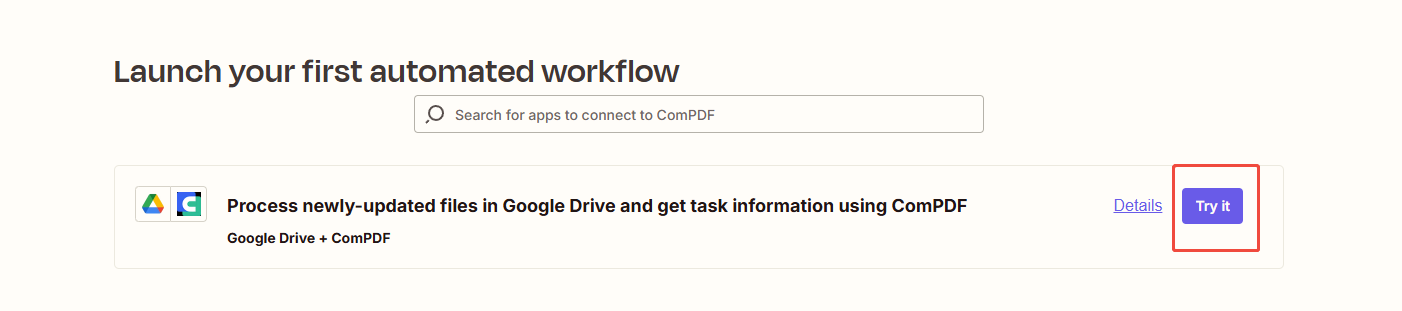
You can also use our pre-built automation templates (Zaps) to get started quickly.
Step 3: Connect Google Drive
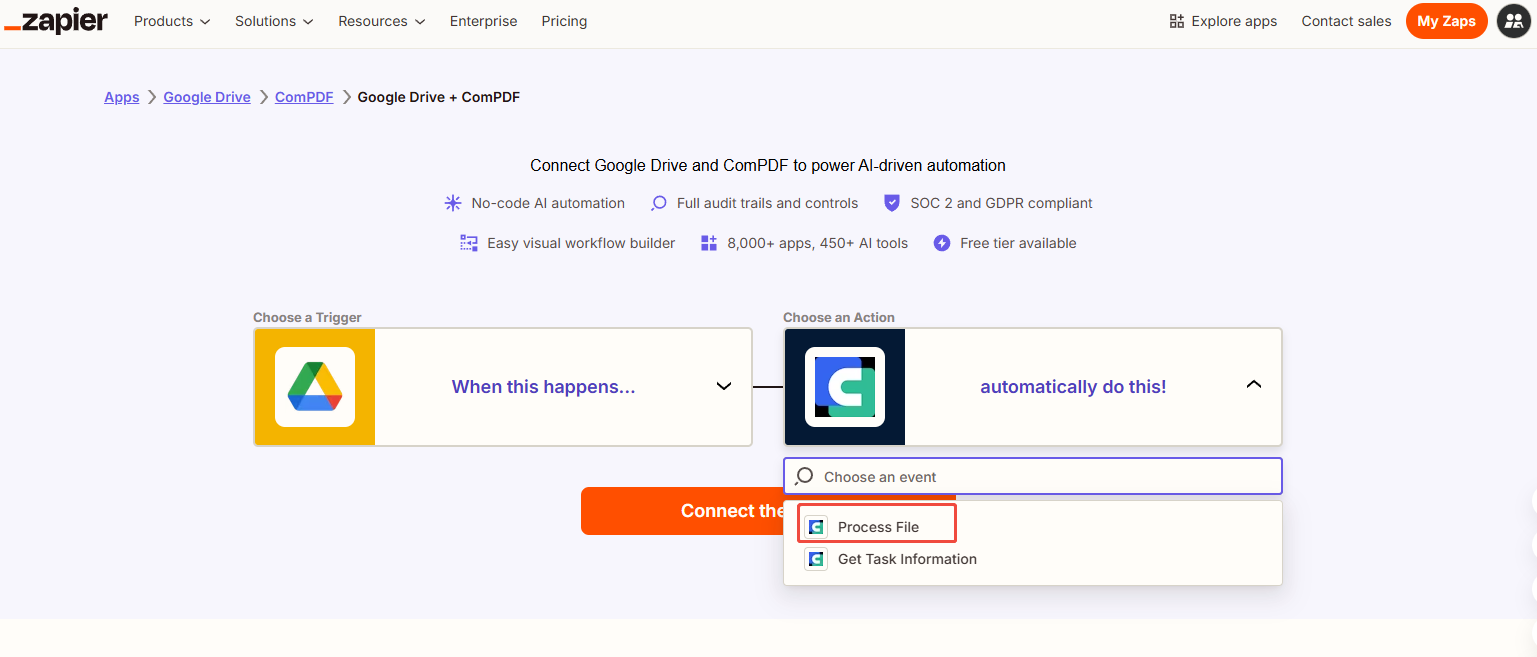
After selecting Google Drive, choose Process File as shown below and click Connect these apps to proceed.
1. Set up Google Drive
- Account: Select the Google Drive account you want to connect.
- Trigger Event: Choose your desired trigger event based on the description. We select Updated File, which triggers the automation when a file in your chosen Google Drive folder is modified.
- Click Continue.
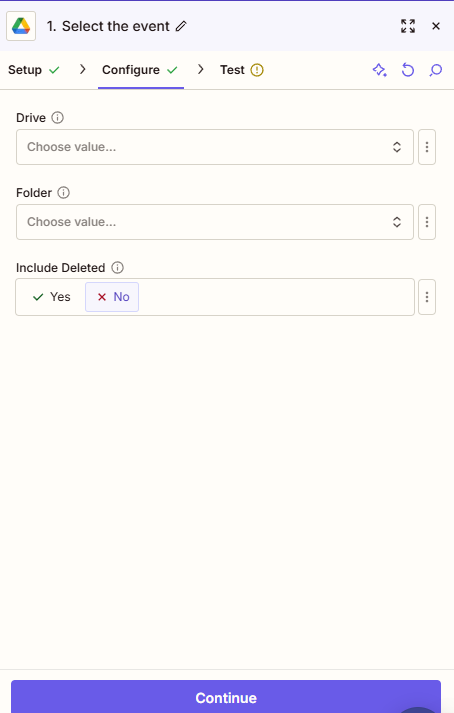
2. Configure
Select the specific Google Drive and Folder containing the files you want to process, then click Continue.
3. Test
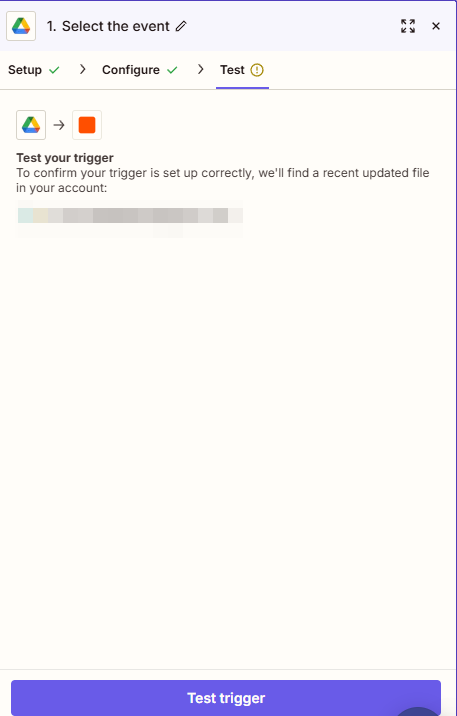
Click the Test trigger to verify if updated files are detected successfully. If it fails, follow the error prompts to troubleshoot.
Step 4: Connect and Set ComPDF Cloud
This step also involves Setup, Configure, and Test.
1. Set up
Your App and Action event are pre-selected. Simply enter the Public Key obtained in Step 1 into the Account field and click Continue.
2. Configue
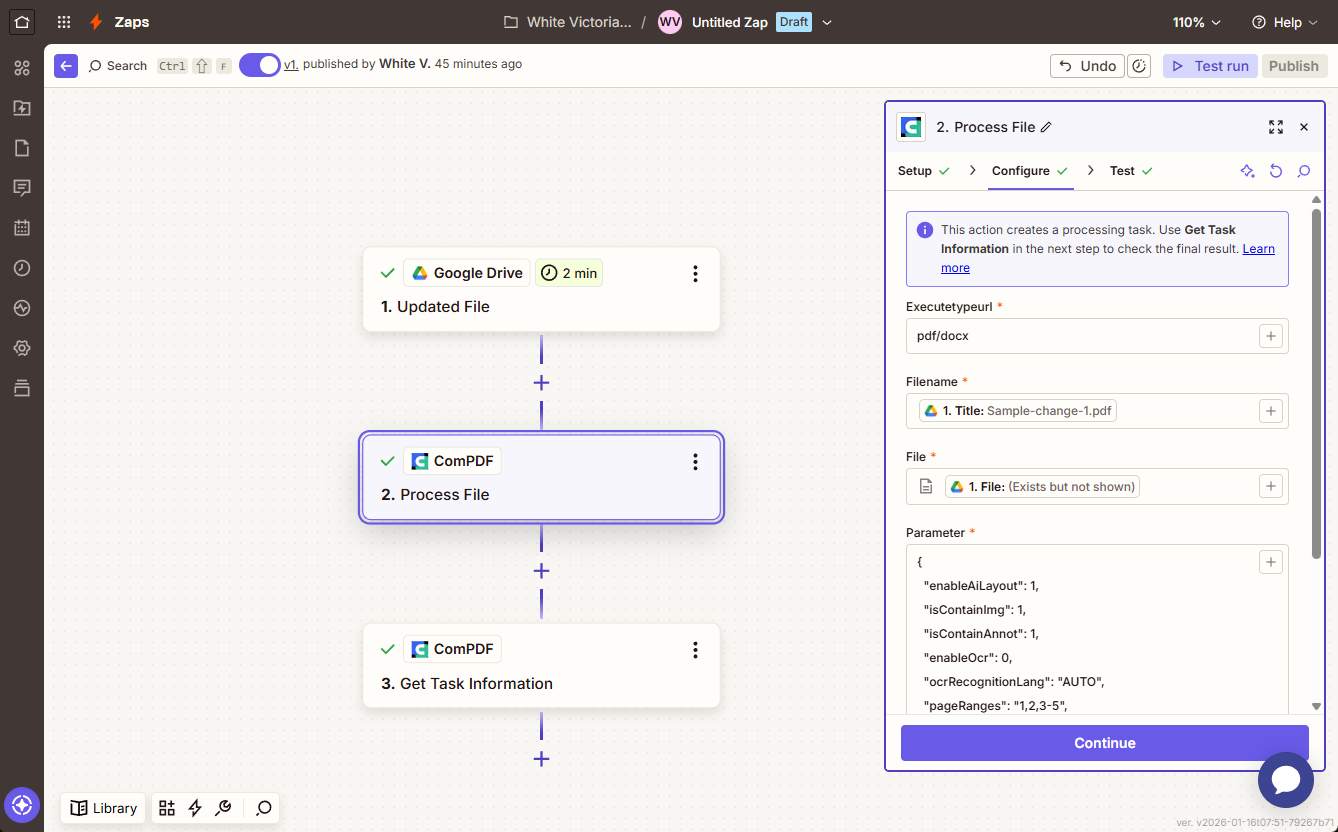
Connect the File from Google Drive:
As shown in the screenshot, select Title for the Filename field and File for the File field.
Choose the API of ComPDF Cloud:
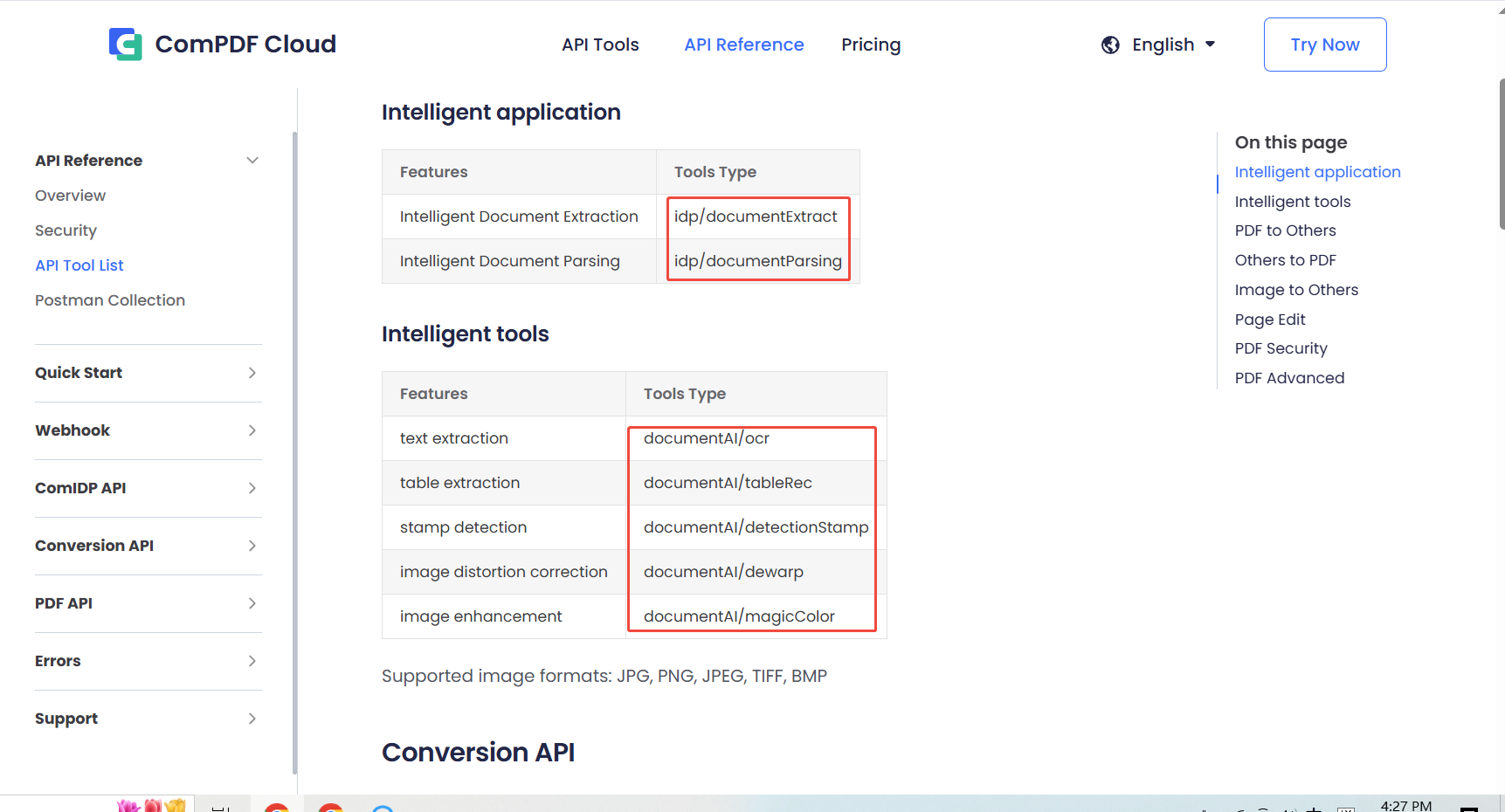
Based on the ComPDF Cloud function you wish to use, enter the tool type in the "Execute type url" section, similar to the example shown below. You can view all available tool types in the API Tool List of ComPDF Cloud.
Set the Parameters for this Tast:
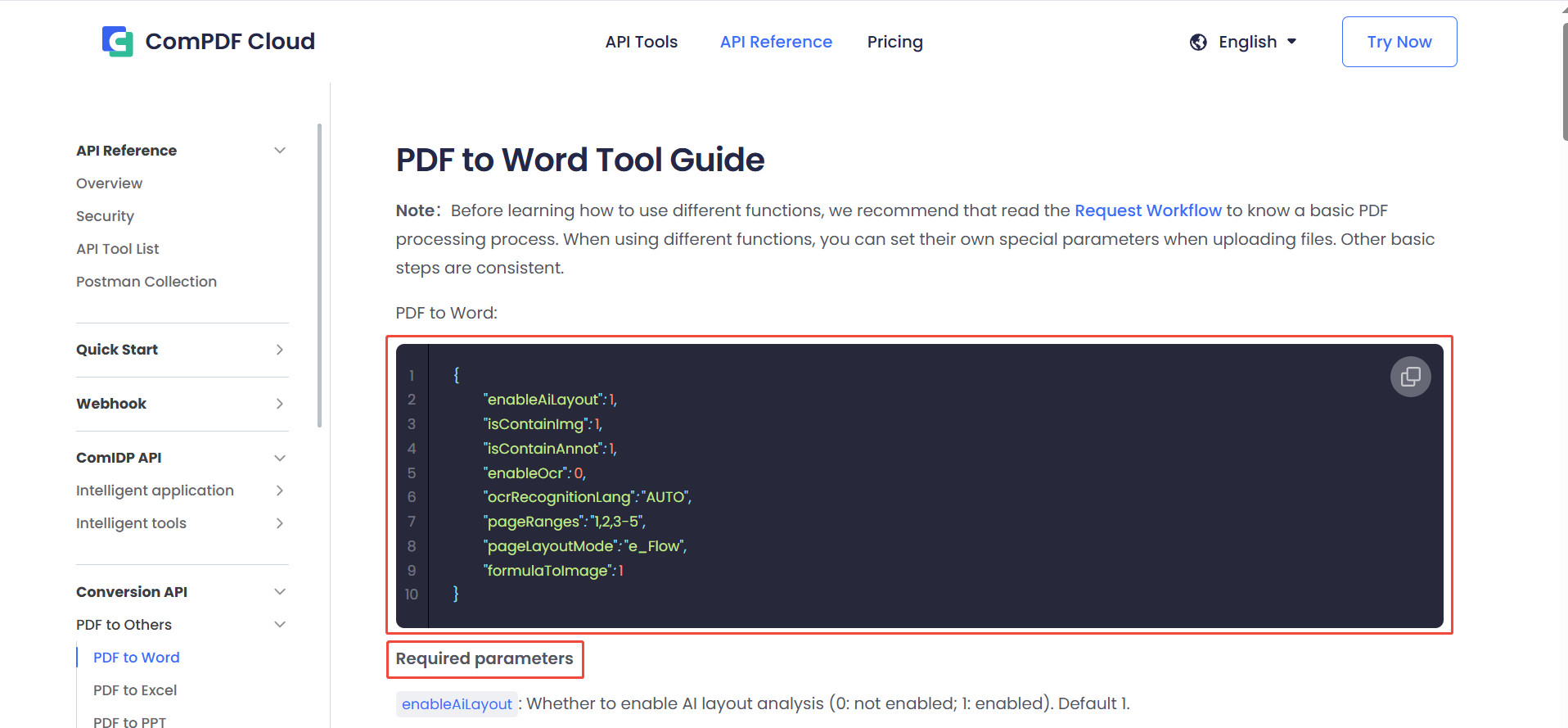
These parameters define how ComPDF Cloud processes the task. Refer to the ComPDF Cloud API Reference for parameter setup instructions and paste the parameter code into the Parameter field.
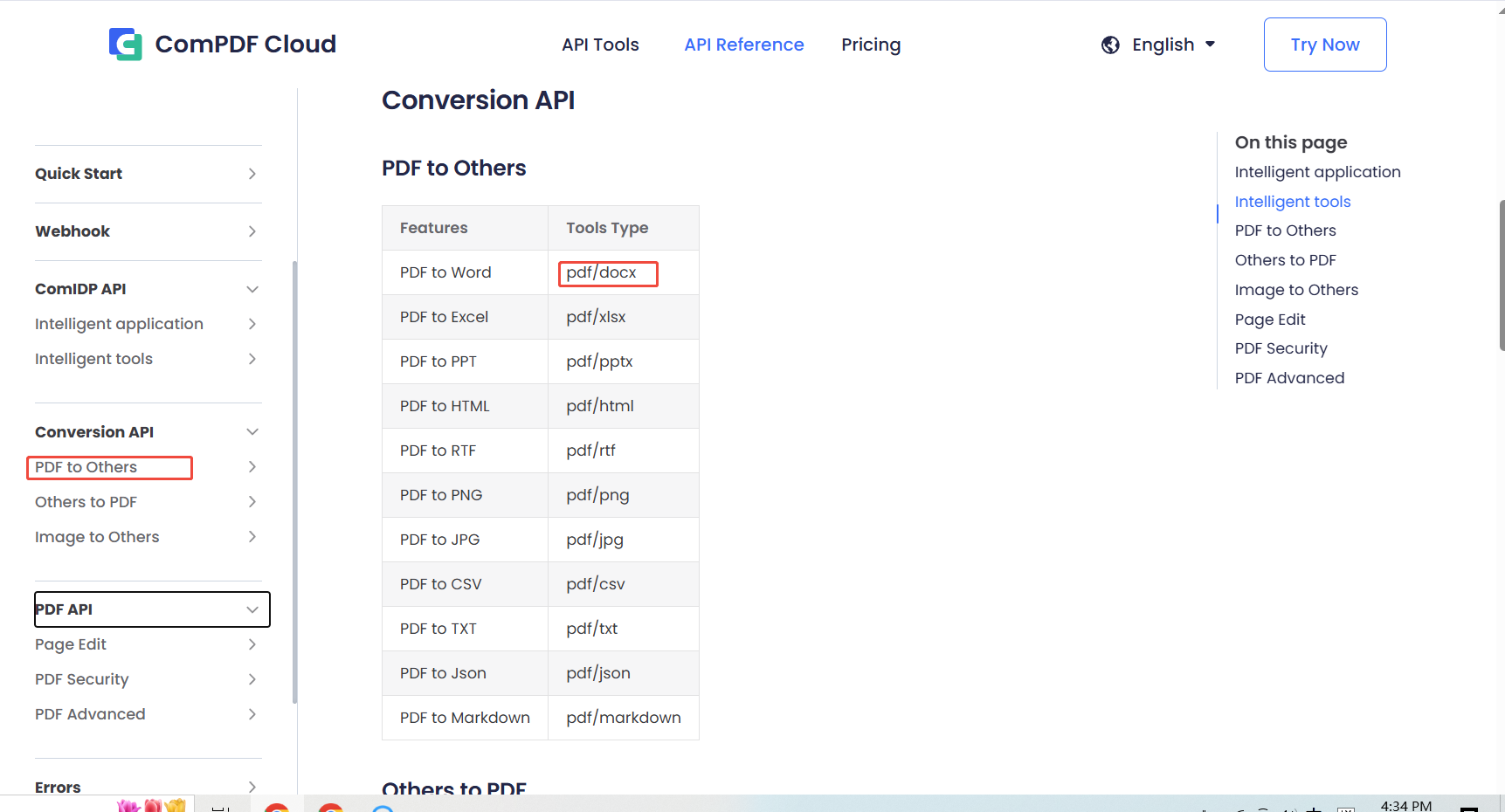
In our example, for the pdf/docx tool type, we navigate to the PDF to Word API page to see parameter settings.
You can use the default parameters provided or customize them based on the description of Required parameters.
3. Test
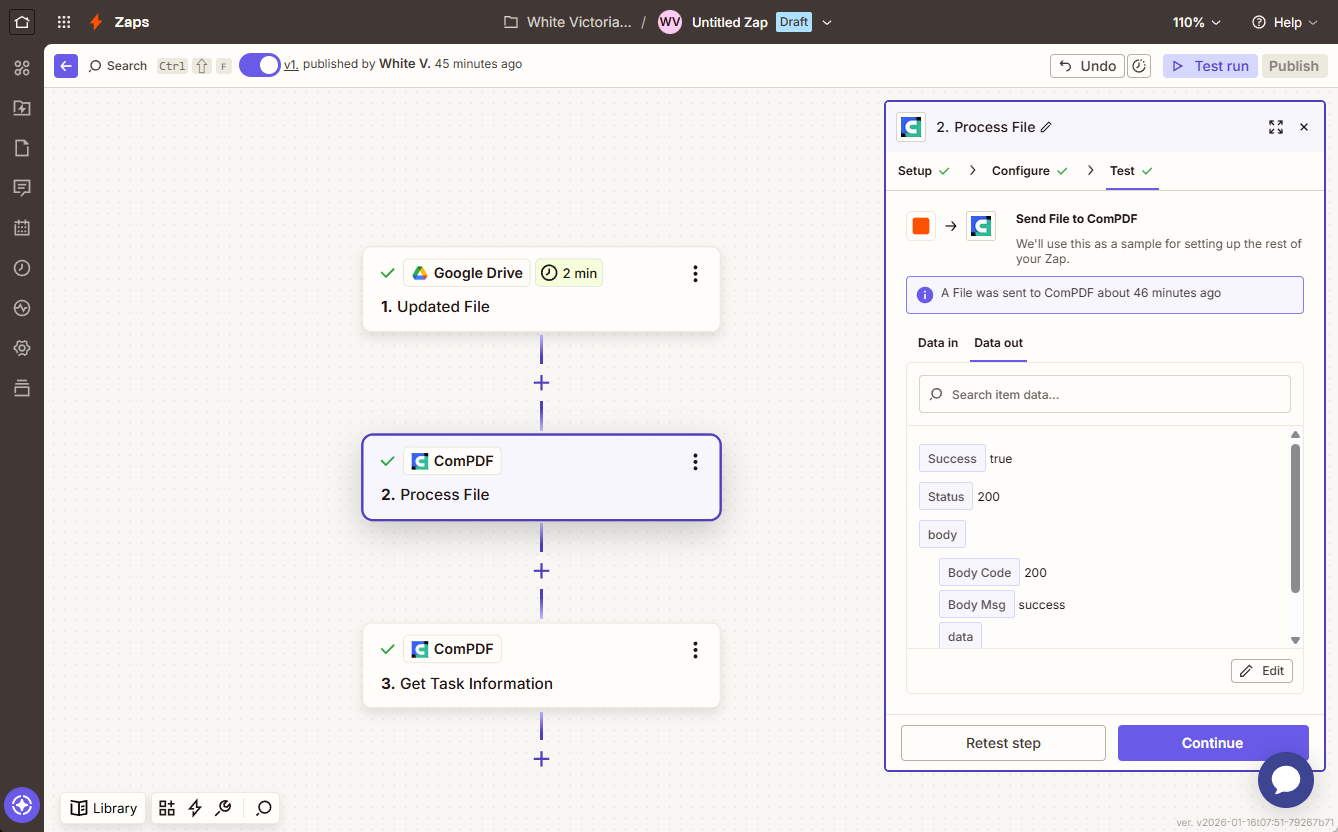
Click Test to check your configuration. A Success message indicates a correct setup. If it fails, adjust based on the error message. Click Continue to proceed.
Step 5: Get Task Information
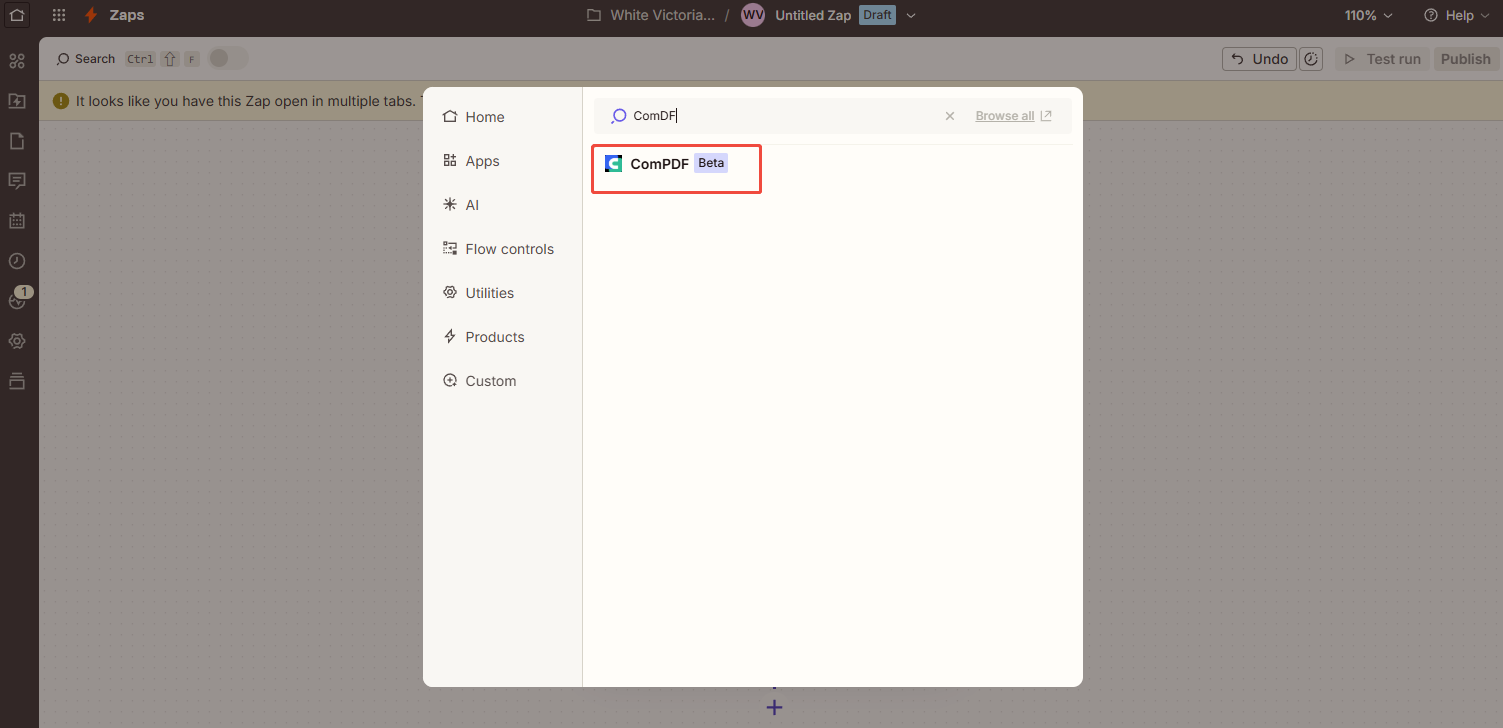
Click the + icon, Search for and select ComPDF, then choose "Get Task Information" and follow the instructions below to complete the configuration:
1. Set up
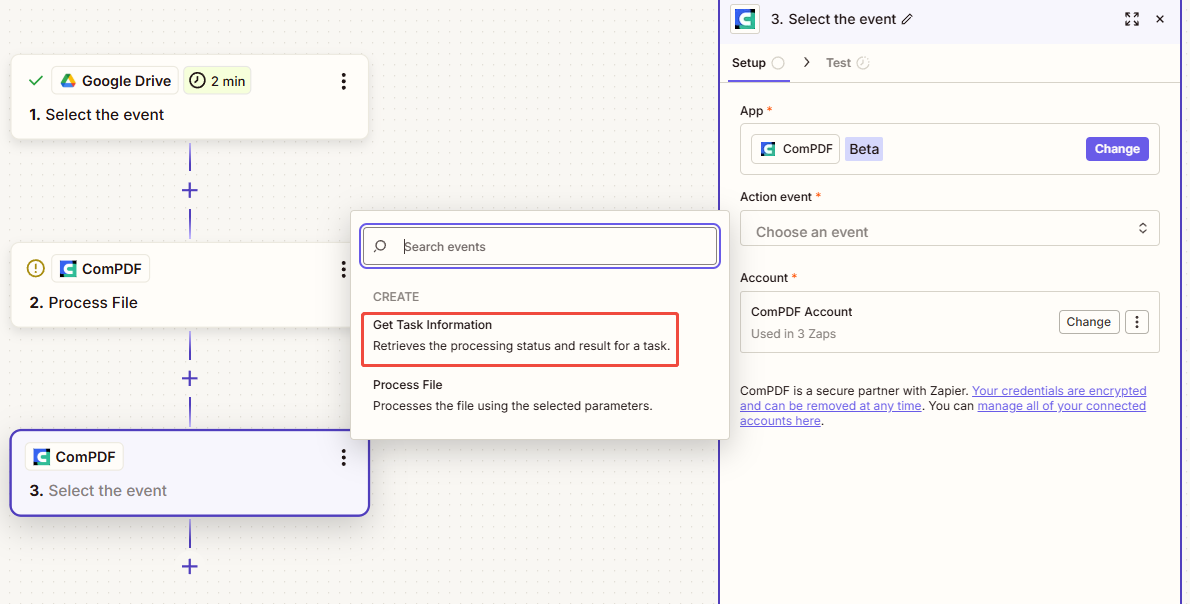
Select Get Task Information as the Action Event and click Continue.
2. Configue
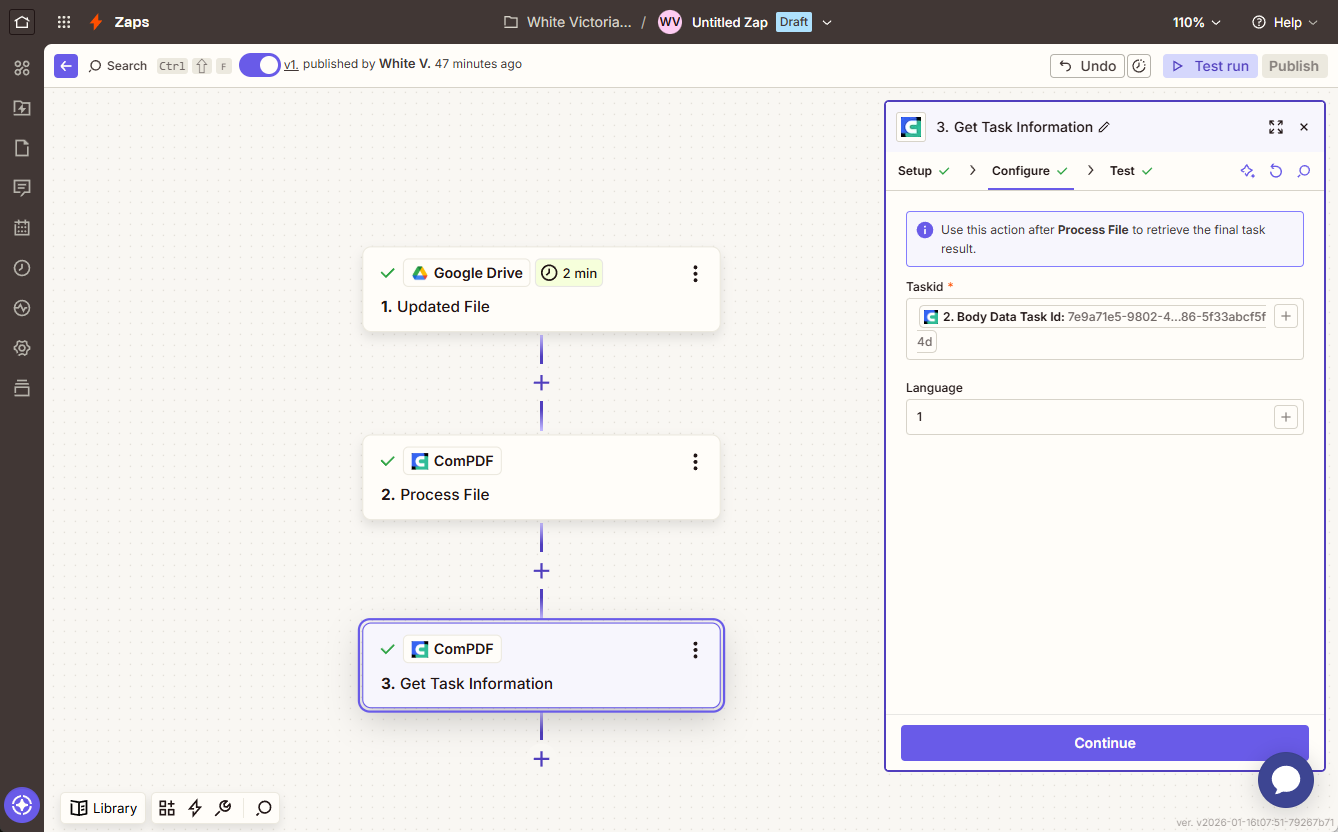
In the Taskid field, select Body Data Task from the Process File in the ComPDF. Then, click Continue.
3. Test
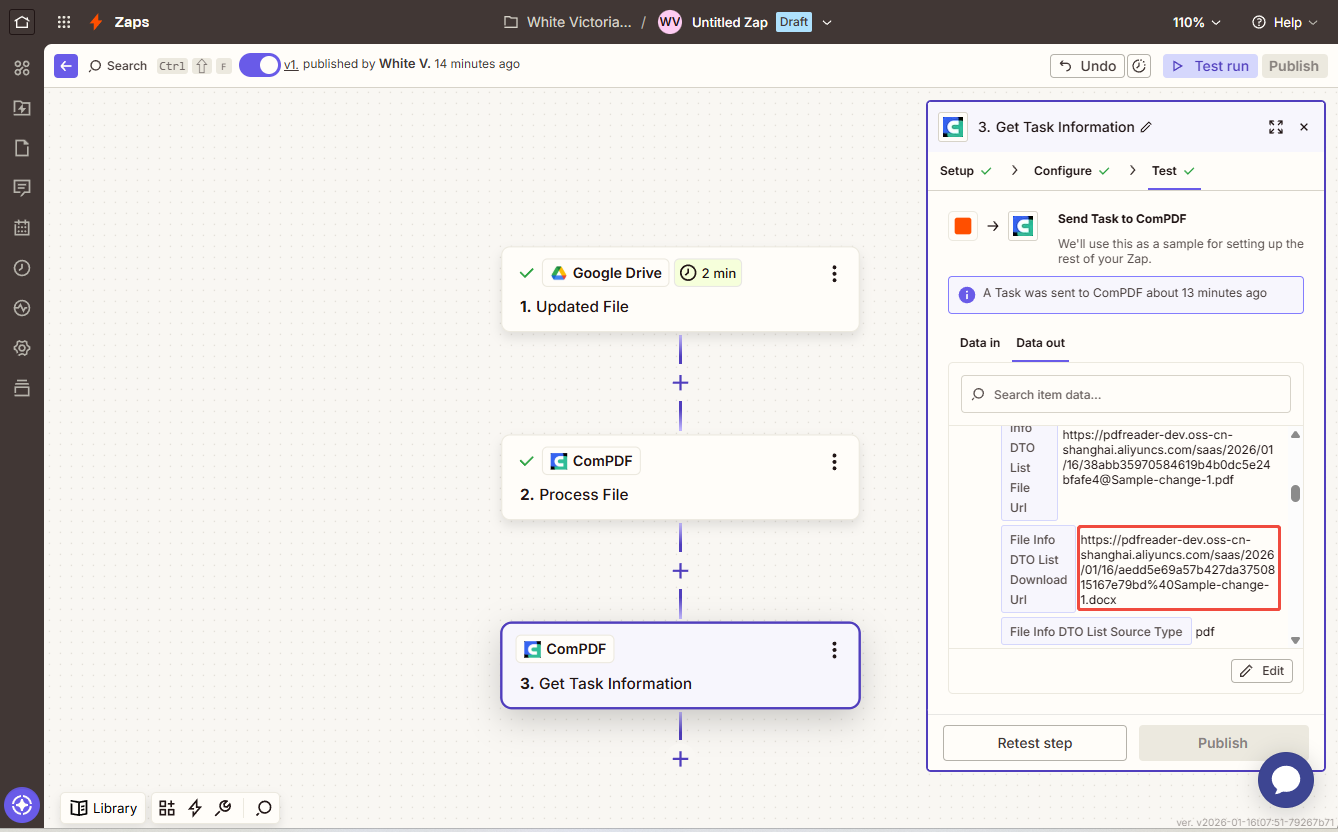
Click the Test button to execute this automation step. In the Data out, you will find the File Info DTO List Download Url. Copy this link, open it in a browser to download the processed file.
You can further connect other apps to handle this file—for example, save it back to Google Drive or send it via Gmail.
What's More!
With ComPDF Cloud on the Zapier platform, you can process PDF files from any location and further integrate with other apps to make better use of the processed documents according to your needs.