
PDF Generation Template Editor
Open-source visual PDF generation engine with customizable templates and developer-friendly APIs.
The Generation from HTML feature requires an HTML template and structured data for filling the template, which is JSON data, to generate a standard HTML. Then, by using the corresponding interface of Generation from HTML, you can convert the standard HTML into a PDF document.
The template is an HTML file, and a matching JSON data file is also required. The JSON data is a standard JSON file. The HTML template file needs to be combined with the JSON data to generate a standard HTML. The process of generating HTML by combining JSON data and the HTML template supports variables, if statements, for loops, arithmetic operations, and common functions.
HTML template example:
<!doctype html>
<html>
<body style="margin: 0; padding: 0;">
<table cellpadding="0" cellspacing="0" width="100%" style="border-collapse: collapse; margin: 0 auto">
  <tr>
    <td style="padding-top: 40px;">
      <img
          src="{% if compdfkit %}images/logo.png{% else if compdfkit2 %}images/logo2.png{% else %}images/logo3.png{% endif %}"
          alt="PDF Technologies"
          width="203"
          height="50">
    </td>
    <td style="padding-top: 40px; text-align: right;">
      <img src="images/invoice.png" alt="invoice" width="132">
      <td style="border: 1px solid #8A8EA8; padding: 2px 10px;">{{billNo}}</td>
    </td>
  </tr>
</table>
<table cellpadding="0" cellspacing="0" width="100%" style="border-collapse: collapse;">
  <!-- {% set totalprice = 0 %} -->
  <!-- {% for item in items %} -->
  <tr style="height:64px;color:#333;">
    <td style="width:70px;height:70px;border-bottom: 2px solid #F3F3F3; padding-left: 10px; text-align: left;">
      {{ item.index }}
    </td>
    <td style="width: 160px;border-bottom: 2px solid #F3F3F3; font-size: 13px; line-height: 15px; color: #121E3F;text-align:left;">
      <div>
        <p style="font-size: 13px; line-height: 15px; font-weight: bold; color: #121E3F; margin: 0;">
          {{ item.product }}
        </p>
        <p style="font-size: 11px; line-height: 12px; padding-top: 4px; color: #5F6881; margin: 0;">
          {{ item.startDateAndEndDate }}
        </p>
      </div>
    </td>
    <td style="width: 130px;border-bottom: 2px solid #F3F3F3; font-size: 13px; line-height: 15px; color: #121E3F;text-align:left;">
      {{ item.paymentCycle }}
    </td>
    <td style="width: 100px;border-bottom: 2px solid #F3F3F3; font-size: 13px; line-height: 15px; color: #121E3F;text-align:left;">
      {{ item.gearLevel }}
    </td>
    <td style="width: 100px;text-align:left;border-bottom: 2px solid #F3F3F3; font-size: 13px; line-height: 15px; color: #121E3F;">
      $ {{ item.price }}
    </td>
  </tr>
  <!-- {% set totalprice = totalprice + item.price %} -->
  <!-- {% endfor %} -->
  <tr>
    <td style="width:70px;"></td>
    <td style="width:160px;"></td>
    <td colspan="2" style="width: 100px; text-align:right; font-weight: bold; font-size: 16px; line-height: 18px; color: #121E3F; padding-right: 72px;">Total:</td>
    <td style="width: 100px; text-align:left; font-weight: bold; font-size: 16px; line-height: 18px; color: #121E3F;">$ {{round(totalprice * (1 + tax * 0.01), 2)}}</td>
  </tr>
</table>
</body>
</html>As shown in the example above, the HTML template contains some non-HTML standard content, such as {% if compdfkit %}, {{billNo}}, <!-- {% set totalprice = totalprice + item.price %} --> and <!-- {% for item in items %} -->. This non-standard HTML content includes variables, if statements, for loops, arithmetic operations, and common functions, among these types.
Variables
<td style="border: 1px solid #8A8EA8; padding: 2px 10px;">{{billNo}}</td>The above {{billNo}} is a variable, which needs to be enclosed in {{ }} and corresponds to an entry named billNo in the JSON file.
If the corresponding name does not exist in the JSON file, it needs to be defined first. Below is an example of defining a variable.
<!-- {% set totalprice = 0 %} -->In the example template, the line of code above defines a variable named totalprice. Similar to the previous billNo variable, it is used as follows after being enclosed in {{ }}: {{totalprice}}.
Arithmetic Operations
<!-- {% set totalprice = totalprice + item.price %} -->The line of code above performs calculations on totalprice, supporting addition, subtraction, multiplication, and division.
If Statements
<img
     src="{% if compdfkit %}images/logo.png{% else if compdfkit2 %}images/logo2.png{% else %}images/logo3.png{% endif %}"
     alt="PDF Technologies"
     width="203"
height="50">The {% if compdfkit %} … {% else if compdfkit2 %}...{% else %}...{% endif %} is a complete if statement structure, where else if and else are optional. The variables compdfkit and compdfkit2 correspond to entries with the same names in the JSON file.
For Loops
<!-- {% set totalprice = 0 %} -->
<!-- {% for item in items %} -->
               ……….
      <!-- {% set totalprice = totalprice + item.price %} -->
<!-- {% endfor %} -->{% for item in items %}...{% endfor %} is a structure for a for loop. Here, items is an array type of data in the JSON file.
Common Functions
<td style="width: 100px; text-align:left; font-weight: bold; font-size: 16px; line-height: 18px; color: #121E3F;">$ {{round(totalprice * (1 + tax * 0.01), 2)}}</td>In the code, round is a function that can take variables as parameters. totalprice and tax are variables. The entire function is enclosed in {{ }}.
Prepare JSON data in standard format to combine with the HTML template and fill the data into the template to generate standard HTML. Example of JSON data:
{
    "address": "456 Oak Avenue",
    "billNo": "2345678901",
    "company": "TechCorp Ltd.",
    "country": "Canada",
    "email": "[email protected]",
    "firstName": "Alice",
    "gearLevel": "Pro",
    "compdfkit": false,
    "compdfkit2": true,
    "invoiceDate": "2025-01-15",
    "lastName": "Smith",
    "paymentCycle": "Yearly",
    "price": "1200",
    "province": "Ontario",
    "startDateAndEndDate": "2025-01-15 to 2025-02-15",
    "tax": 8,
    "zip": "K1A 0A6",
    "items": [
        {
            "index": 1,
            "product": "ComPDFKit Pro",
            "startDateAndEndDate": "2025-01-15 to 2025-02-15",
            "paymentCycle": "Yearly",
            "gearLevel": "Pro",
            "price": 800
        },
        {
            "index": 2,
            "product": "ComPDFKit API",
            "startDateAndEndDate": "2025-01-15 to 2025-02-15",
            "paymentCycle": "Monthly",
            "gearLevel": "Basic",
            "price": 400
        }
    ]
}Before generating the PDF, you need to use the following code to perform SDK license authentication for the PDF generation function module.
Note: You must replace the license in the LicenseVerify()method with your own.
public static bool LicenseVerify()
{
    if (!CPDFGeneration.LoadNativeLibrary())
        return false;

    LicenseErrorCode errorCode = CPDFGeneration.LicenseVerify("Input your license here");
    return (verifyResult == LicenseErrorCode.LICENSE_SUCCESS);
}Convert JSON file combined with HTML template to PDF:
// HTML template file path
string templatePath = "/templatePath.html";
// JSON file path
string jsonPath = "/jsonPath.json";
// Generated HTML file path
string outputHtml = "/outHtml.html";
// Generated PDF file path
string outputPdf = "/html2pdfOut.pdf";

// Combine JSON file with HTML template to generate HTML file
CHtmlConverter.RenderAndConvertToPdf(templatePath, jsonPath, outputHtml);

// Start converting HTML file to PDF
CHtmlConverter.ConvertToPdf(outputHtml, outputPdf);The above example first combines the JSON file with the HTML template to generate HTML content, and then converts the HTML content into PDF, which is done in two steps. It can also be directly converted to PDF:
// HTML template file path
string templatePath = "/templatePath.html";
// JSON file path
string jsonPath = "/jsonPath.json";
// Generated PDF file path
string outputPdf = "/html2pdfOut.pdf";

// Combine JSON file with HTML template and directly convert to PDF
CHtmlConverter.RenderAndConvertToPdf(templatePath, jsonPath, outputPdf);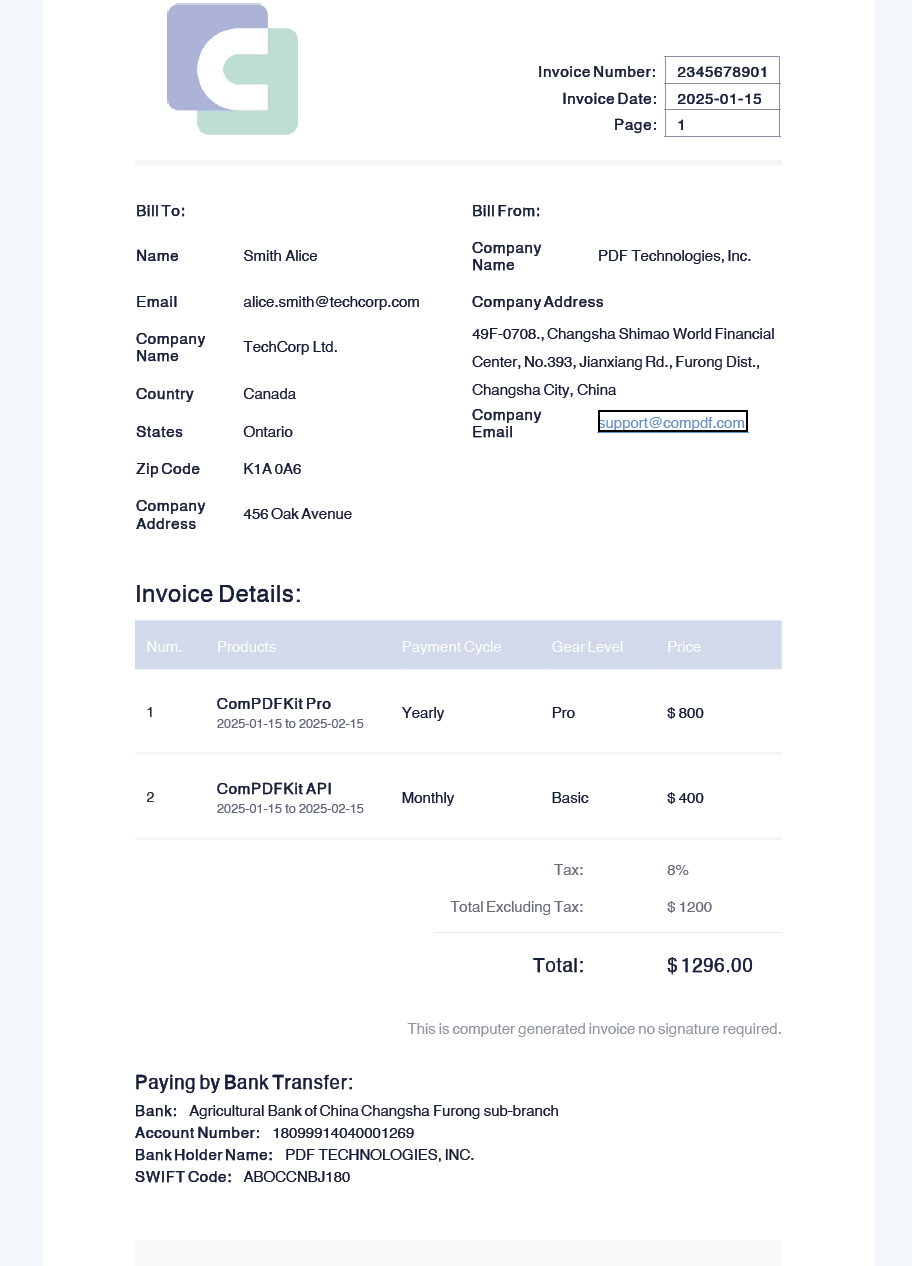
Configuration Properties
When converting HTML to PDF, you can configure certain properties such as base URI, page size, and fonts.
// HTML template file path
string templatePath = "/templatePath.html";
// JSON file path
string jsonPath = "/jsonPath.json";
// Generated PDF file path
string outputPdf = "/html2pdfOut.pdf";

// Configure properties
CConverterProperties properties = new CConverterProperties();
// Set base URI
properties.SetBaseUri("/baseUri/");
// Set page size
CSize pageSize = new CSize { Width = 595, Height = 842 };
properties.SetPageSize(pageSize);
// Set font
CFontProvider fontProvider = new CFontProvider();
fontProvider.AddDirectory("/fontDir/");
properties.SetFontProvider(fontProvider);

// Convert HTML to PDF using property configuration
CHtmlConverter.RenderAndConvertToPdf(templatePath, jsonPath, outputPdf, properties);Set Font
The example uses fontProvider.AddDirectory("/test/fontDir/"). You should provide some font files in the /fontDir/ directory, so that the text in the HTML file can use these provided fonts. Below is part of the HTML example code, where the text inside the span tag uses the Sarabun font. Sarabun is a provided font, and the corresponding font files should be placed in the appropriate directory.
<style data-dito-stylesheet-name="setFonts">@font-face {
    font-family: "Sarabun";
}
@font-face {
    font-family: "Sarabun";
    font-style: italic;
}
@font-face {
    font-family: "SarabunThin";
}
@font-face {
    font-family: "SarabunsemiBold";
}</style>

<div style="margin-left:0in;margin-top:0pt;margin-bottom:0pt">
  <span style="font-family:Sarabun">
    <span style="color:black">
      <span style="font-size:26px">(PEA GECC Internal Audit)</span>
    </span>
  </span>
</div>During conversion, HTML templates and JSON data can be provided as content strings, file streams, file objects, or file paths. The generated PDF can be output to file streams, file objects, or file paths.
The previous examples used file paths, and the following is an example using file streams:
string templatePath = "/templatePath.html";
string jsonPath = "/jsonPath.json";
string outputPdf = "/html2pdfOut.pdf";

FileStream templateStream = File.OpenRead(templatePath);
FileStream jsonStream = File.OpenRead(jsonPath);
FileStream outputPdfStream = File.Create(outputPdf);
CHtmlConverter.RenderAndConvertToPdf(templateStream, jsonStream, outputPdfStream);Using content strings:
string templatePath = "/templatePath.html";
string jsonPath = "/jsonPath.json";
string outputPdf = "/html2pdfOut.pdf";

string templateContent = File.ReadAllText(templatePath);
string jsonContent = File.ReadAllText(jsonPath);
FileStream outputPdfStream = File.Create(outputPdf);
CHtmlConverter.RenderAndConvertToPdf(templatePath, jsonPath, outputPdfStream);Using file objects:
string templatePath = "/templatePath.html";
string jsonPath = "/jsonPath.json";
string outputPdf = "/html2pdfOut.pdf";

FileInfo htmlFileInfo = new FileInfo(templatePath);
FileInfo jsonFileInfo = new FileInfo(jsonPath);
FileInfo pdfFileInfo = new FileInfo(outputPdf);
CHtmlConverter.RenderAndConvertToPdf(htmlFileInfo, jsonFileInfo, pdfFileInfo);