
PDF Generation Template Editor
Open-source visual PDF generation engine with customizable templates and developer-friendly APIs.
Samples.sln in Visual Studio.Alternatively, you can open a command-line tool in the project folder and run the example via commands:
dotnet runYou can perform integration manually or via nuget as described below. This section will help you build a PDF generation application.
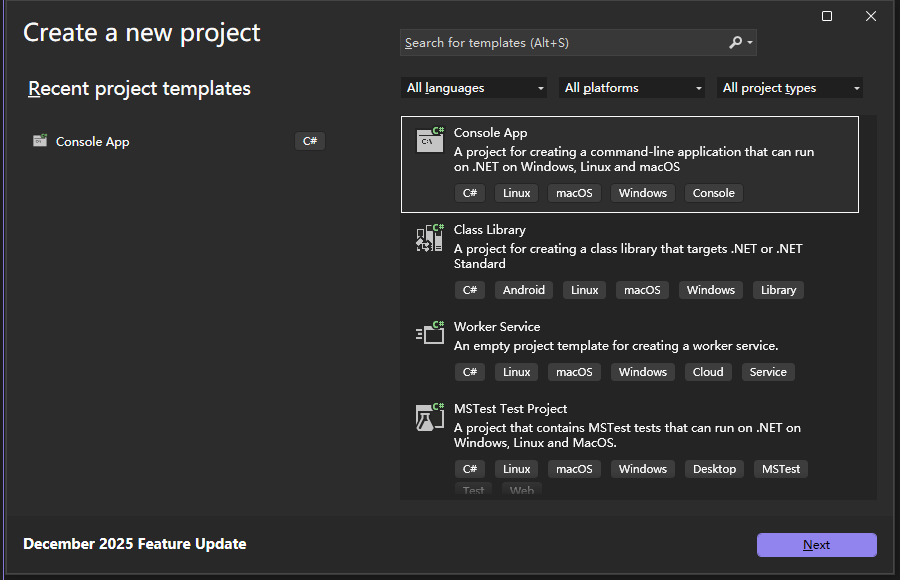
Start a new instance of Visual Studio 2026 and create a new .NET Core console application (File > New > Project...), then click OK to confirm the creation.
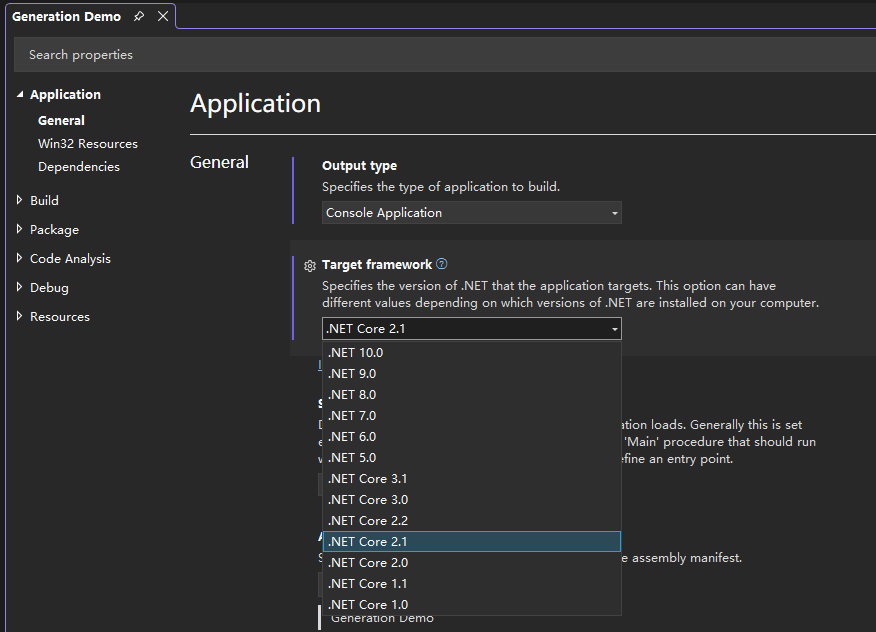
Find the Solution Explorer on the right side of the screen, select the project, right-click on the project, and click the "Properties" option in the menu, which will open the properties tab.
Confirm that ".NET Core 2.1" (or a later version) is used as the target framework for the application.
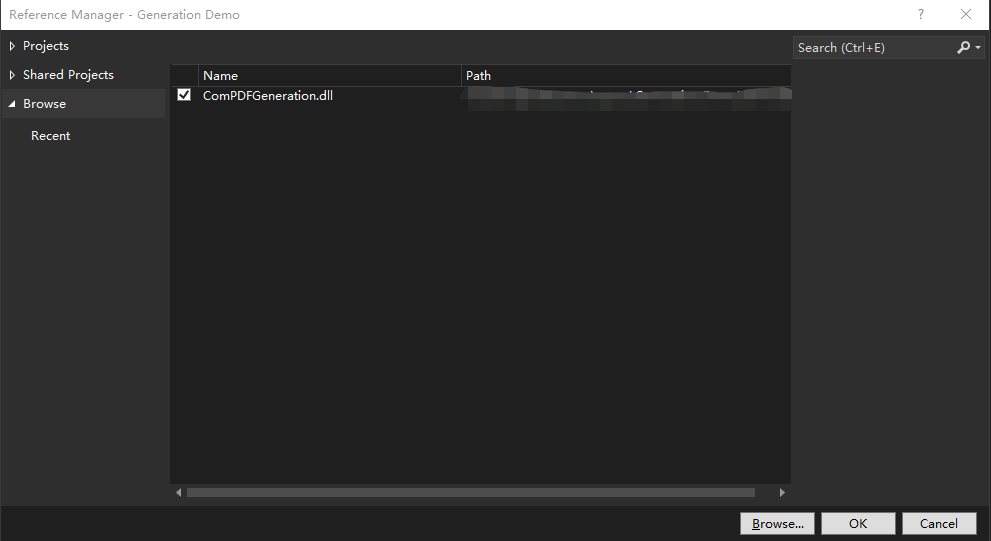
Right-click "Dependencies" and then click "Add Project Reference", which will open the "Reference Manager" dialog. Click the option at the bottom of the dialog, find the corresponding "ComPDFGeneration.dll", select it, and click Add.
In the Solution Explorer, right-click the project and find the "Add" option under the submenu Add an existing item....
Navigate to the library location again, select the file type as All Files (*.*) and select CPDFGenerationNative.dll, libpng16.dll, zlib1.dll, jpeg62.dll, gif.dll, libwebp.dll, libwebpdemux.dll, libsharpyuv.dll. Click "Add".
All of these dynamic libraries must be in the output directory of the application. If any of them is missing, CPDFGenerationNative.dll cannot be loaded and CPDFGeneration.LoadNativeLibrary() returns false.
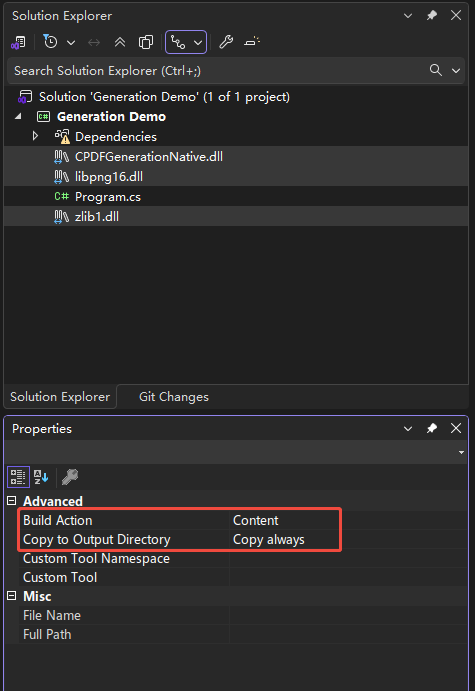
Select the .dll in the Solution Explorer. A properties window will appear below; in it, change the build action to Content. Set the "Copy to Output Directory" to Copy always.
Perform the first two steps of manual integration.
Right-click the project dependencies and click Manage Nuget Packages..., which will open the Nuget Package Manager.
Click the Browse tab near the top of the package manager, and enter in the search bar:
ComPDF_Generation.NetCoreSelect the ComPDF_Generation.NetCore package, then click the Install button in the panel containing package information. If prompted or if an external dialog opens for confirmation, click OK.
After installation is complete, you will see a reference to the package under Dependencies in the Solution Explorer.