
PDF Generation Template Editor
Open-source visual PDF generation engine with customizable templates and developer-friendly APIs.
Or you can open the command line tool in the project folder and run the example through the command:
dotnet runYou can follow the manual or nuget integration described below. This section will help you build your first ComPDFKit application. If you can open, save, and close PDFDoc, you can easily integrate the rest of the ComPDF PDF SDK.
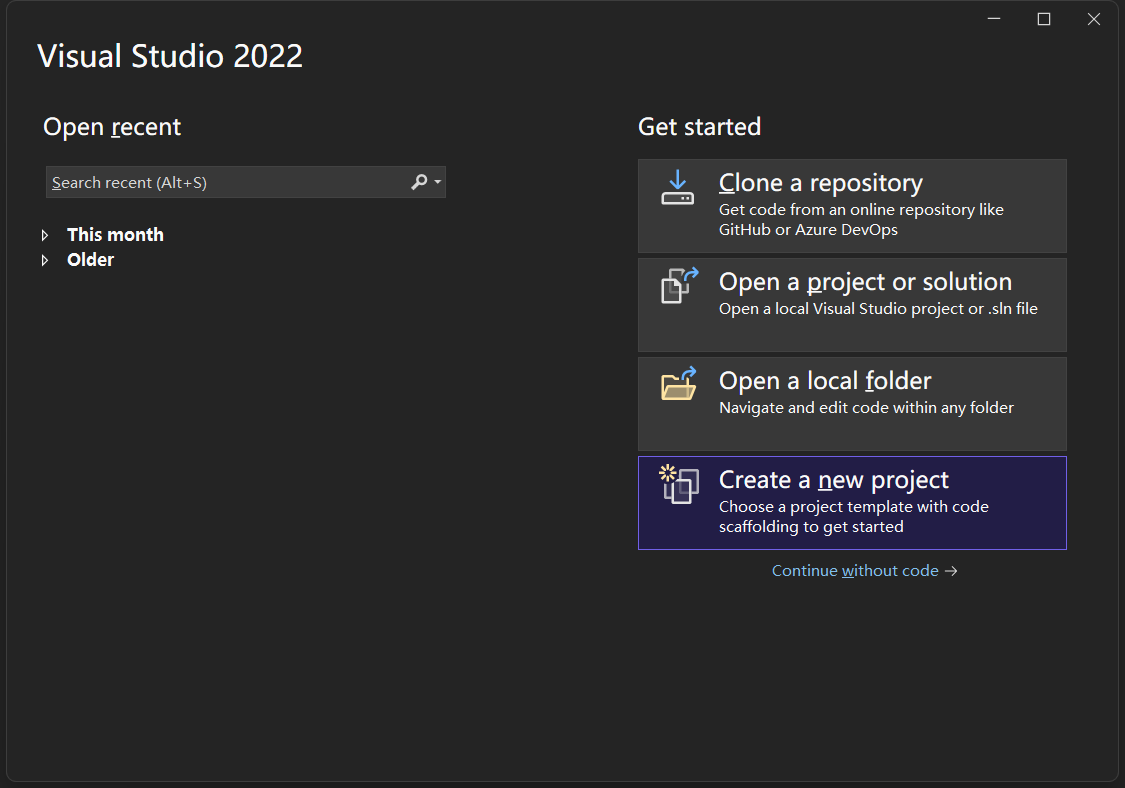
File > New > Project... ). You can find this under the Visual C# menu.Click on OK and allow the IDE to create the project.
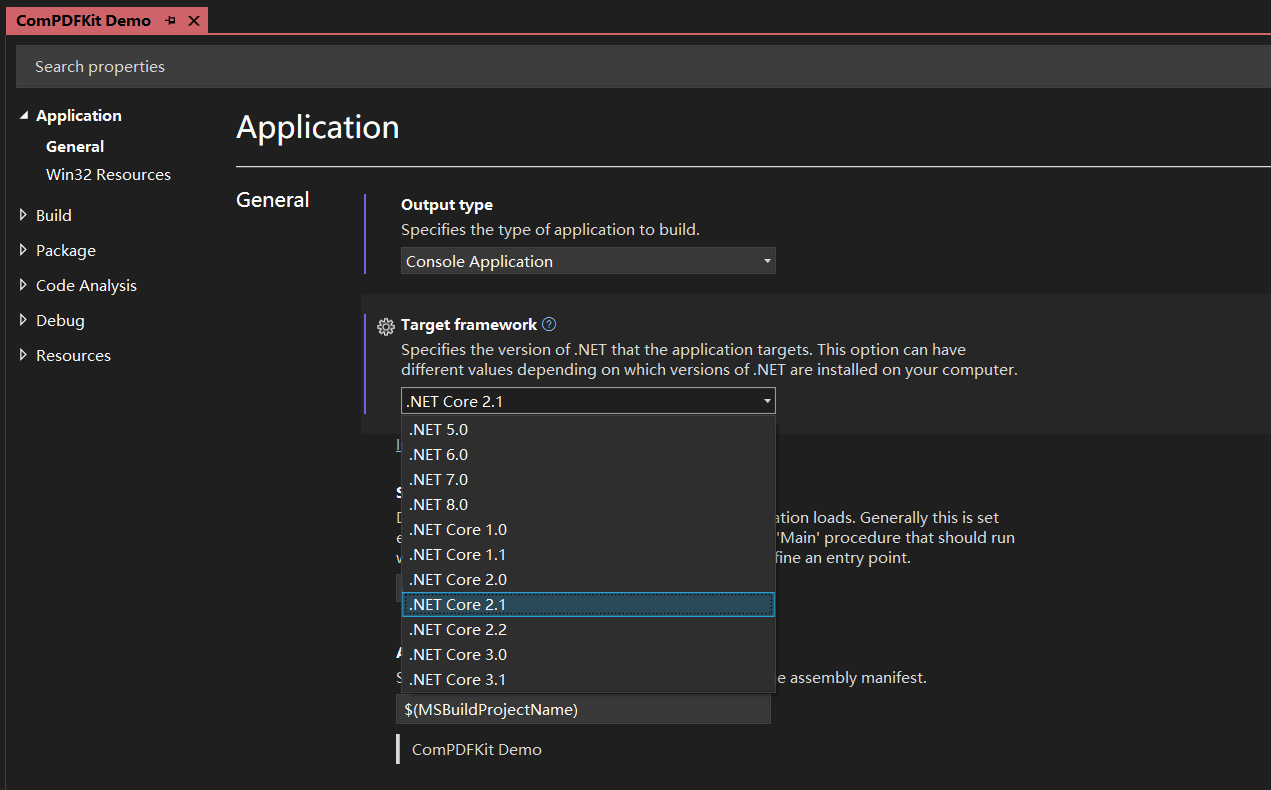
Alt + Enter. This will open the properties tab.Alternatively, you can right click on the project and find the properties option.
Select .NET Core 2.1 (or above) as the target framework for your application.
If you are using a Windows x64 machine for your .NET Core development, you can use NuGet package manager to get the ComPDF PDF SDK. Otherwise, please integrate the SDK manually.
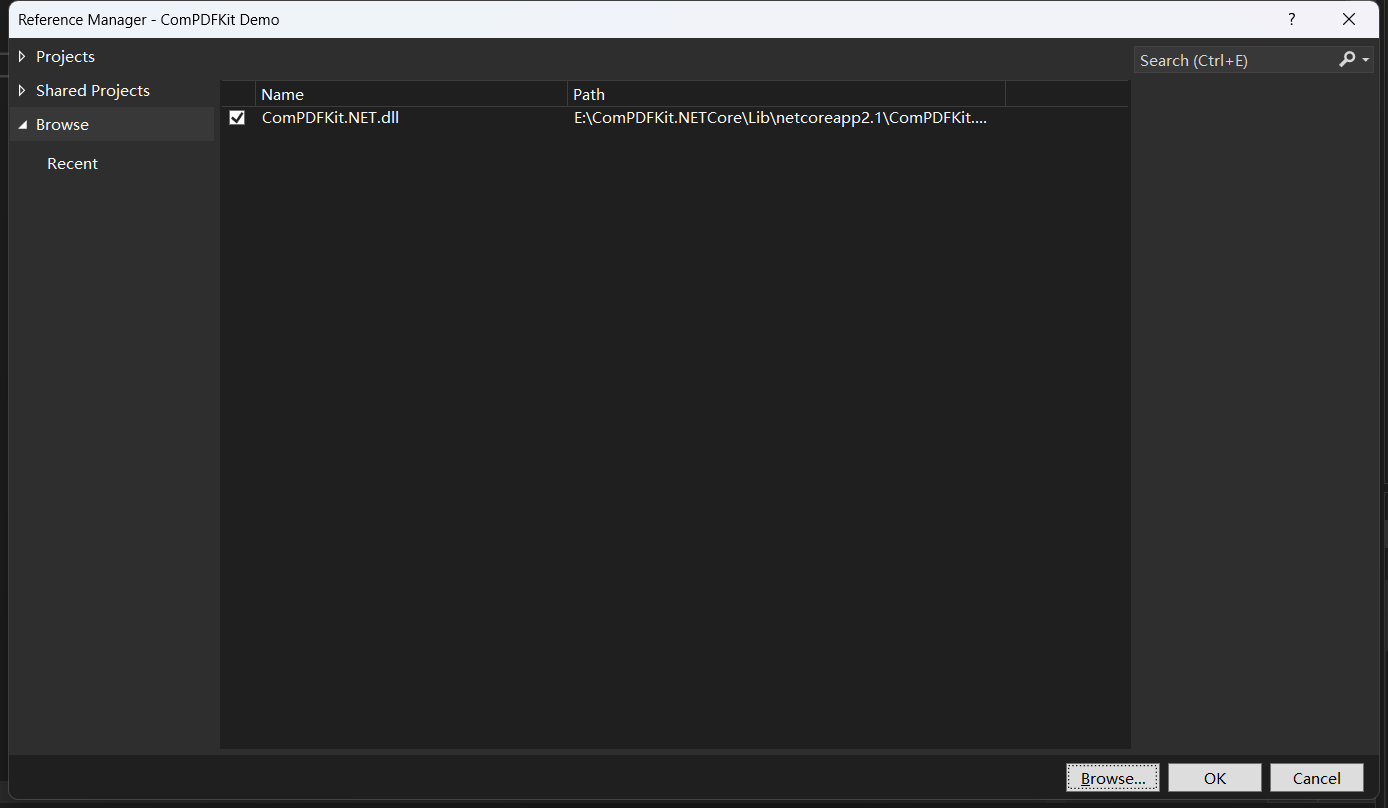
Shift + Alt + A. With this you can Add an Existing Item.Alternatively, you can right click on the project and find the Add an existing item... option under the Add submenu.
Navigate to the library location again, select the file type as All Files (*.*) and select ComPDFKitNative.dll. Click Add.
Content and the Copy to Output Directory setting to Copy always. To avoid errors, use the drop-down menus available for those fields.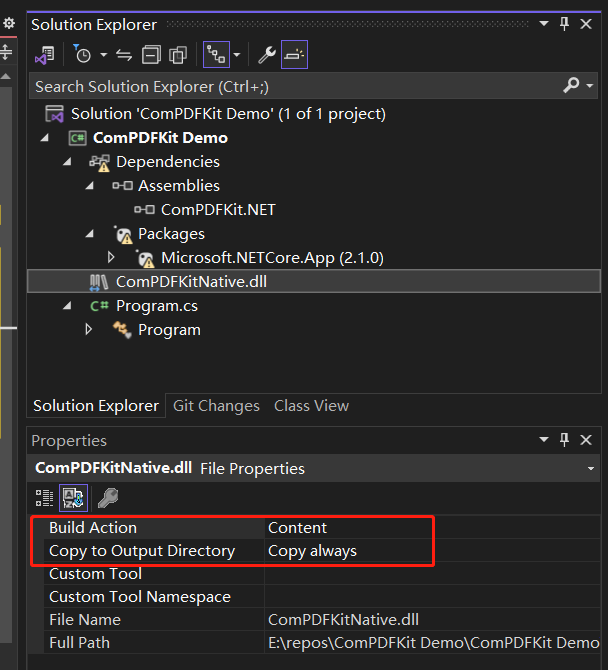
Perform the first 2 steps of integrating manually.
Right click on project Dependencies and click on Manage NuGet Packages.... This will open the NuGet Package Manager
Click on the Browse tab near the top of the package manager. In the search bar enter:
ComPDFKit.NetCoreSelect the ComPDFKit.NetCore package by PDF Technologies Inc. and click on the Install button in the panel with the package information. If you're prompted or an external dialog is opened for confirmation, click on Ok.
After installation, you will see the reference to the package under Dependencies in Solution Explorer.
We have completed all the preparation steps. Now let's use the ComPDF PDF SDK to create a PDF file with a blank page, and replace your Program. cs file with the following code. Note that you need to specify the path to your license key XML file in the LicenseVerify() method.
using ComPDFKit.NativeMethod;
using ComPDFKit.PDFDocument;
using Microsoft.Win32;
using System.Reflection.Metadata;
using System.Windows;

namespace ComPDFKit_Demo
{
    public class Program
    {
        private static bool LicenseVerify()
        {
            if (!CPDFSDKVerifier.LoadNativeLibrary())
                return false;
            string xmlPath = "The path to your license key XML file";
            LicenseErrorCode verifyResult = CPDFSDKVerifier.LicenseVerify(xmlPath);
            return (verifyResult == LicenseErrorCode.E_LICENSE_SUCCESS);
        }

        public static void Main()
        {
            LicenseVerify();
            CPDFDocument document = CPDFDocument.CreateDocument();
             // Insert to the first page
			int pageIndex = 0;
			int pageWidth = 595;
			int pageHeight = 842;
			//The InsertPage method can specify an image path. When the image path is empty, a blank page will be inserted.
			document.InsertPage(pageIndex, pageWidth, pageHeight, "");
			document.WriteToFilePath("new_file.pdf");// Save the entire document object to the current path.
            Console.WriteLine("Done. Results saved in new_file.pdf");
        }
    }
}After running the program, please check the output file generated by the program. You will find that a PDF file with blank pages has been generated, and by default, it should be in the bin/Debug directory where your project files are located.