
PDF Generation Template Editor
Open-source visual PDF generation engine with customizable templates and developer-friendly APIs.
This section explains how to use the API provided by CPDFReaderView to directly access features such as the page editing view, watermark addition view, security settings view, and more. By displaying PDF documents through CPDFReaderView in React Native, it offers users a more flexible experience.
// Control whether to enter page editing mode; when false, display the thumbnail list
const editMode = true;
await pdfReaderRef.current?.showThumbnailView(true);| editMode:true | editMode:false | |
|---|---|---|
| Android | 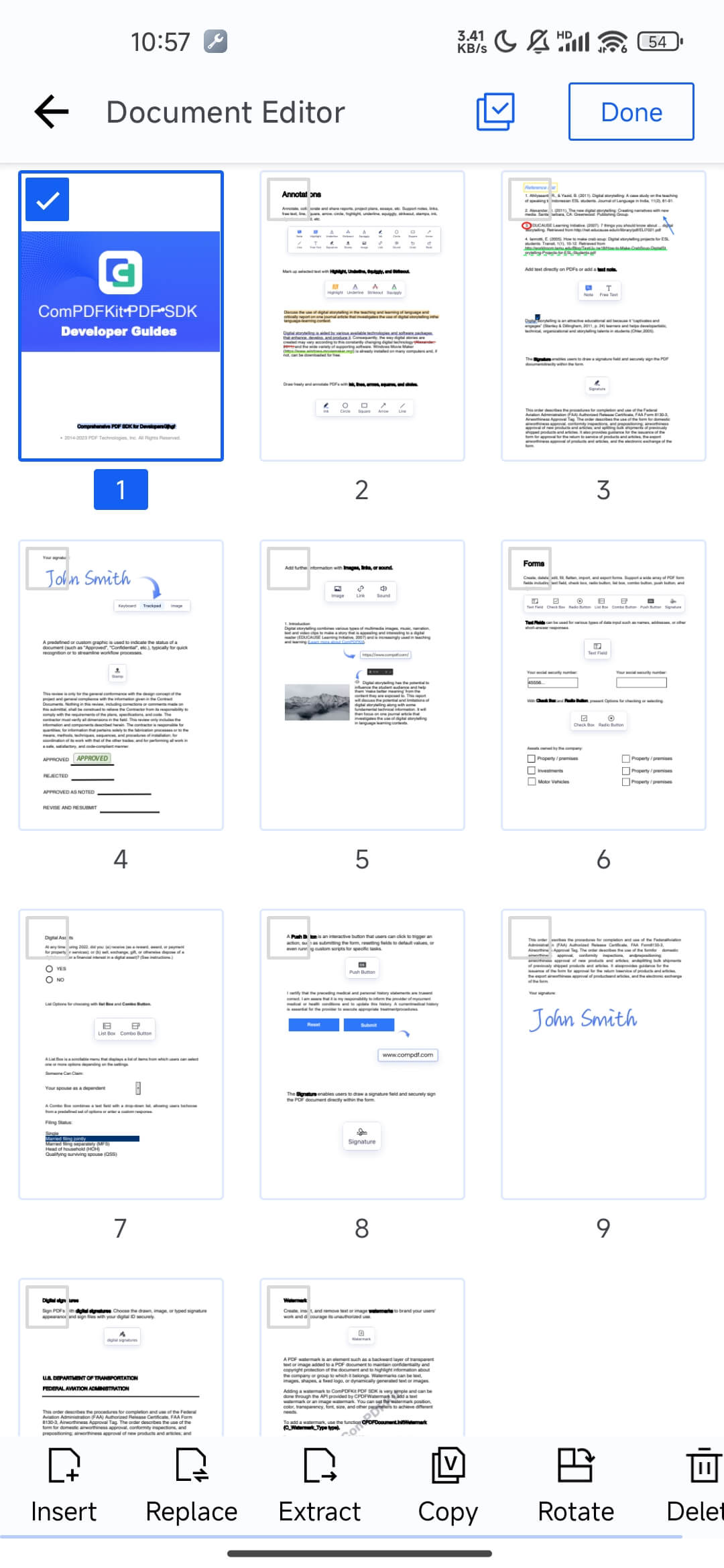 | 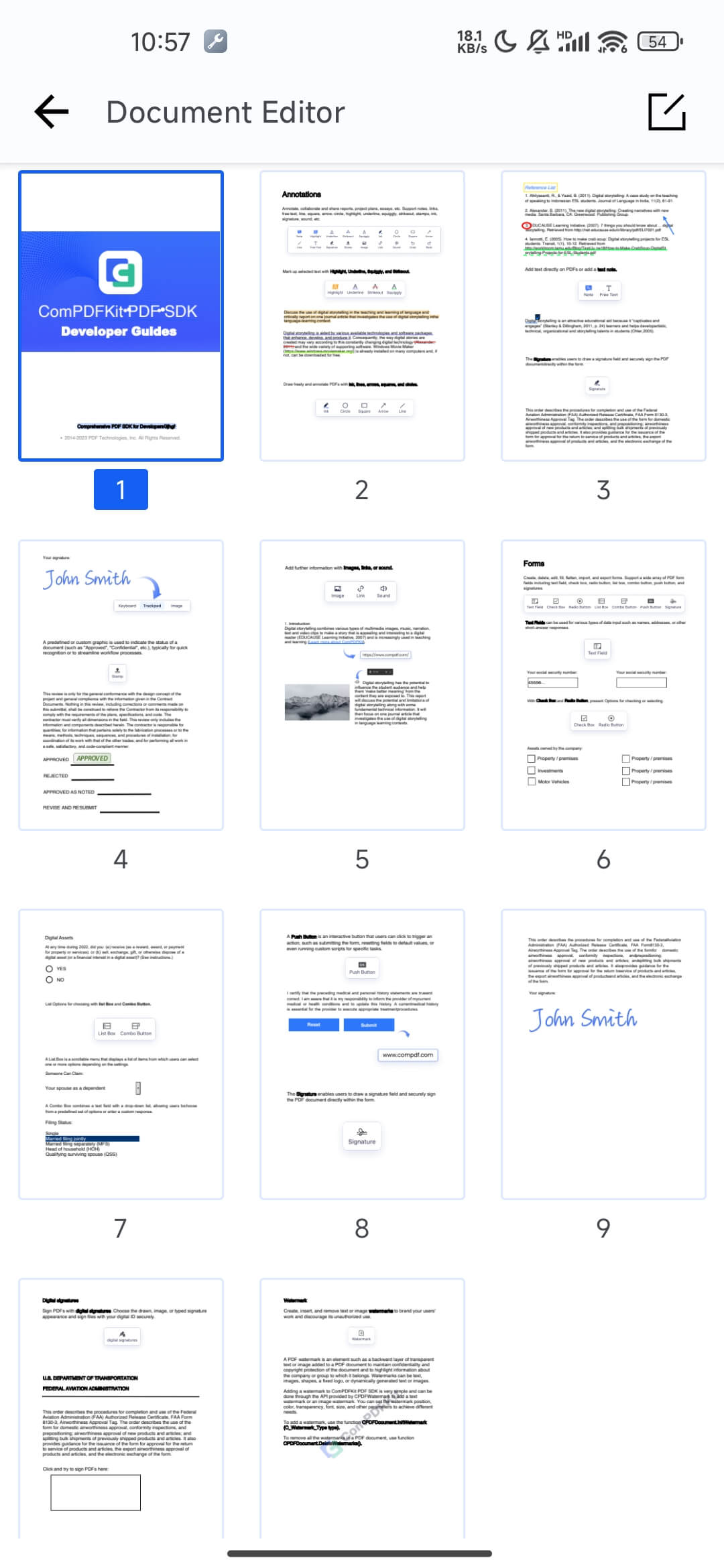 |
| iOS | 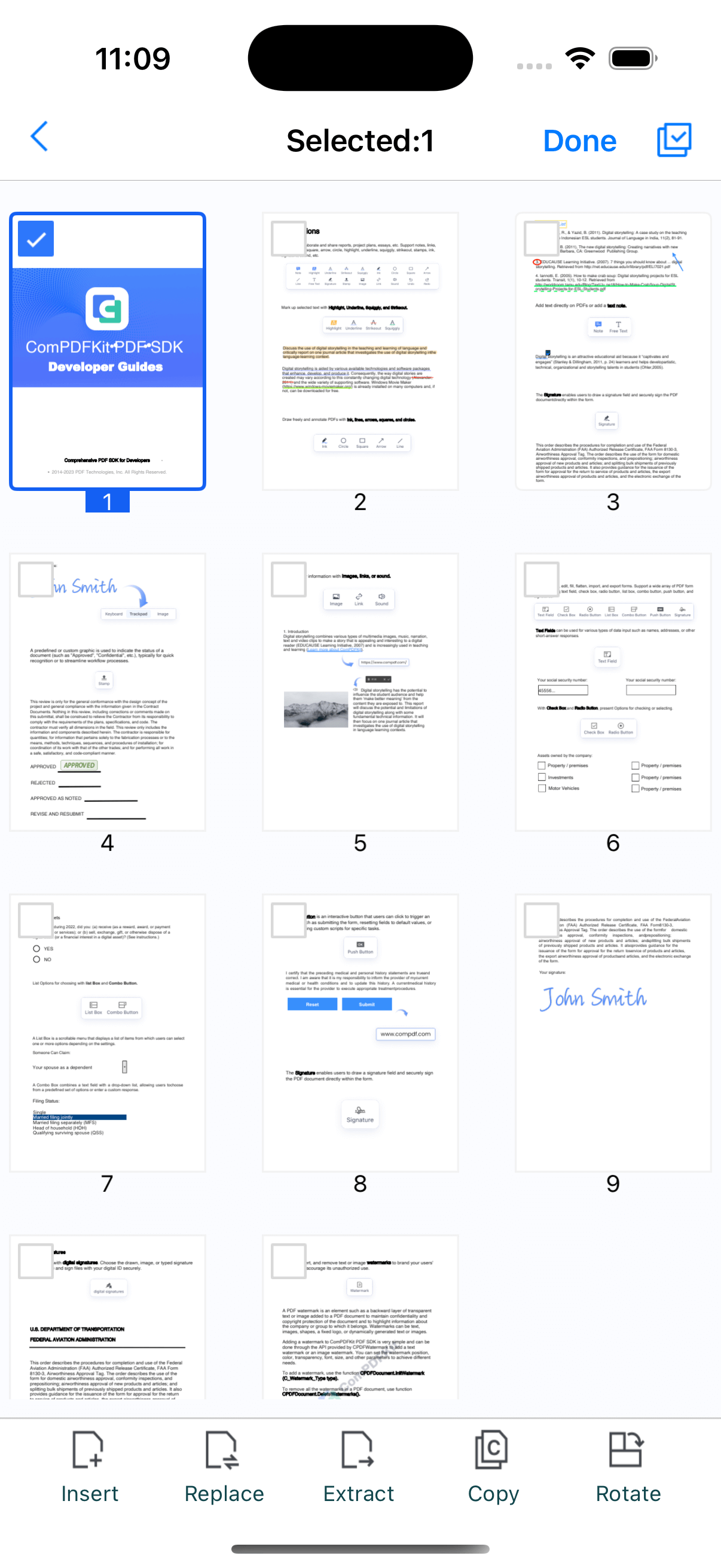 | 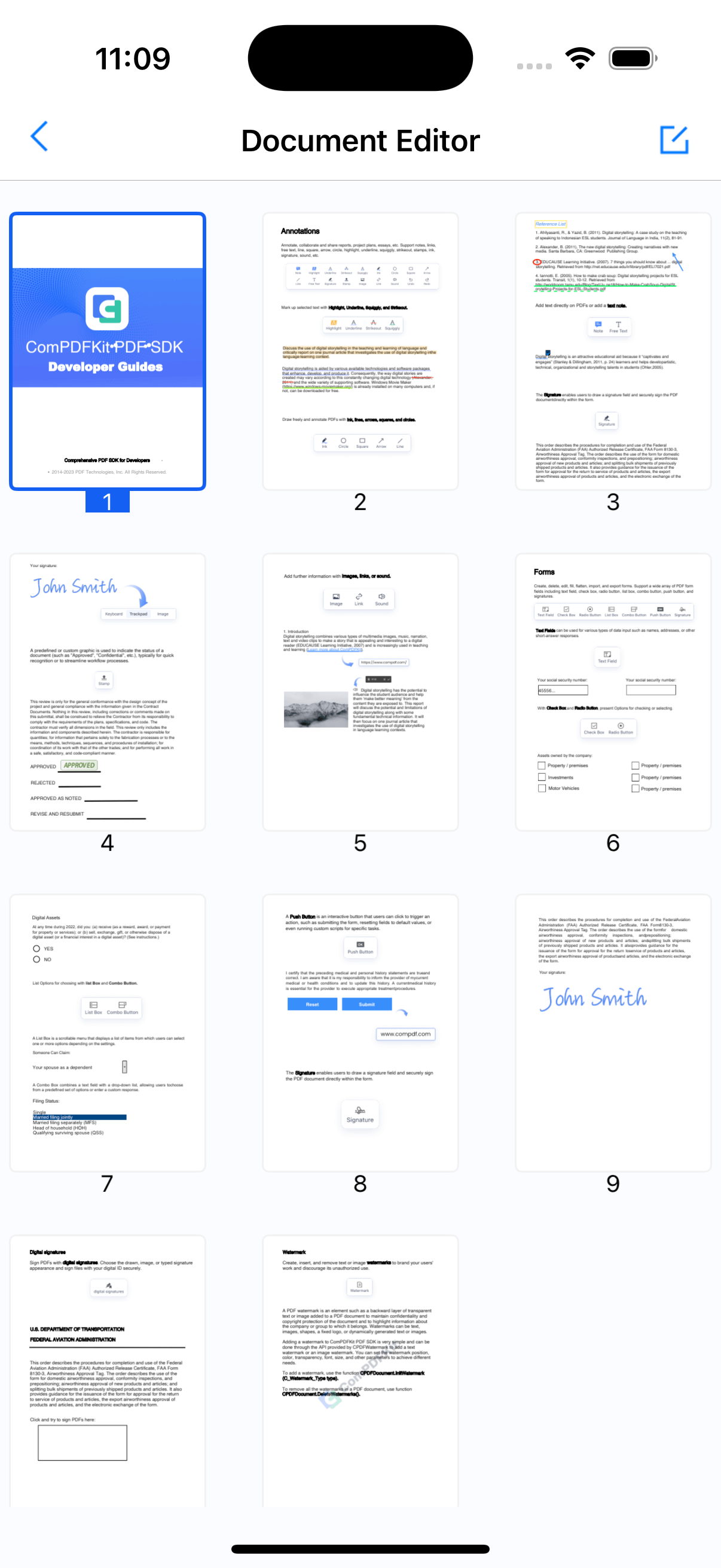 |
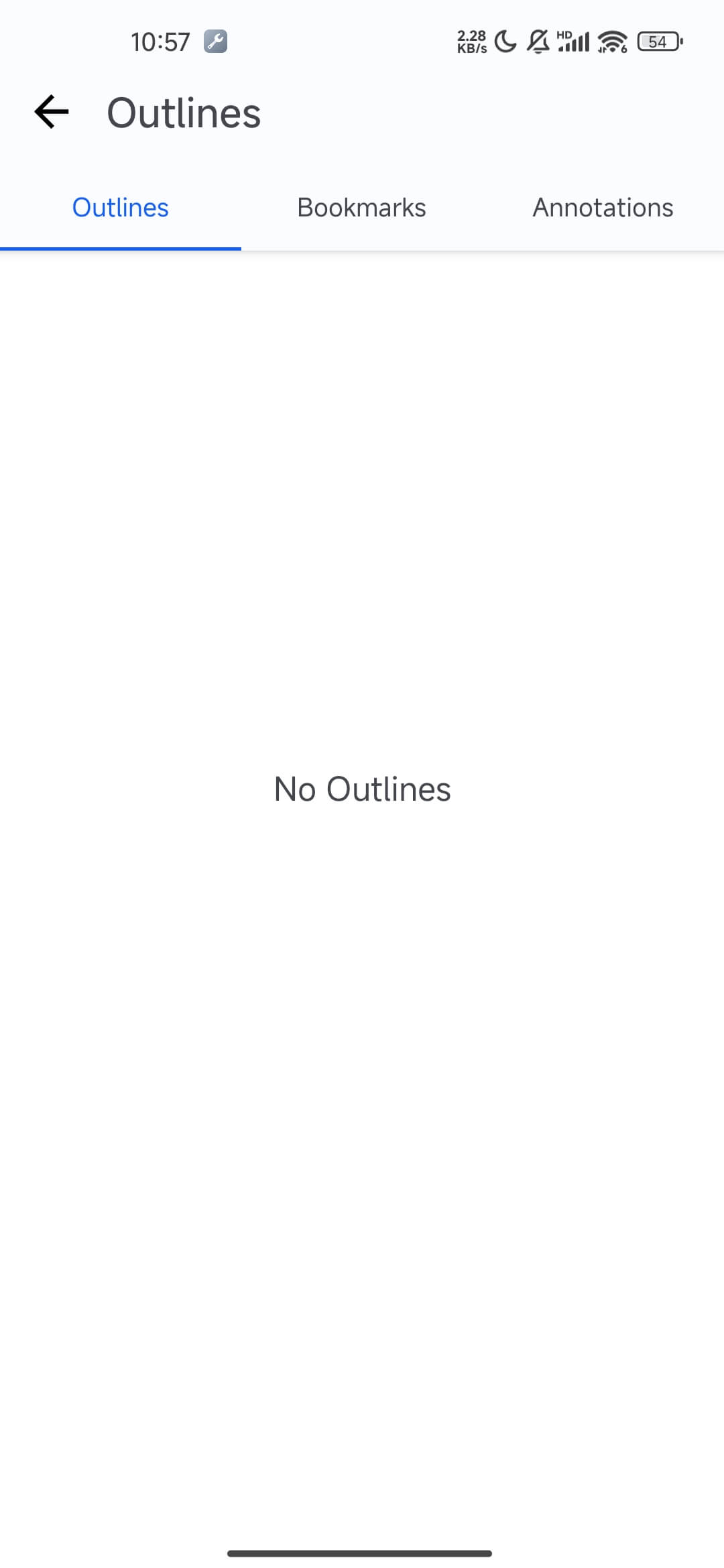
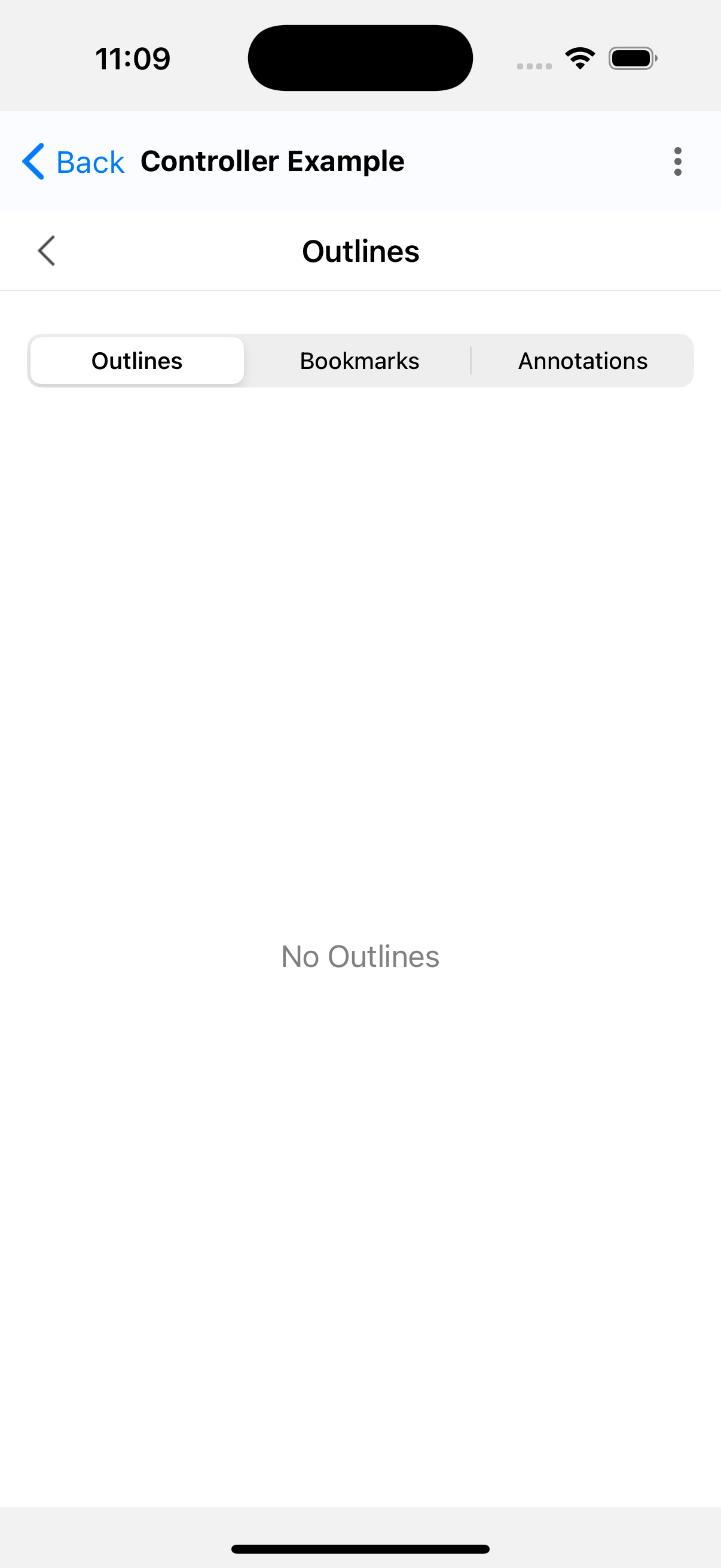
This view displays the document outline, bookmarks, and annotation list.
await pdfReaderRef.current?.showBotaView();| Android | iOS |
|---|---|
 |  |
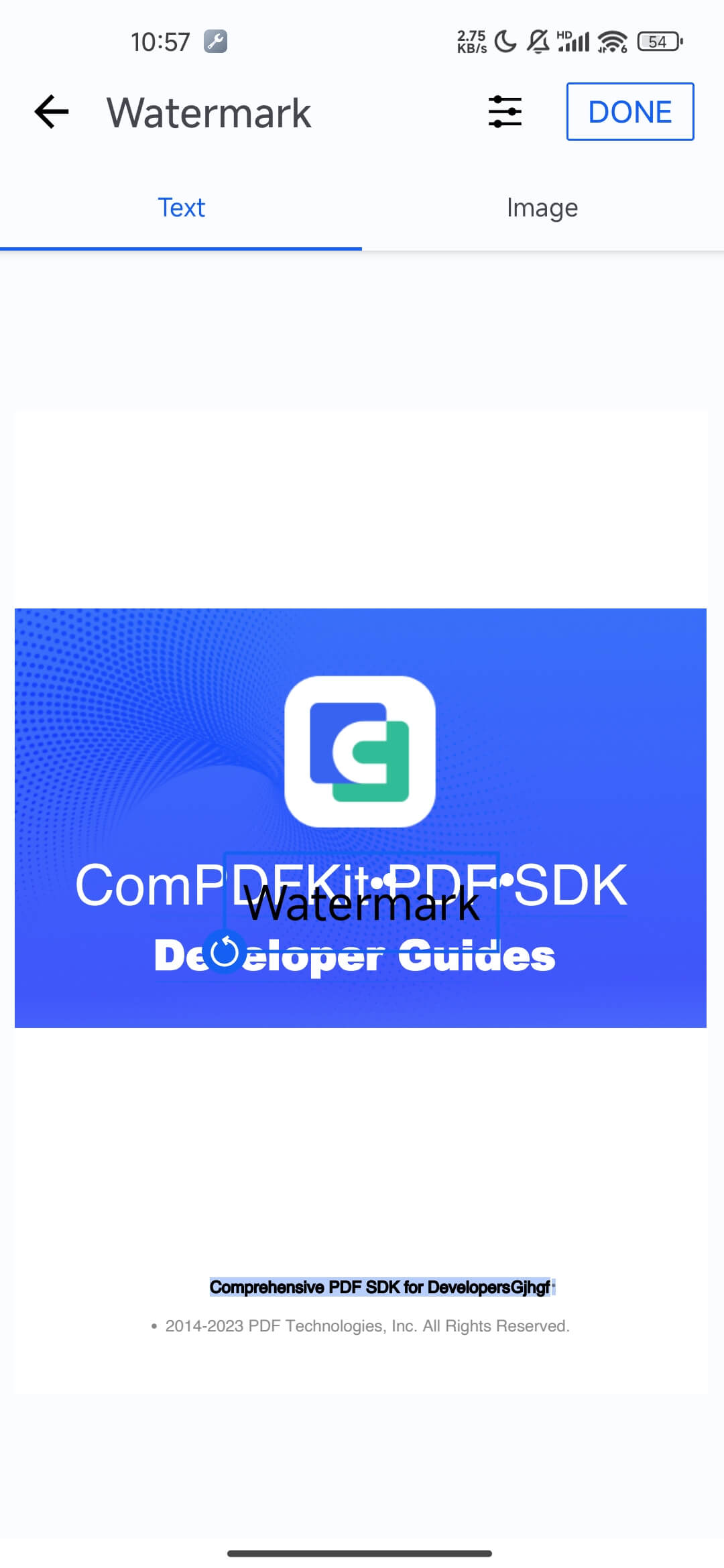
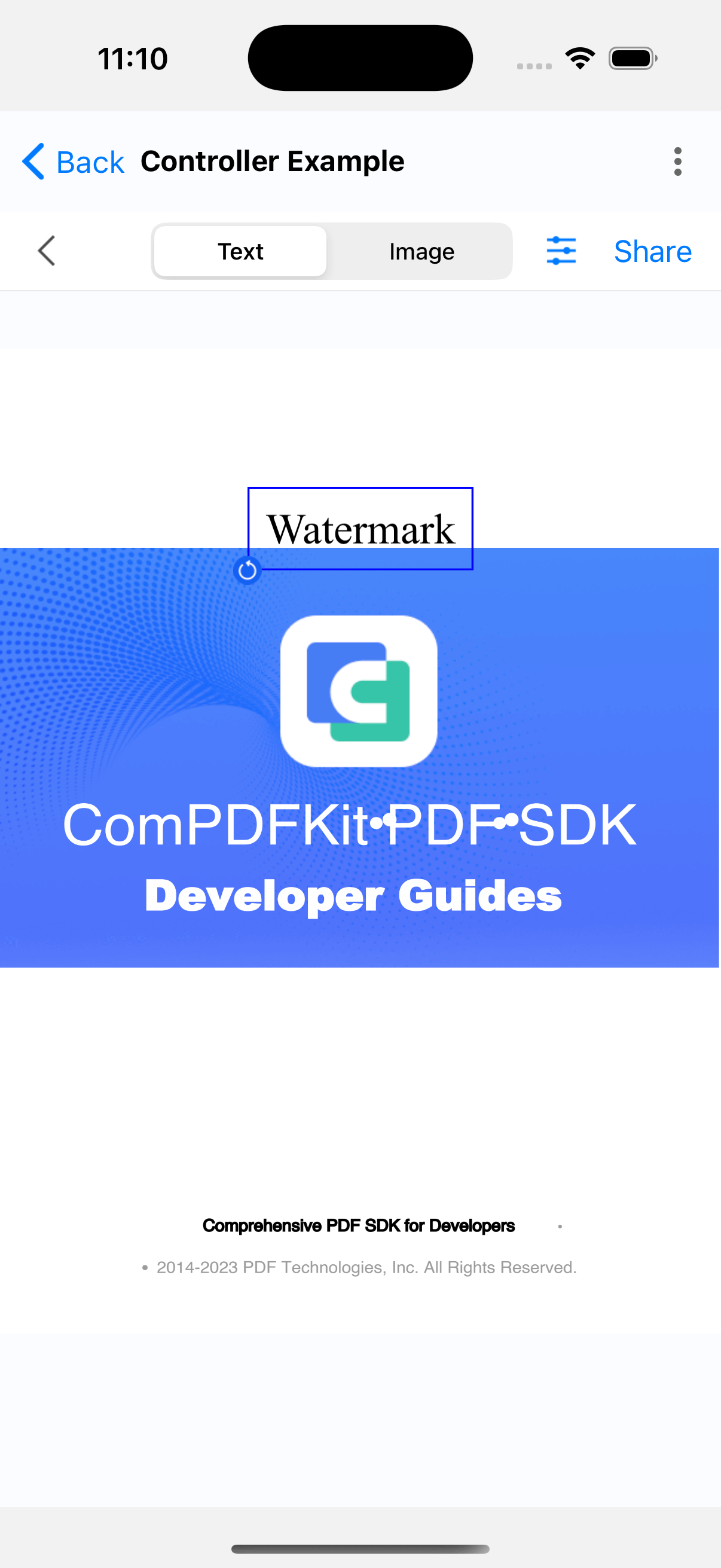
await controller.showAddWatermarkView();| Android | iOS |
|---|---|
 |  |
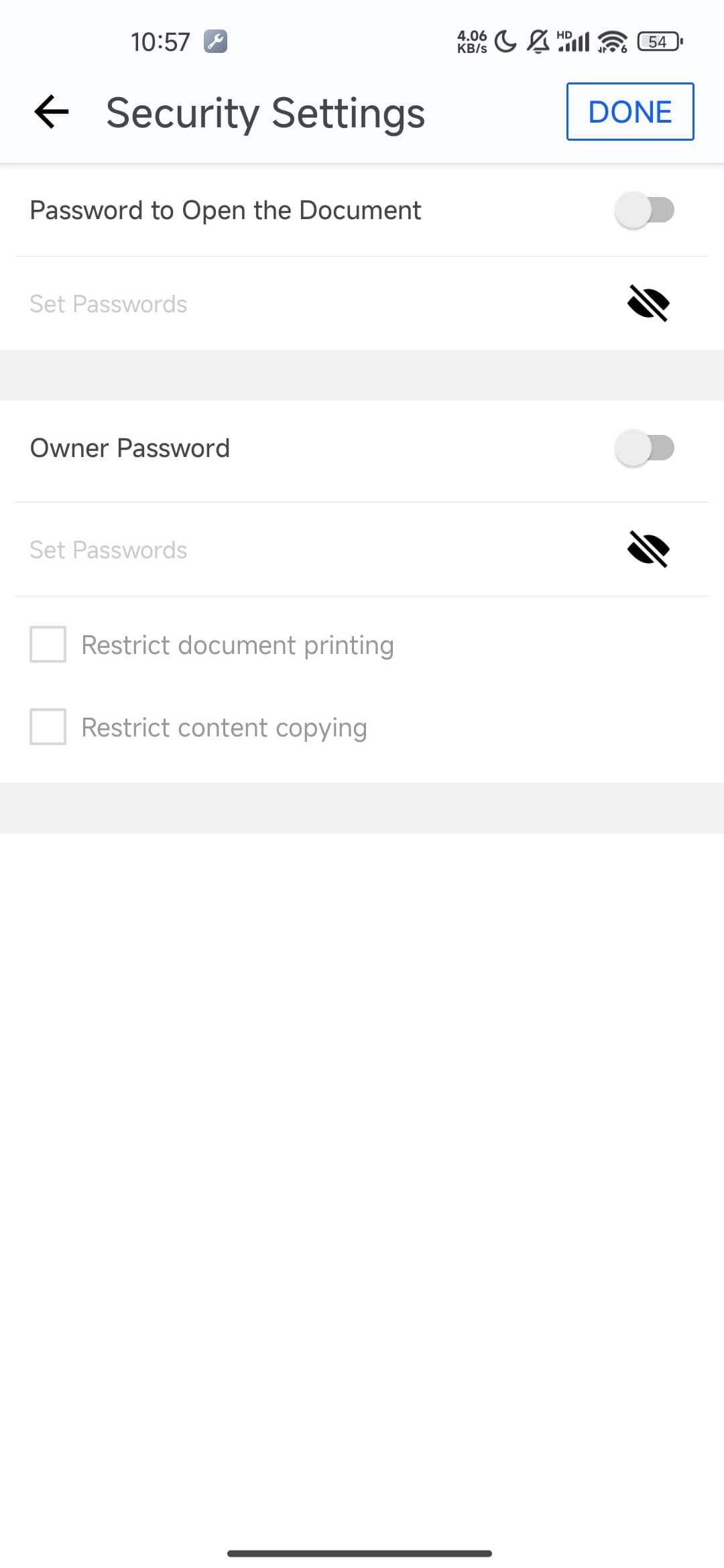
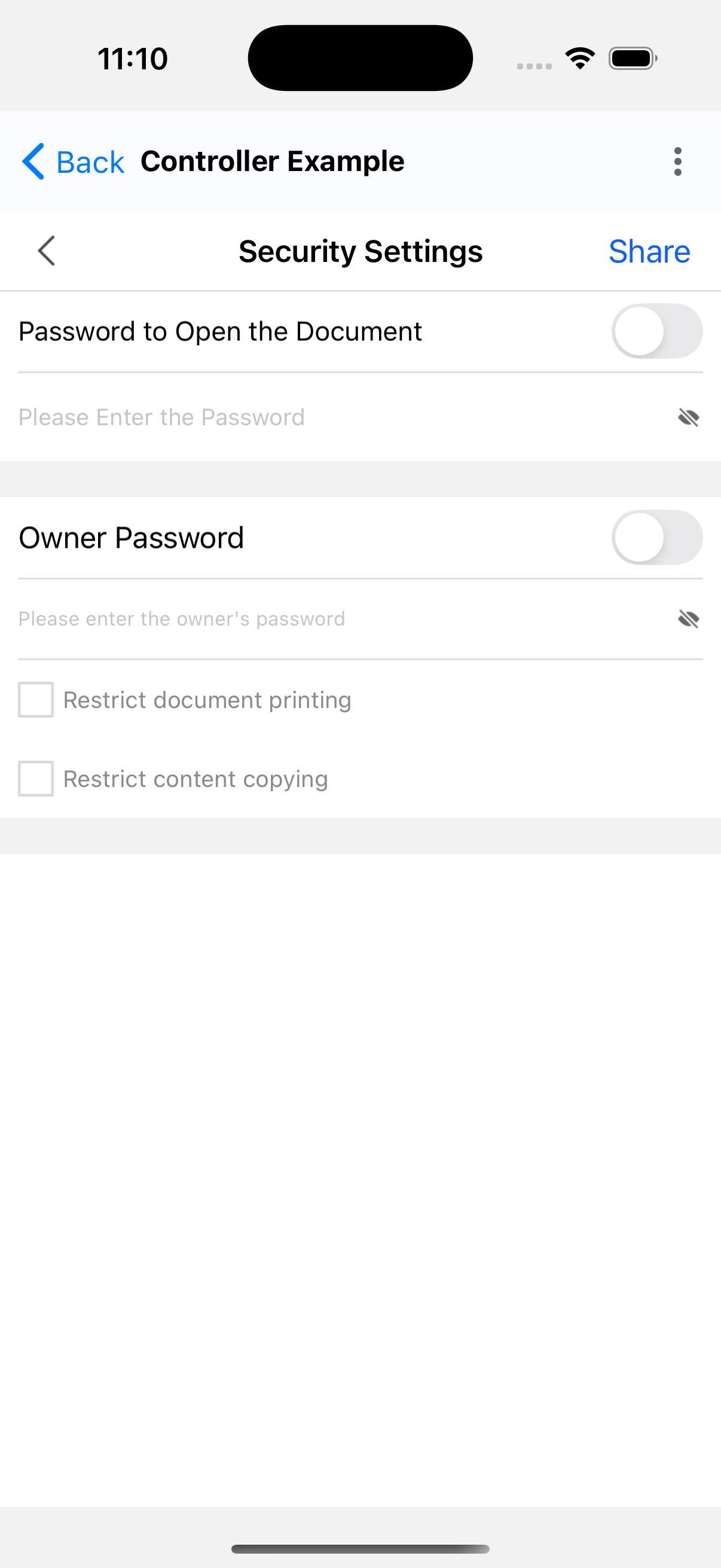
In the security settings view, you can configure the document password, owner password, and encryption method.
await controller.showSecurityView();| Android | iOS |
|---|---|
 |  |
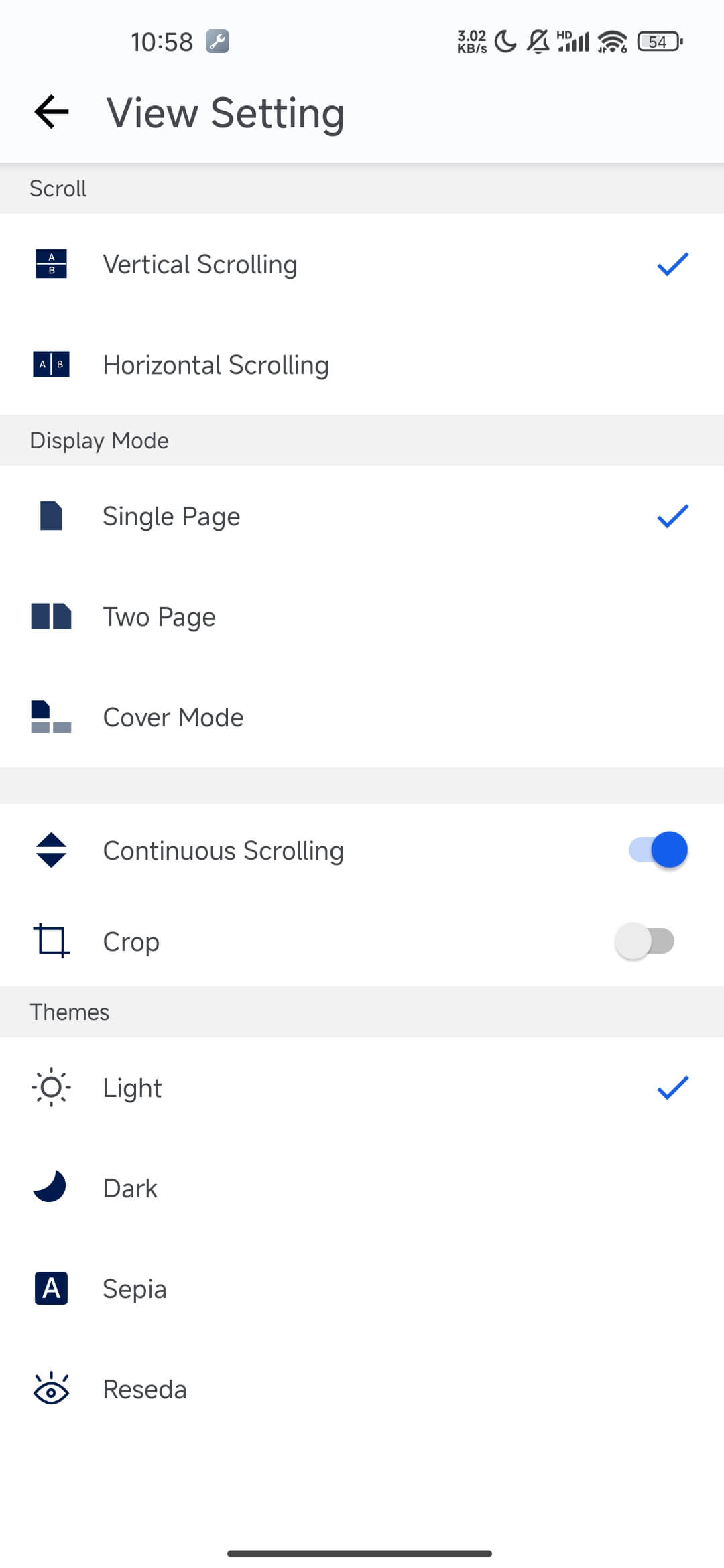
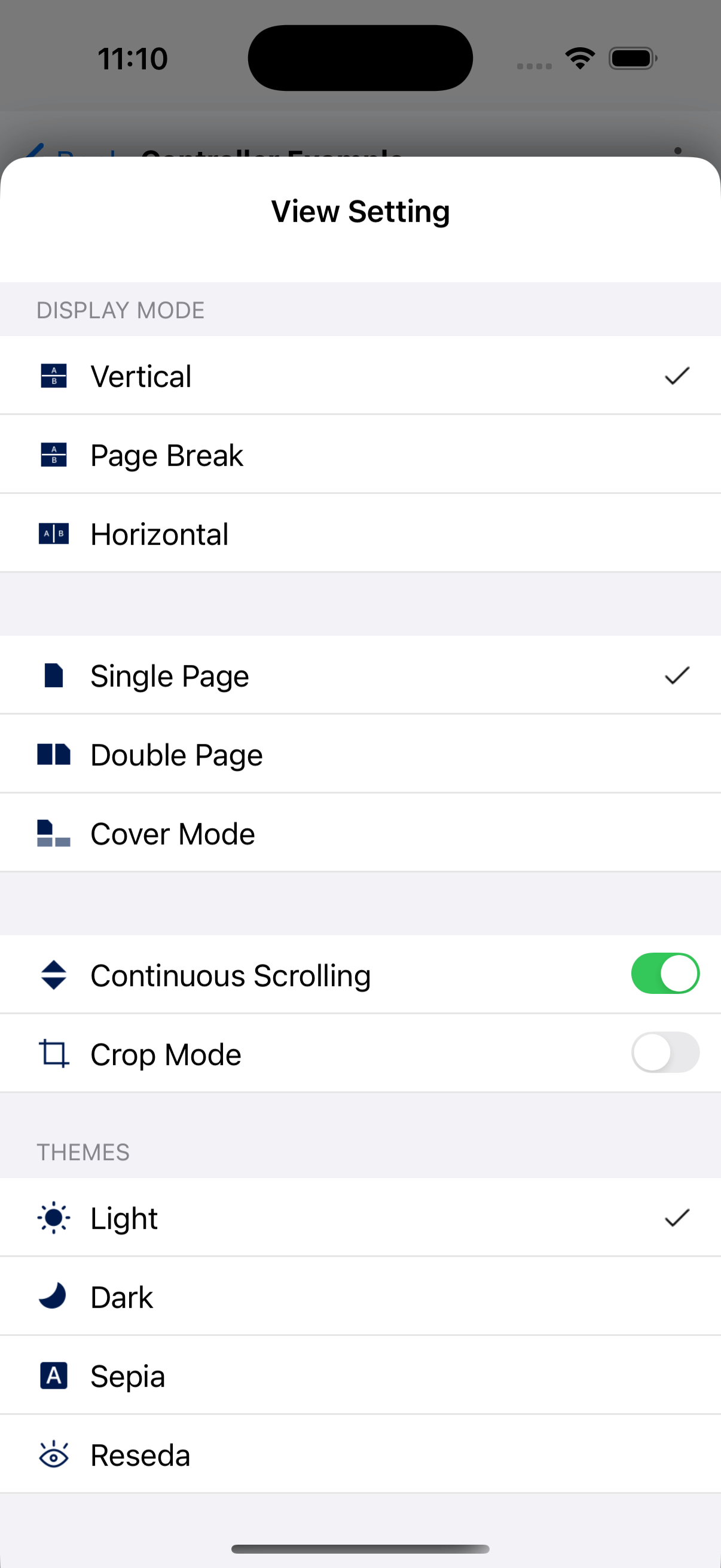
The display settings view allows you to configure options like scroll direction, scroll mode, theme color, and more.
await controller.showDisplaySettingView();| Android | iOS |
|---|---|
 |  |
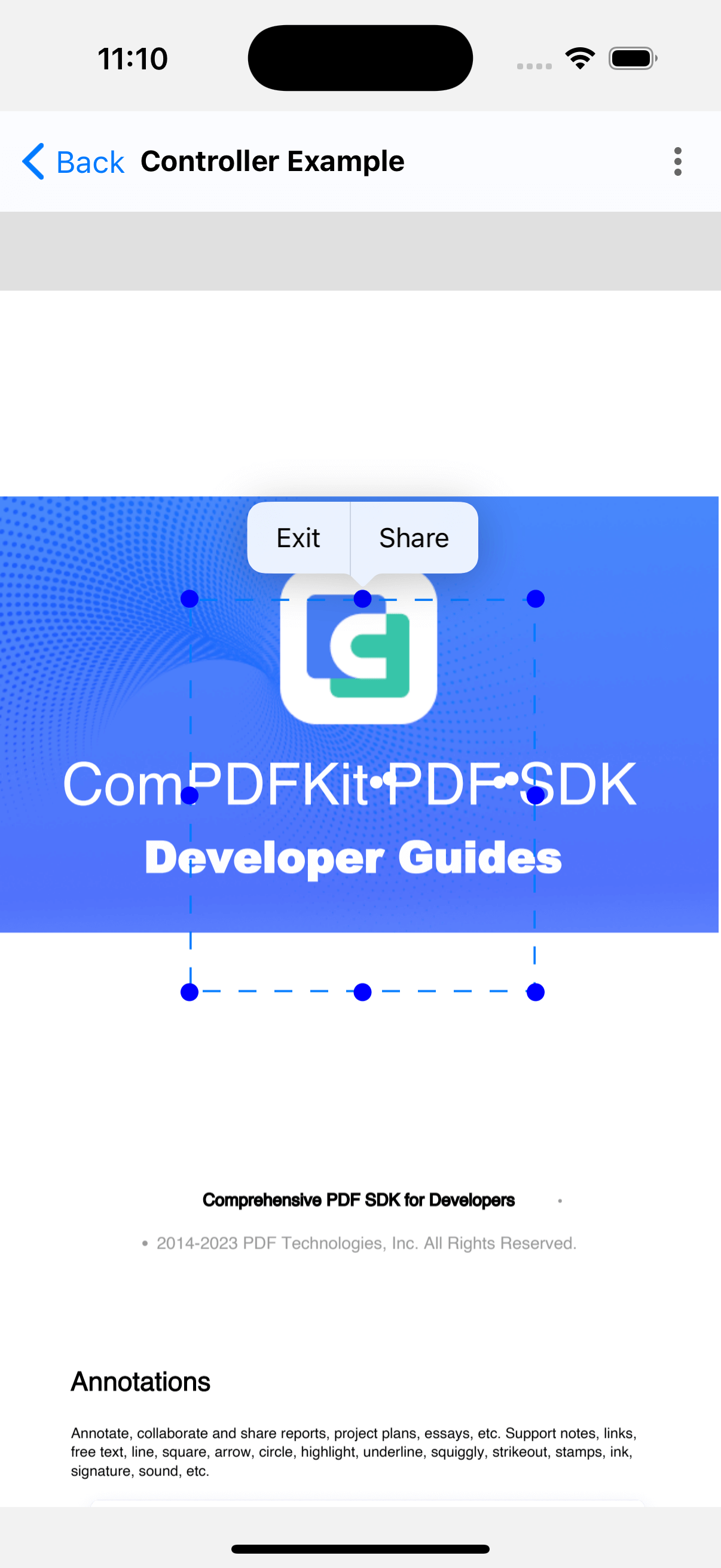
You can enter screenshot mode while displaying PDF documents using the API to capture specific areas.
// Enter screenshot mode
await controller.enterSnipMode();
// Exit screenshot mode
await controller.exitSnipMode();| Android | iOS |
|---|---|
|  |