
PDF Generation Template Editor
Open-source visual PDF generation engine with customizable templates and developer-friendly APIs.
When displaying a PDF using the CPDFReaderView component, you can perform the following actions via the API:
Jump to a specific page
await pdfReaderRef.current?.setDisplayPageIndex(1);When you need to navigate to a specific page and simultaneously highlight certain content (for example, highlighting an annotation when clicked), you can use the rectList parameter of setDisplayPageIndex to draw rectangles on the page.
The following example shows how to jump to the page containing an annotation and highlight the annotation area with a rectangle:
const pageIndex = 0;
const page = pdfReaderRef?.current?._pdfDocument.pageAtIndex(pageIndex);
const annotations = await page?.getAnnotations();
const annotation = annotations![0];

await pdfReaderRef.current?.setDisplayPageIndex(pageIndex: annotation.page, { rectList: [annotation.rect!]});

// clear highlight area.
await pdfReaderRef.current?.clearDisplayRect();Example Result:
| Android | iOS |
|---|---|
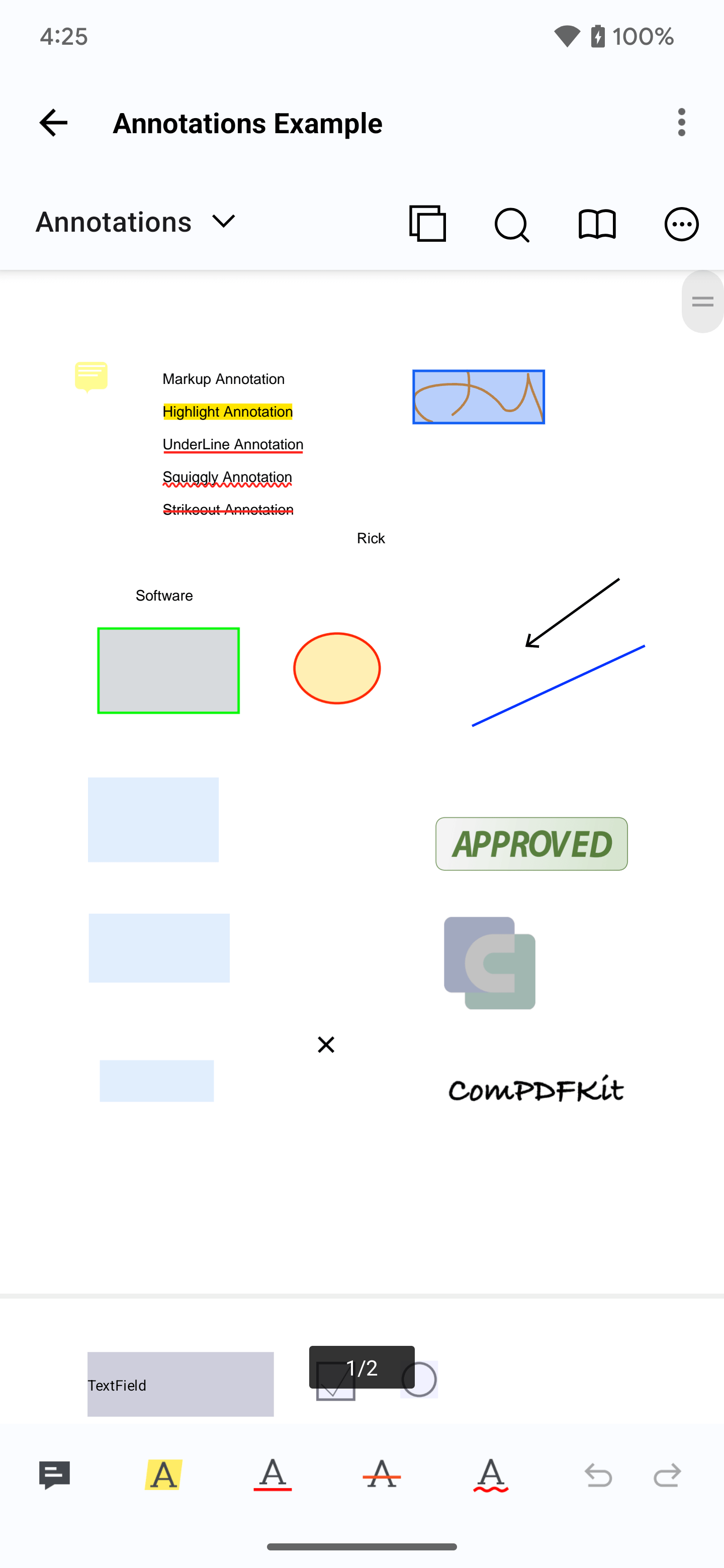 | 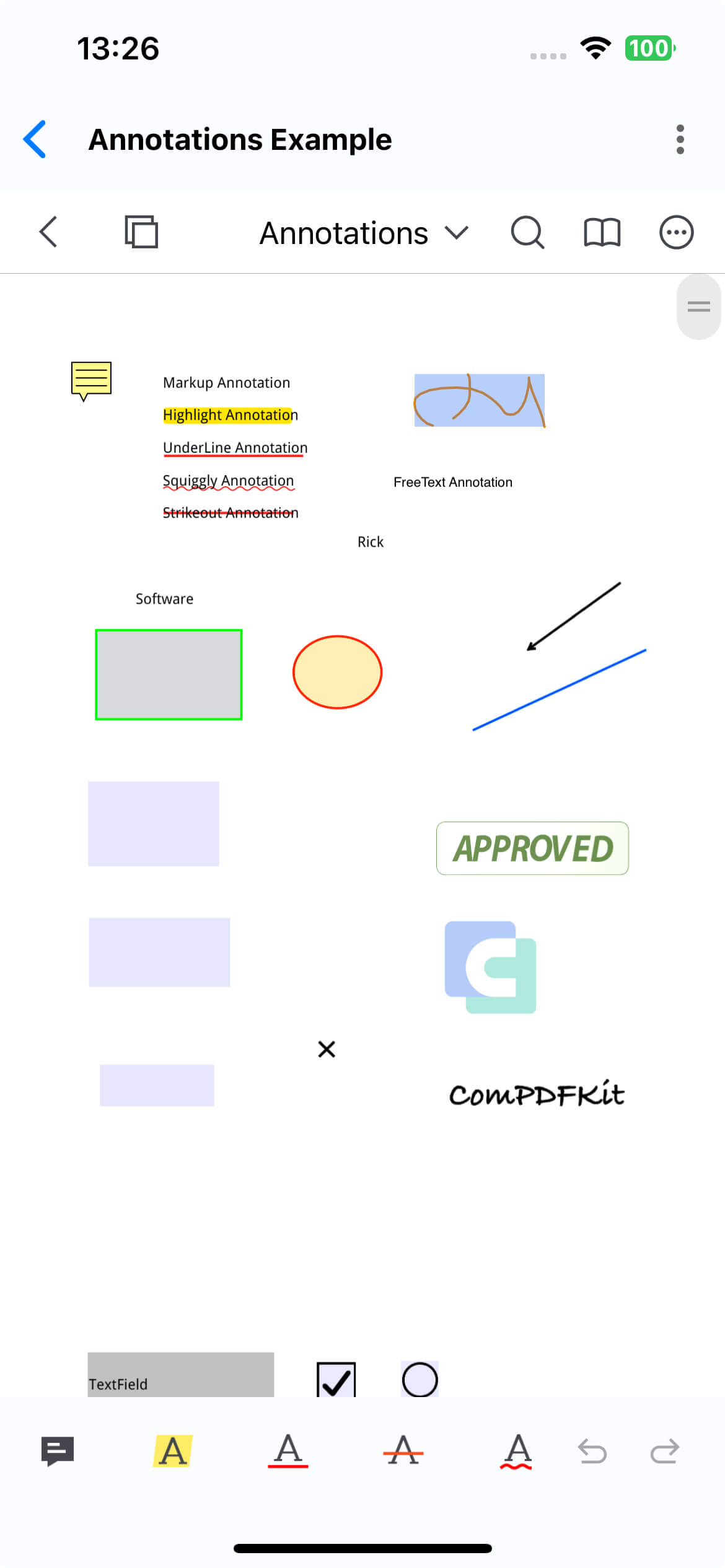 |
Get the current page number
const pageIndex = await pdfReaderRef.current?.getCurrentPageIndex();You can also set a page listener when using CPDFReaderView to get the current page number in real-time as you scroll.
const pdfReaderRef = useRef<CPDFReaderView>(null);
<CPDFReaderView
  ref={pdfReaderRef}
  document={samplePDF}
  onPageChanged={onPageChanged}
  configuration={ComPDFKit.getDefaultConfig({
  })} />

const onPageChanged = (pageIndex: number) => {
  console.log('ComPDFRN --- onPageChanged:', pageIndex);
}