PDF 生成模板编辑器
开源可视化 PDF 生成引擎,支持自定义模板,并提供面向开发者的 API,灵活构建文档生成流程。
选中注释、文本、表单或内容编辑对象时,会弹出上下文菜单(Context Menu)以支持对象操作。ContextMenuConfig 可控制菜单的样式及各场景下的菜单项列表。
{
  "contextMenuConfig": {
    "backgroundColor": "",
    "fontSize": 14,
    "padding": [0, 0, 0, 0],
    "iconSize": 36
  }
}| 字段 | 说明 |
|---|---|
backgroundColor | 菜单背景颜色(空字符串使用默认) |
fontSize | 菜单文字大小 |
padding | 菜单内边距 [left, top, right, bottom] |
iconSize | 图标大小 |
global 配置适用于所有模式的全局上下文菜单:
{
  "contextMenuConfig": {
    "global": {
      "screenshot": [
        { "key": "exit" },
        { "key": "share" }
      ]
    }
  }
}viewMode 配置阅读模式下的菜单:
{
  "contextMenuConfig": {
    "viewMode": {
      "textSelect": [
        { "key": "copy" }
      ]
    }
  }
}annotationMode 包含以下子菜单场景:
"textSelect": [
  { "key": "copy" },
  { "key": "highlight" },
  { "key": "underline" },
  { "key": "strikeout" },
  { "key": "squiggly" }
]"longPressContent": [
{ "key": "paste" },
{ "key": "note" },
{ "key": "textBox" },
{ "key": "stamp" },
{ "key": "image" }
]"markupContent": [
{ "key": "properties" },
{ "key": "note" },
{ "key": "reply" },
{ "key": "viewReply" },
{ "key": "delete" }
]| 场景 | 配置键 | 支持的菜单项 |
|---|---|---|
| 手写(Ink) | inkContent | properties、note、reply、viewReply、delete |
| 形状(Shape) | shapeContent | properties、note、reply、viewReply、delete |
| 文本框(FreeText) | freeTextContent | properties、edit、reply、viewReply、delete |
| 音频(Sound) | soundContent | reply、viewReply、play、record、delete |
| 图章(Stamp) | stampContent | note、reply、viewReply、delete、rotate |
| 签名图章 | signStampContent | signHere、delete、rotate |
| 链接(Link) | linkContent | edit、delete |
contentEditorMode 包含以下场景:
"editTextAreaContent": [
  { "key": "properties" },
  { "key": "edit" },
  { "key": "cut" },
  { "key": "copy" },
  { "key": "delete" }
]"editSelectTextContent": [
{ "key": "properties" },
{ "key": "opacity", "subItems": ["25%", "50%", "75%", "100%"] },
{ "key": "cut" },
{ "key": "copy" },
{ "key": "delete" }
]"editTextContent": [
{ "key": "select" },
{ "key": "selectAll" },
{ "key": "paste" }
]"imageAreaContent": [
{ "key": "properties" },
{ "key": "rotateLeft" },
{ "key": "rotateRight" },
{ "key": "replace" },
{ "key": "export" },
{ "key": "opacity", "subItems": ["25%", "50%", "75%", "100%"] },
{ "key": "flipHorizontal" },
{ "key": "flipVertical" },
{ "key": "crop" },
{ "key": "delete" },
{ "key": "copy" },
{ "key": "cut" }
]"editPathContent": [
{ "key": "delete" }
]"longPressWithEditTextMode": [
{ "key": "addText" },
{ "key": "paste" },
{ "key": "keepSourceFormatingPaste" }
]"longPressWithEditImageMode": [
{ "key": "addImages" },
{ "key": "paste" }
]"searchReplace": [
{ "key": "replace" }
]formMode 为各表单类型配置菜单:
{
  "contextMenuConfig": {
    "formMode": {
      "textField":      [{ "key": "properties" }, { "key": "delete" }],
      "checkBox":       [{ "key": "properties" }, { "key": "delete" }],
      "radioButton":    [{ "key": "properties" }, { "key": "delete" }],
      "listBox":        [{ "key": "options" }, { "key": "properties" }, { "key": "delete" }],
      "comboBox":       [{ "key": "options" }, { "key": "properties" }, { "key": "delete" }],
      "signatureField": [{ "key": "startToSign" }, { "key": "delete" }],
      "pushButton":     [{ "key": "options" }, { "key": "properties" }, { "key": "delete" }]
    }
  }
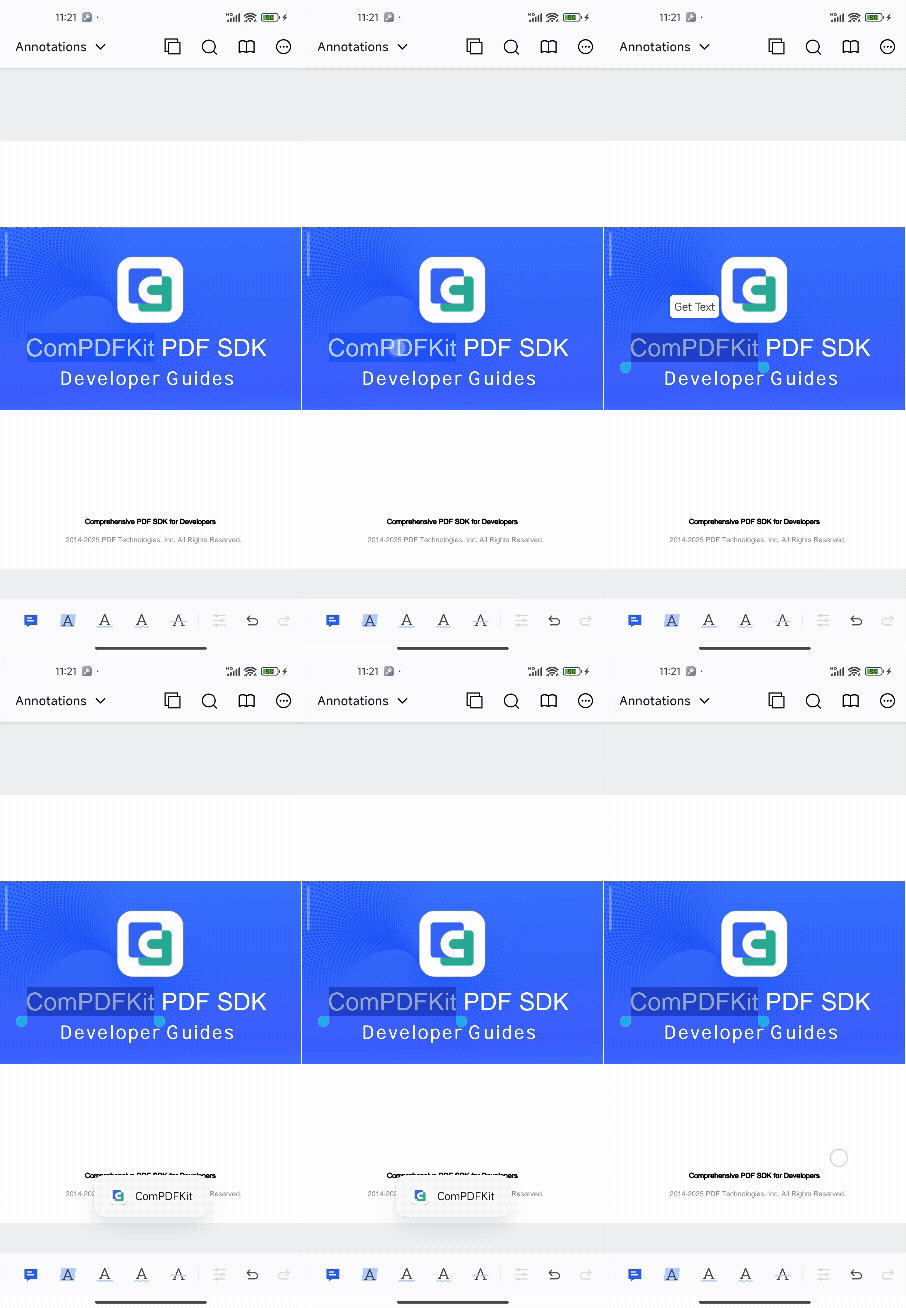
}在任意菜单场景中添加自定义按钮:
{
  "contextMenuConfig": {
    "annotationMode": {
      "markupContent": [
        { "key": "properties" },
        { "key": "note" },
        {
          "key": "custom",
          "identifier": "custom_markup_action_get_text",
          "title": "Get Text",
          "icon": "ic_test_get_text",
          "showType": "text"
        },
        { "key": "delete" }
      ]
    }
  }
}| 字段 | 说明 |
|---|---|
key | 自定义按钮必须为 "custom" |
identifier | 唯一标识符,在回调中区分不同按钮 |
title | 显示文本 |
icon | 图标资源名(需放在 res/drawable) |
showType | 显示方式:"text" 或 "icon" |
CPDFCustomEventCallbackHelper.getInstance().addCustomEventCallback(extraMap -> {
    String customEventType = extraMap.get(
        CPDFCustomEventField.CUSTOM_EVENT_TYPE).toString();
    if (CPDFCustomEventType.CONTEXT_MENU_ITEM_TAPPED.equals(customEventType)) {
        String identifier = extraMap.get(CPDFCustomEventField.IDENTIFIER).toString();
        switch (identifier) {
            case "custom_markup_action_get_text":
                CPDFAnnotation annotation = (CPDFAnnotation) extraMap.get(
                    CPDFCustomEventField.ANNOTATION);
                if (annotation instanceof CPDFMarkupAnnotation) {
                    String text = ((CPDFMarkupAnnotation) annotation).getMarkedText();
                    CToastUtil.showToast(getApplicationContext(), text);
                }
                break;
        }
    }
});CPDFCustomEventCallbackHelper.getInstance().addCustomEventCallback { extraMap ->
val customEventType = extraMap[CPDFCustomEventField.CUSTOM_EVENT_TYPE].toString()
if (CPDFCustomEventType.CONTEXT_MENU_ITEM_TAPPED == customEventType) {
val identifier = extraMap[CPDFCustomEventField.IDENTIFIER].toString()
when (identifier) {
"custom_markup_action_get_text" -> {
val annotation = extraMap[CPDFCustomEventField.ANNOTATION]
if (annotation is CPDFMarkupAnnotation) {
CToastUtil.showToast(applicationContext, annotation.markedText)
}
}
}
}
}