
PDF 生成模板编辑器
开源可视化 PDF 生成引擎,支持自定义模板,并提供面向开发者的 API,灵活构建文档生成流程。
除了配置预定义按钮外,ComPDFKit_Tools 还支持:
注意:一旦使用了
customToolbarLeftItems、customToolbarRightItems或customMoreMenuItems自定义配置,对应位置的toolbarLeftItems、toolbarRightItems、availableMenus将不再生效。
通过 customMoreMenuItems 可修改 More 菜单中已有按钮的图标和文本:
{
  "toolbarConfig": {
    "customMoreMenuItems": [
      {
        "action": "viewSettings",
        "icon": "ic_test_settings",
        "title": "Settings"
      },
      {
        "action": "save",
        "icon": "ic_test_save",
        "title": "保存文档"
      }
    ]
  }
}| 字段 | 说明 |
|---|---|
action | 对应预定义操作的 id(如 viewSettings、save、share 等) |
icon | 图标资源名称,需放置在 res/drawable 目录中 |
title | 菜单显示文本(仅在 customMoreMenuItems 中生效) |
action 支持的预定义值与 availableMenus 相同:viewSettings、documentEditor、documentInfo、save、watermark、security、flattened、share、openDocument、snip。
将 action 设为 "custom",并指定唯一的 identifier:
{
  "toolbarConfig": {
    "customToolbarLeftItems": [
      {
        "action": "custom",
        "identifier": "custom_download_action",
        "icon": "ic_test_download",
        "title": "Download"
      }
    ],
    "customToolbarRightItems": [],
    "customMoreMenuItems": []
  }
}| 字段 | 说明 |
|---|---|
action | 自定义按钮必须为 "custom" |
identifier | 唯一标识符,用于在回调中区分不同的自定义按钮 |
icon | 图标资源名称,需放置在 res/drawable 目录中 |
title | 按钮文本(customToolbarLeftItems / customToolbarRightItems 中仅显示图标) |
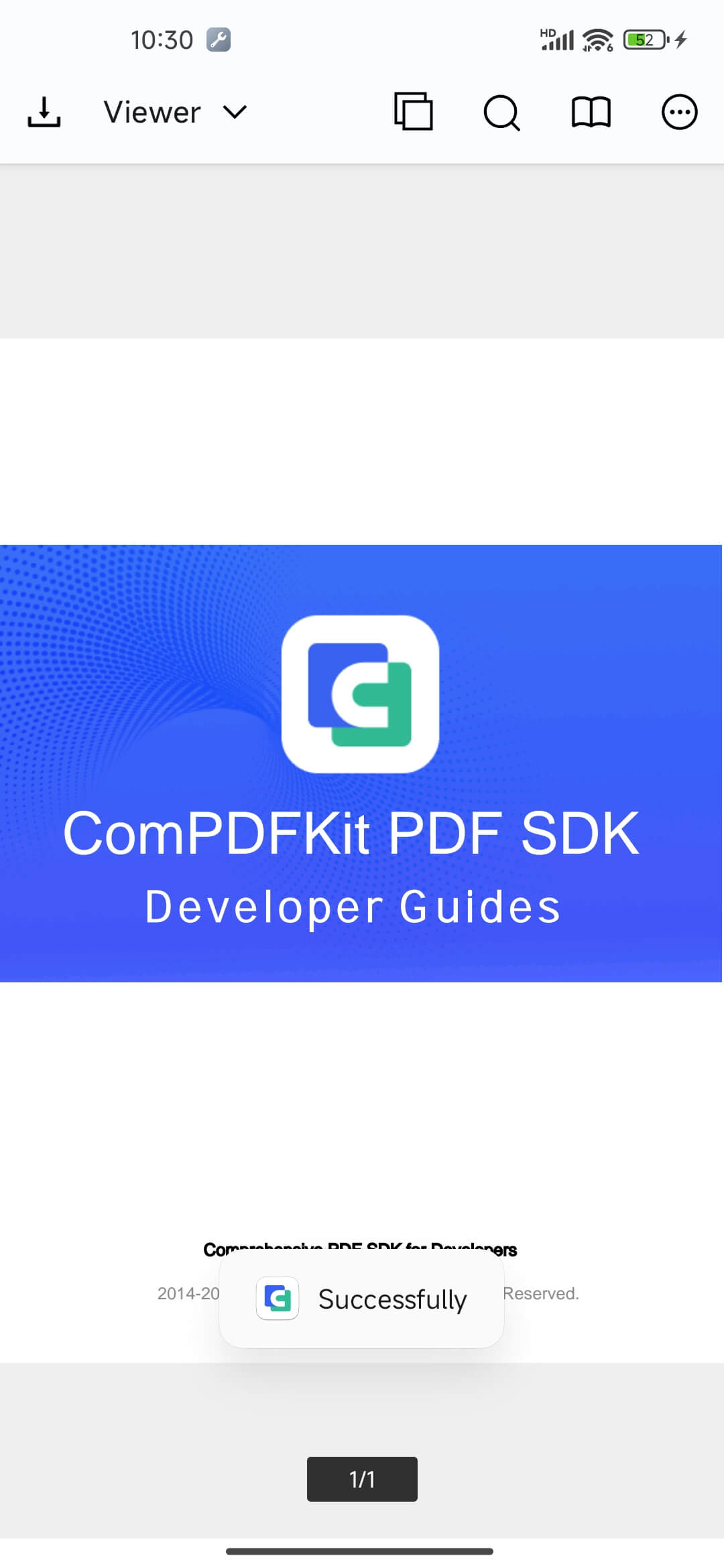
通过 CPDFCustomEventCallbackHelper 监听自定义按钮的点击事件:
CPDFDocumentFragment documentFragment = CPDFDocumentFragment.newInstance(
    uri, "password", configuration);
getSupportFragmentManager()
    .beginTransaction()
    .replace(R.id.fragment_container_view, documentFragment, "documentFragment")
    .commit();

// 添加回调
CPDFCustomEventCallbackHelper.getInstance().addCustomEventCallback(extraMap -> {
    String customEventType = extraMap.get(
        CPDFCustomEventField.CUSTOM_EVENT_TYPE).toString();
    if (CPDFCustomEventType.TOOLBAR_ITEM_TAPPED.equals(customEventType)) {
        String action = extraMap.get("identifier").toString();
        switch (action) {
            case "custom_download_action":
                CPDFViewCtrl pdfView = documentFragment.pdfView;
                pdfView.savePDF(false, true, (filePath, pdfUri) -> {
                    CToastUtil.showToast(getApplicationContext(), "保存成功");
                }, e -> { });
                break;
        }
    }
});

// 页面销毁时移除回调
@Override
protected void onDestroy() {
    super.onDestroy();
    CPDFCustomEventCallbackHelper.getInstance().removeCustomEventCallback(this);
}val documentFragment = CPDFDocumentFragment.newInstance(
uri, "password", configuration)
supportFragmentManager
.beginTransaction()
.replace(R.id.fragment_container_view, documentFragment, "documentFragment")
.commit()
CPDFCustomEventCallbackHelper.getInstance().addCustomEventCallback { extraMap ->
val customEventType = extraMap[CPDFCustomEventField.CUSTOM_EVENT_TYPE].toString()
if (CPDFCustomEventType.TOOLBAR_ITEM_TAPPED == customEventType) {
val action = extraMap["identifier"].toString()
when (action) {
"custom_download_action" -> {
documentFragment.pdfView.savePDF(false, true, { filePath, pdfUri ->
CToastUtil.showToast(applicationContext, "保存成功")
}, { })
}
}
}
}
override fun onDestroy() {
super.onDestroy()
CPDFCustomEventCallbackHelper.getInstance().removeCustomEventCallback(this)
}
以下示例展示了同时自定义左侧按钮、右侧按钮和 More 菜单:
{
  "toolbarConfig": {
    "customToolbarLeftItems": [
      {
        "action": "custom",
        "identifier": "custom_back",
        "icon": "ic_custom_back",
        "title": "返回"
      }
    ],
    "customToolbarRightItems": [
      {
        "action": "search",
        "icon": "ic_custom_search",
        "title": "搜索"
      },
      {
        "action": "custom",
        "identifier": "custom_share",
        "icon": "ic_custom_share",
        "title": "分享"
      }
    ],
    "customMoreMenuItems": [
      {
        "action": "save",
        "icon": "ic_custom_save",
        "title": "保存"
      },
      {
        "action": "custom",
        "identifier": "custom_print",
        "icon": "ic_custom_print",
        "title": "打印"
      }
    ]
  }
}